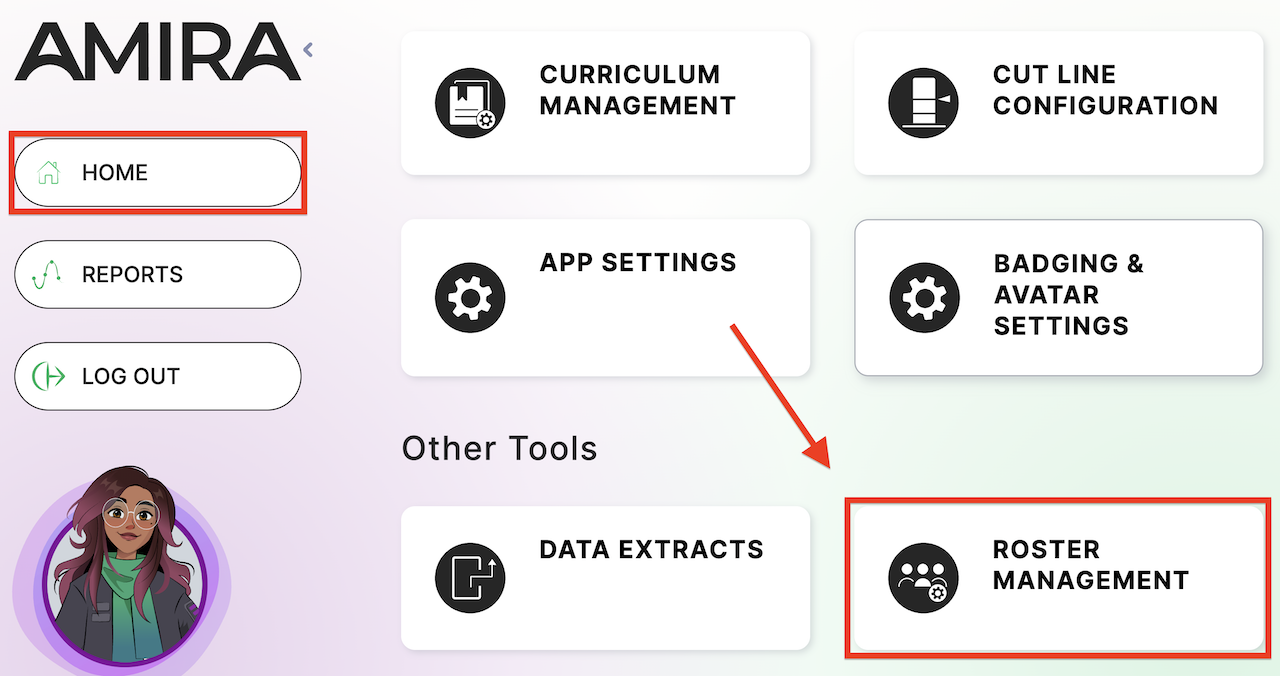
The Roster Management button provides easy access to the Import and Rostering options for your district or campus.
Important Note: Rostering is typically handled by the district data contact or the person appointed to handle importing rosters for the district. Please check in with your rostering team before proceeding.
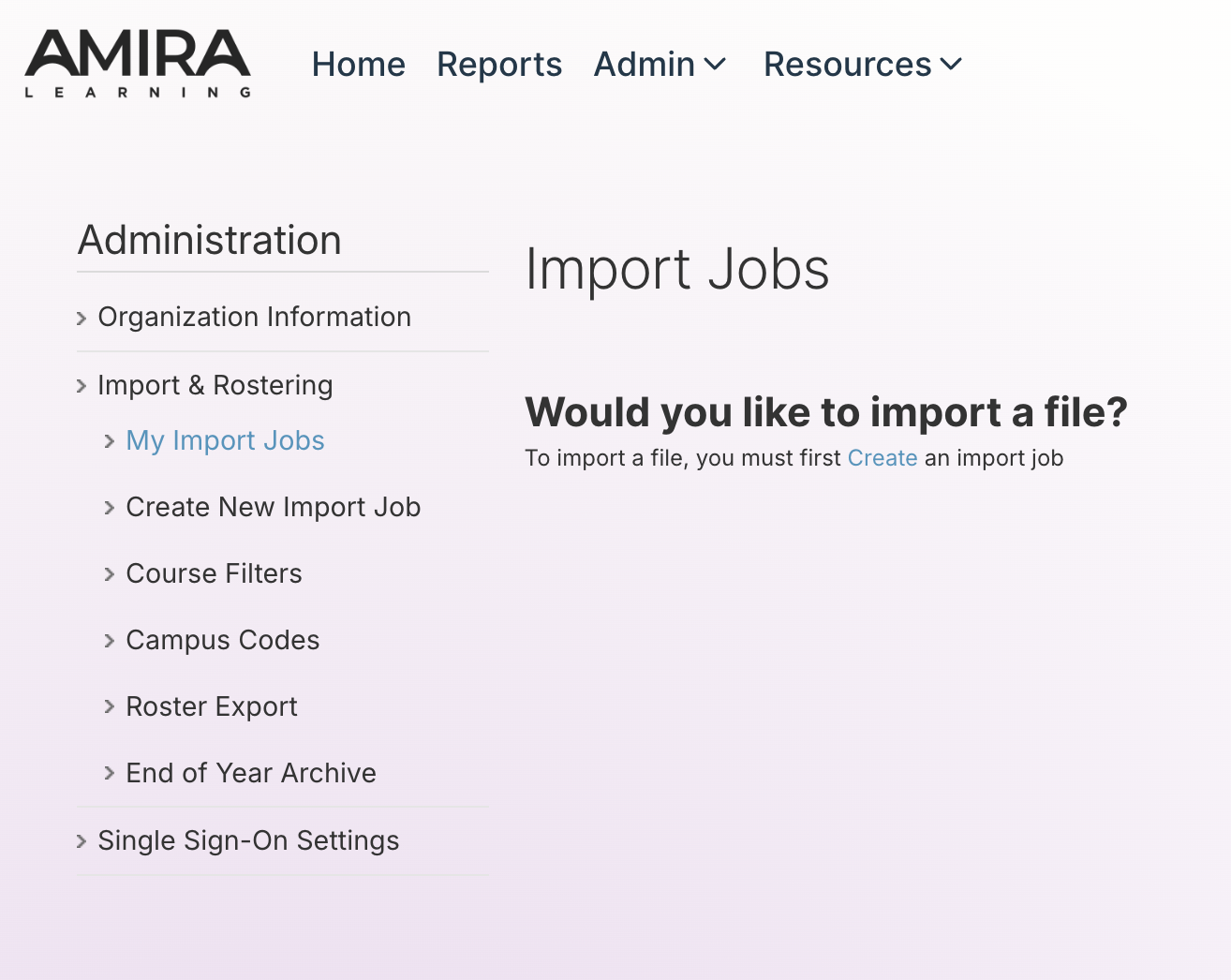
The Import & Rostering page contains the following options:
- My Import Jobs - Here you can review recent import jobs, pending jobs, and templates.
- Create New Import Job - Here you can manually upload a roster. A step-by-step guide for this feature is available here: Importing Managers, Teachers, Student Rosters and Demographics
- Course Filters - Here you can filter course names or class names to accept or reject. Utilizing this feature can eliminate unwanted classrooms.
- Campus Codes - Campus codes are necessary to identify a school or campus when processing imports. Learn more here.
- Roster Export - Provides an export of the student roster or the teacher/manager roster in a .csv file format. A guide is available here.
- End-of-the-Year Archive - This feature archives student and classroom rosters. It should only be used after the school year has finished, and if your district/campus hosts a Summer semester, it should only be used after the Summer semester has concluded. Additional guidance can found here.
Accessing Roster Management
Step 1: Select Home
Step 2: Under the Other Tools section, select Roster Management