Depending on your account level, you can manually add or remove other educator accounts.
- District Peer Managers can add or remove any educator account in the district, including other district managers
- District Managers can add or remove campus managers and teachers anywhere in the district.
- Campus Peer Managers can add or remove other campus managers and teachers at their campus.
- Campus Managers can add or remove teachers at their campus.
Adding and removing teachers will not affect the student or classroom data.
Amira Reading Suite
| Step 1: Log in to secure.app.amiralearning.com and select Amira Reading. | 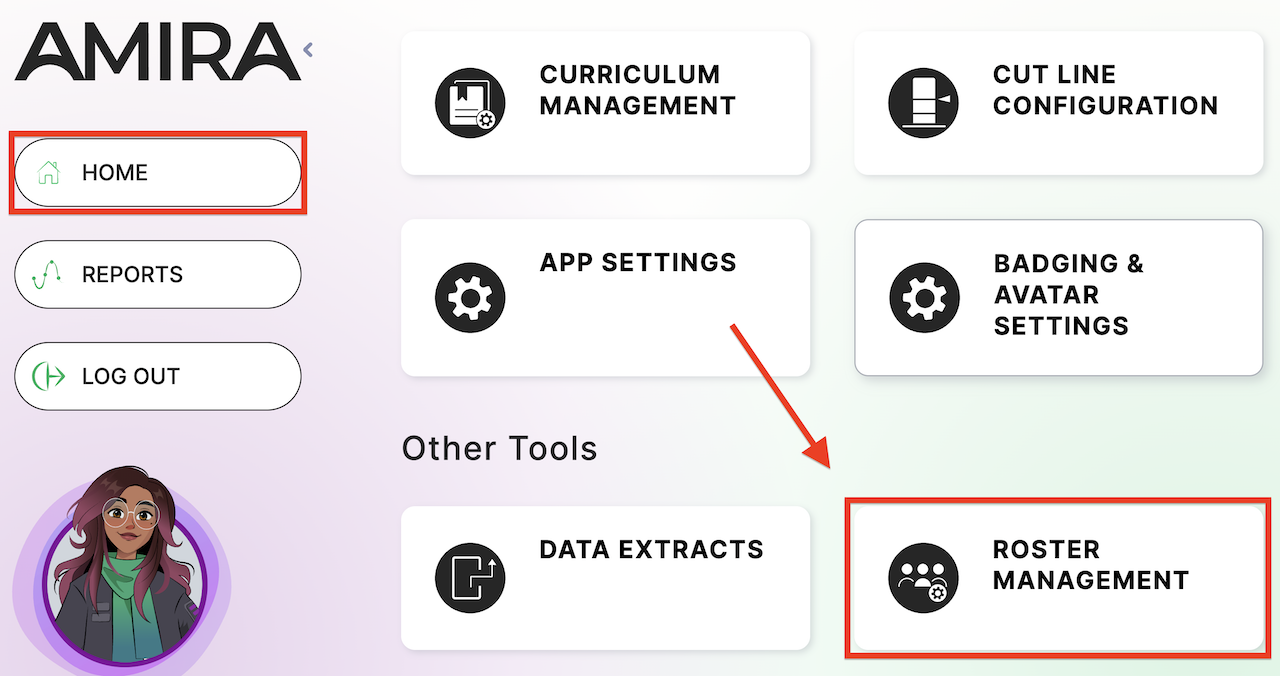 |
| Step 2: From your Home page, select Roster Management. | |
| Step 3a (District Admins): Select Organization Information. | 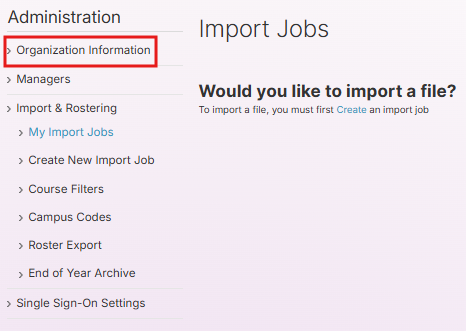 |
| Step 3b (Campus Admins): Expand the Campus tab at the top left and click Campus. | 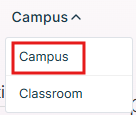 |
| Step 4: Select Managers or Teachers from the left column. |
|
| Step 5: Select Add/Remove. | 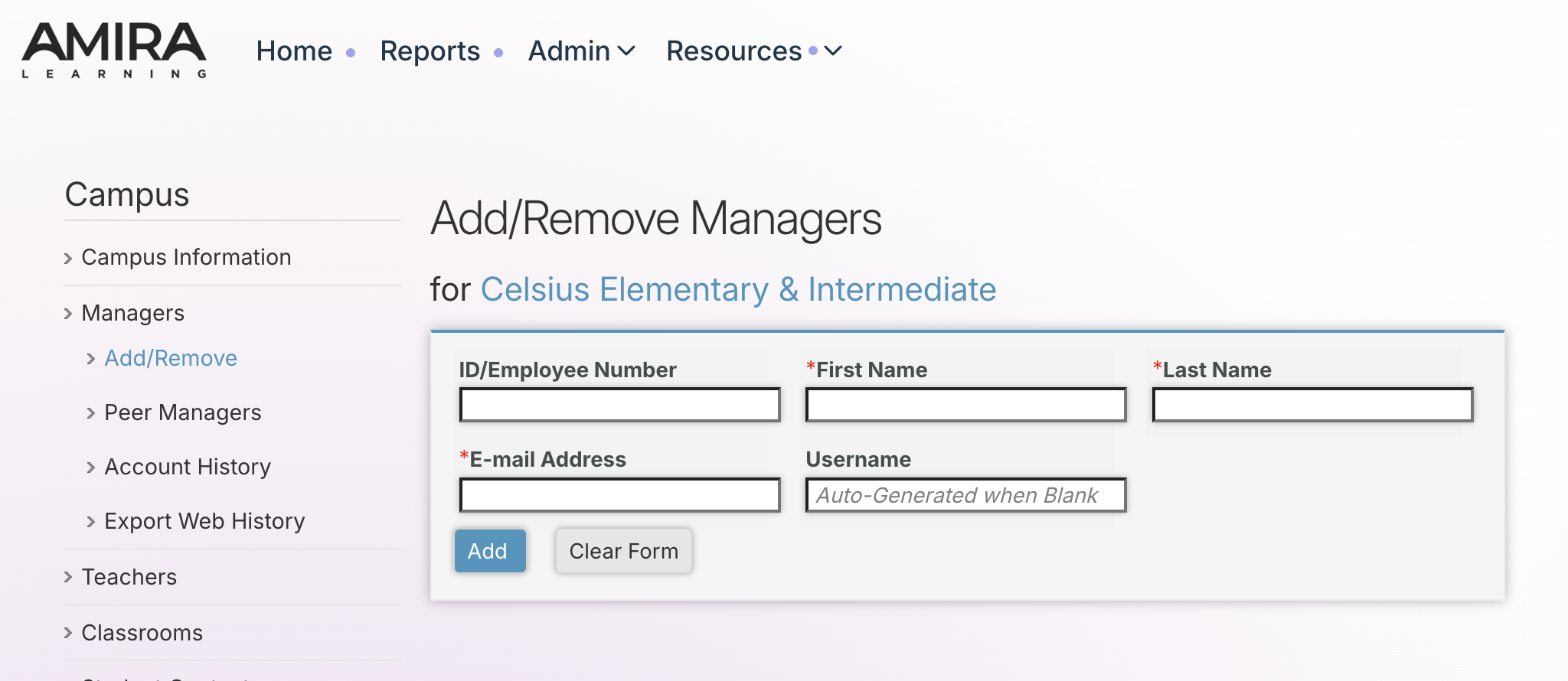 |
| Step 6: Enter the educator's ID or employee number, first name, last name, and email address. | |
| Step 7: Click Add. | |
|
To remove an educator: Step 8: Scroll down to find the educator to remove. | 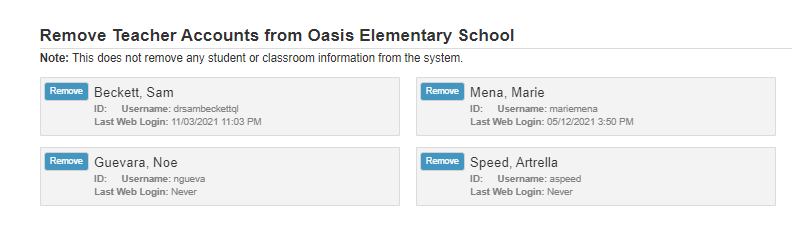 |
|
Step 9: Click Remove next to the name of the teacher. | 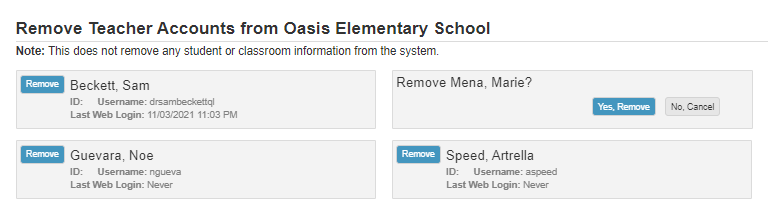 |
|
Step 10: Click Yes, Remove. |
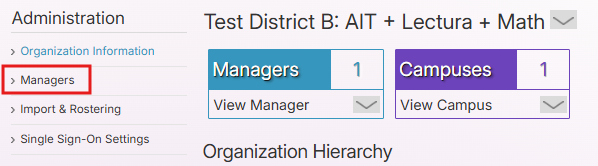
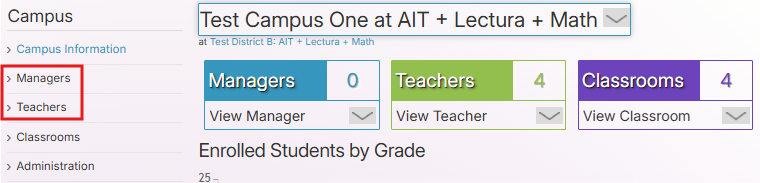
Lectura/Math
| Step 1: Log in to secure.app.amiralearning.com and select Lectura & Math. | |
| Step 2: Select the Admin or Campus tab. | |
| Step 3: Select Managers or Teachers from the left column. | |
| Step 4: Select Add/Remove. | |
| Step 5: Enter the educator's ID or employee number, first name, last name, and email address. | |
| Step 6: Click Add. | |
|
To remove a Manager or Teacher: Step 7: Scroll down to find the educator to remove. | |
|
Step 8: Click Remove next to the name of the teacher. | |
| Step 9: Click Yes, Remove. |