The Progress Report displays each individual student's performance over time across assessments and practice sessions along with a projection of expected performance tied to key metrics. The Progress Report can be used to analyze a student's reading behaviors across multiple practice or assessment sessions, track growth, and set goals.
View a walkthrough of the Progress Report
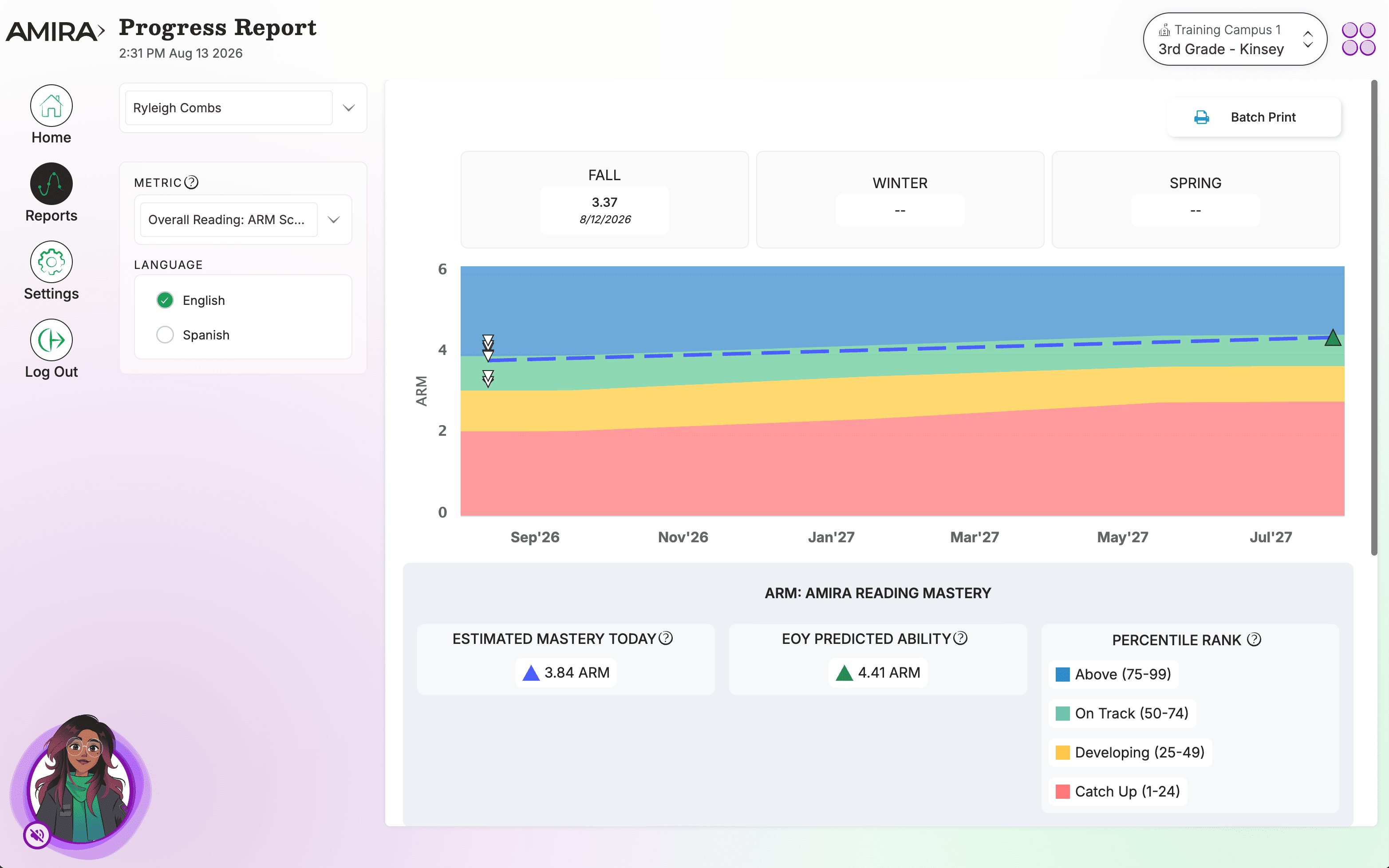
What You'll See
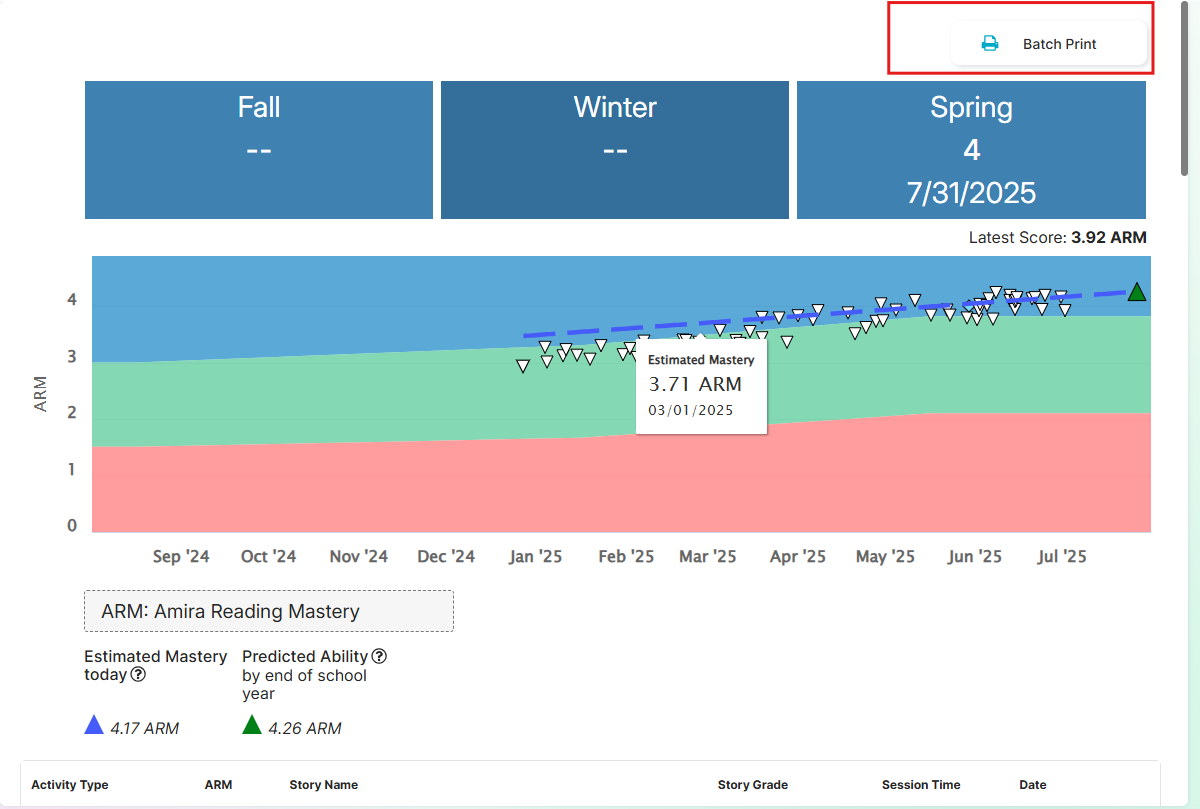
Metrics: Use the sidebar to change the display for different metrics.
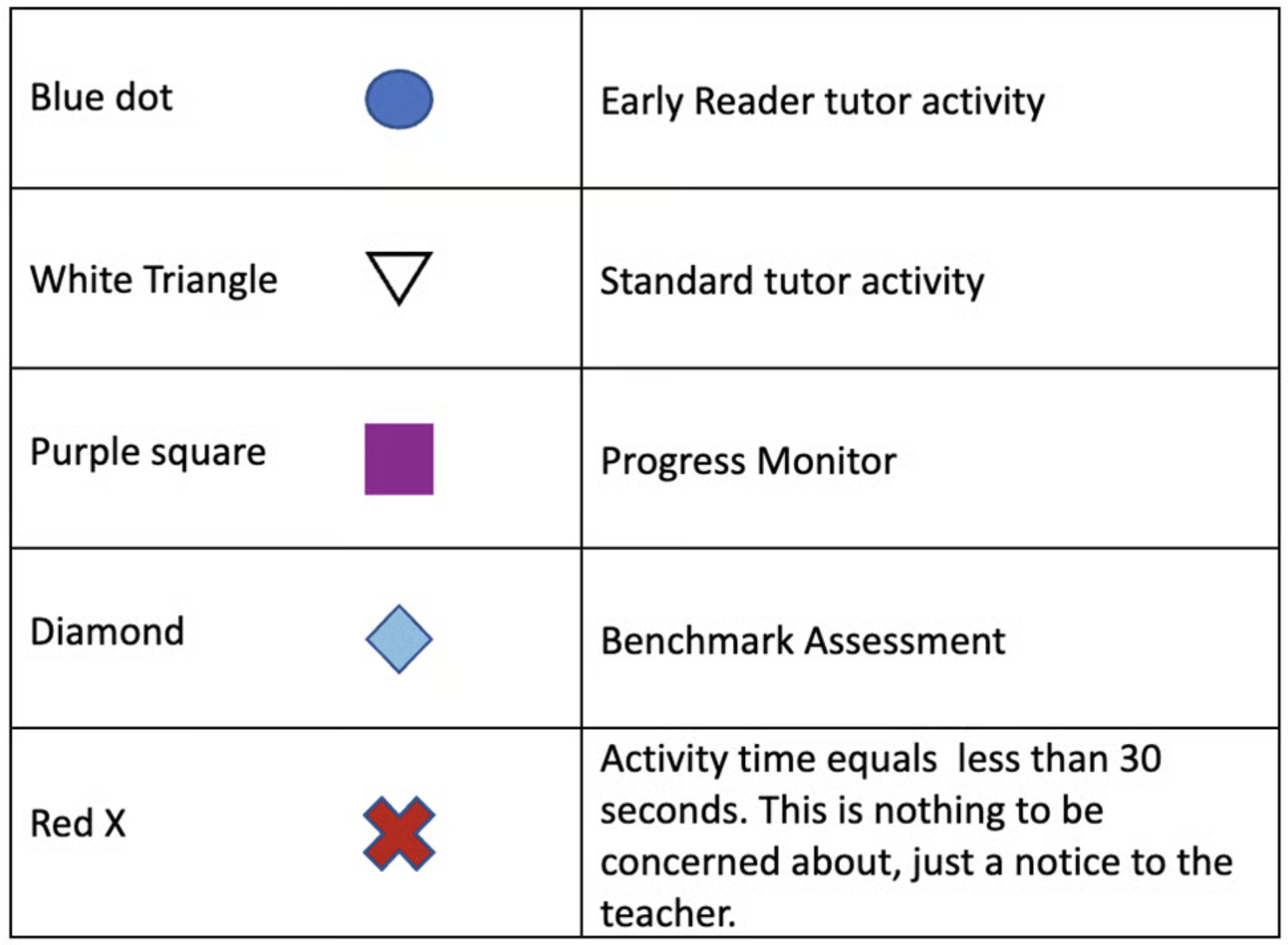
Progress Graph: Each dot on the graph represents one assessment or practice session. Hover over the symbol to view the ARM Score for that session, or click on the symbol to review the activity. Student performance can be tracked by paying careful attention to which dots represent an assessment (controlled and timed) and Practice/Tutor (fluid and flexible).
Estimated Mastery: Read Progress Monitoring: Estimated Mastery for more details.
- The Progress Line in the Progress Report is the focal point for each student’s current and predicted progress.
- This Progress Line is calculated from all the data available. Screening data, Benchmark Assessment, monthly Progress Monitors, Practice and Skills Scaffold sessions will all be used in concert to calculate a student’s current and EOY mastery.
- The Progress Line uses a sophisticated algorithm, built on Amira’s experience with a vast population of students, to estimate each student’s projected growth trajectory
- Progress Lines will now work better for students in the Early Reader Skills Scaffold.
- Equivalent For Spanish & English
Latest Score: The progress report shows every student's most recent ARM score.
If you see this icon  in the score boxes, it indicates that your student has taken a new assessment and that the scores from that assessment are still pending. Please check the ISIP Asses Status widget for more info on your student's pending assessment.
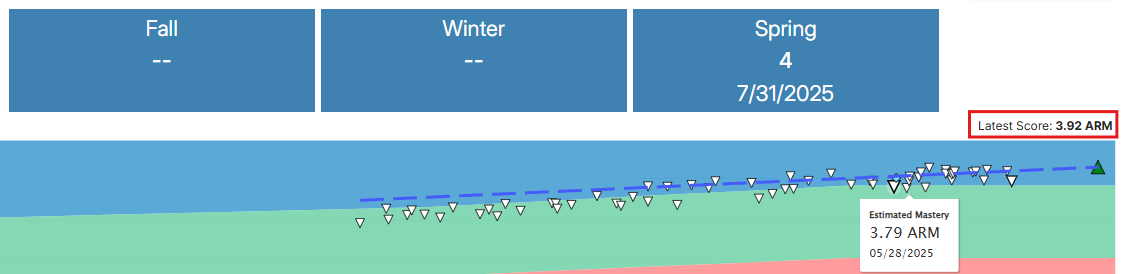
What is the number next to my student's score at the Top of the Progress Report?
The numbers to the right of a student's score at the top of the Progress Report indicate a student's window over window assessment score growth.
Activity Details Table
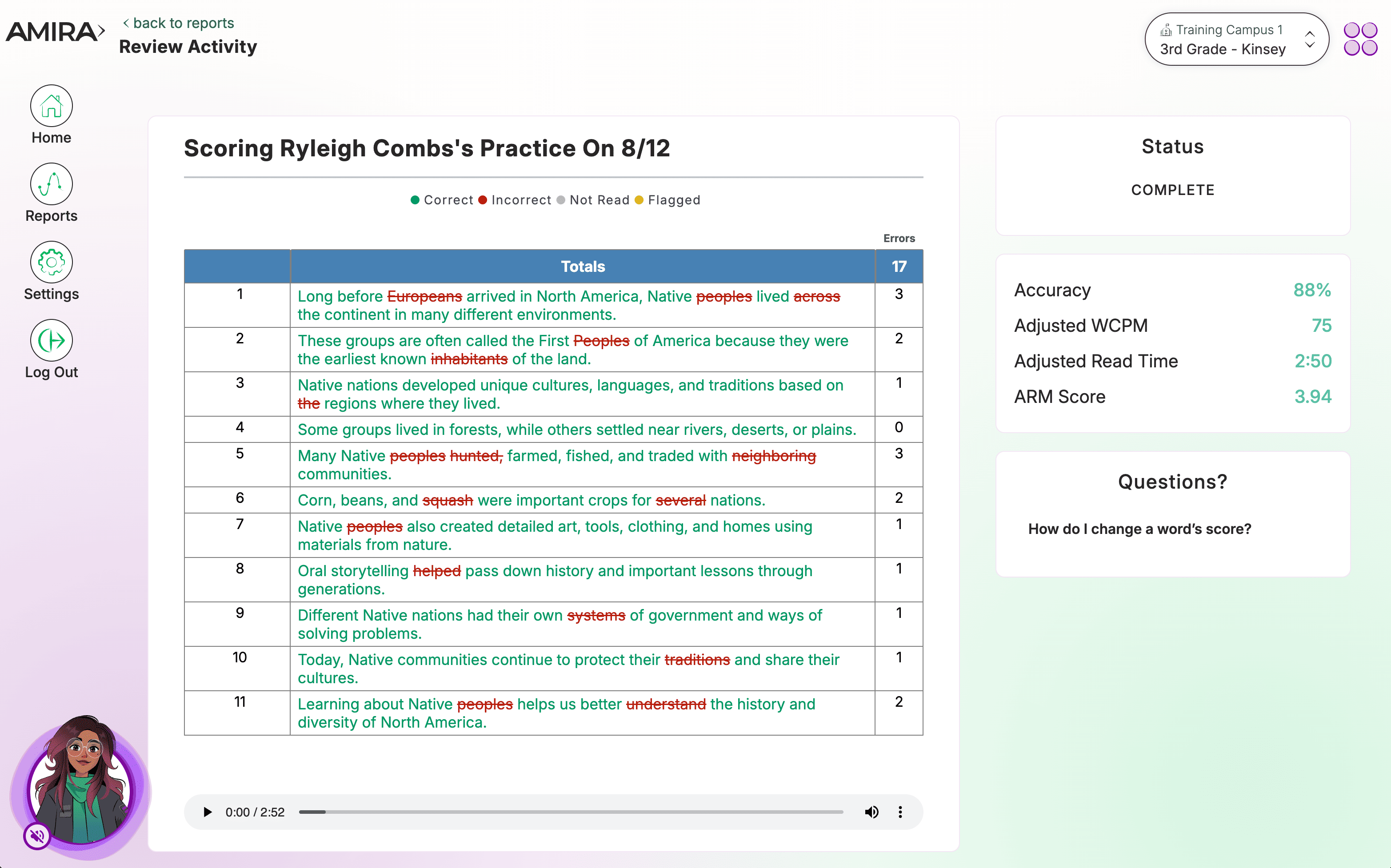
Below the progress graph is a table listing all activities the student has completed within the current school year, ordered from most recent to least recent. Use the Score Configuration options in the sidebar to update the metric and scale displayed in the table. Additionally, click on an Activity Type (Assessment or Tutor) to open the Scoring Activity screen to listen to and/or rescore a student's reading.
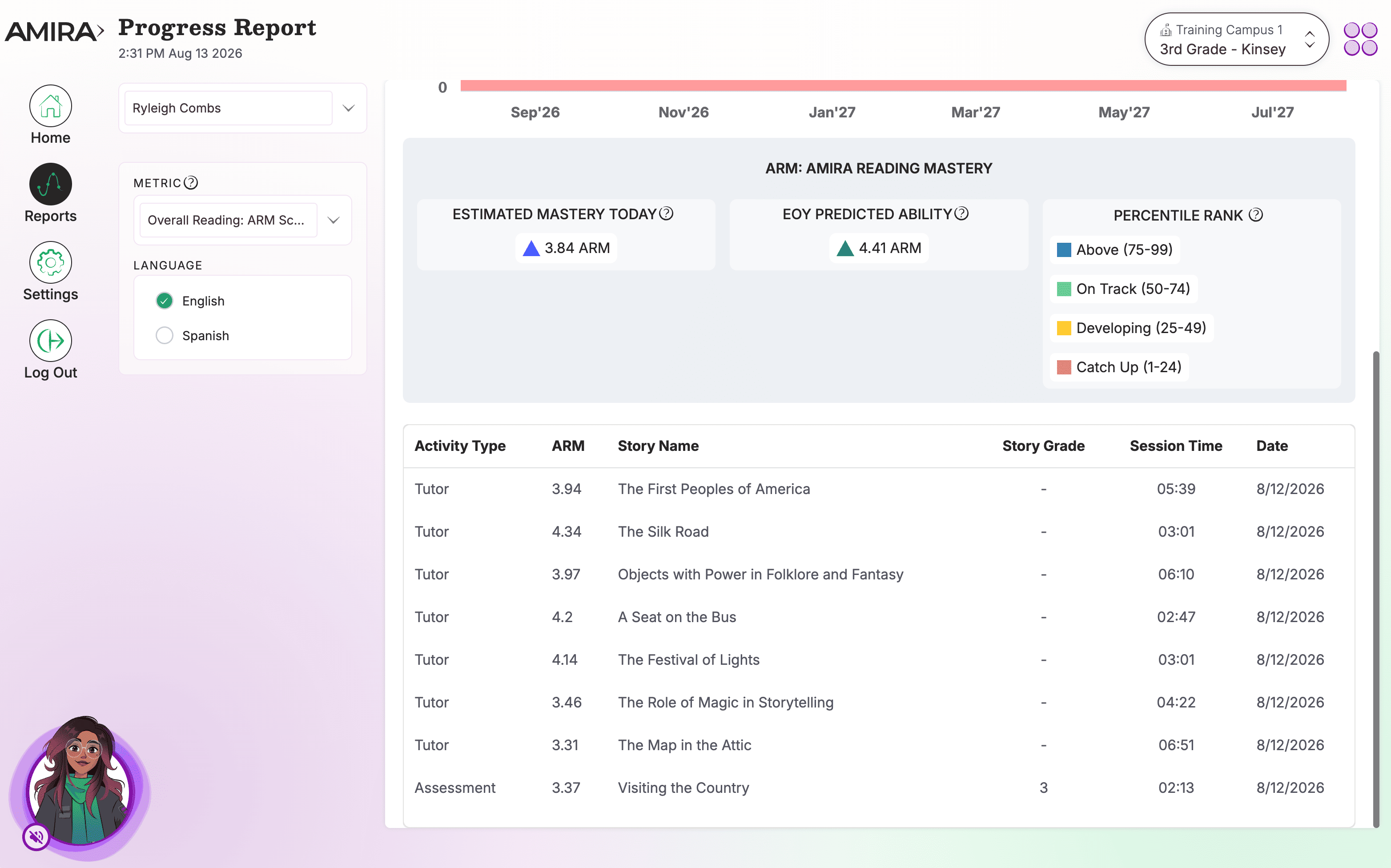
Click on any Tutor story or Assessment to review a scored transcript of the activity and listen to a recording of the session.
Walkthrough: How to Listen to a Recording
Comprehension Conversations: Teachers can view the results of a student's Comprehension Conversation intervention within the Progress Report. When a student completes an activity that includes a comprehension conversation, an icon will appear next to the story title.
Walkthrough: How to View Comprehension Conversation Reporting
**The Progress Report will currently show the latest 600 activities (Assessment or Practice) starting from the beginning of the school year.
Batch Printing the Progress Report: Clicking "Batch Print" will generate a printable PDF for the entire class.
How to Use This Report
Use this report to monitor reading growth over time, identify performance trends, review specific reading sessions and recordings, and provide targeted feedback to individual students.
Data Source(s): Amira Assess, Amira Tutor, Amira Instruct
Update Frequency: Practice data updates in near real time; assessment data updates within 24 hours.
Related Resources
- Progress Report Walkthrough
- How To Listen to a Recording
- Comprehension Conversation Reporting
- Reporting Guide
- Teacher Reports Reference Guide