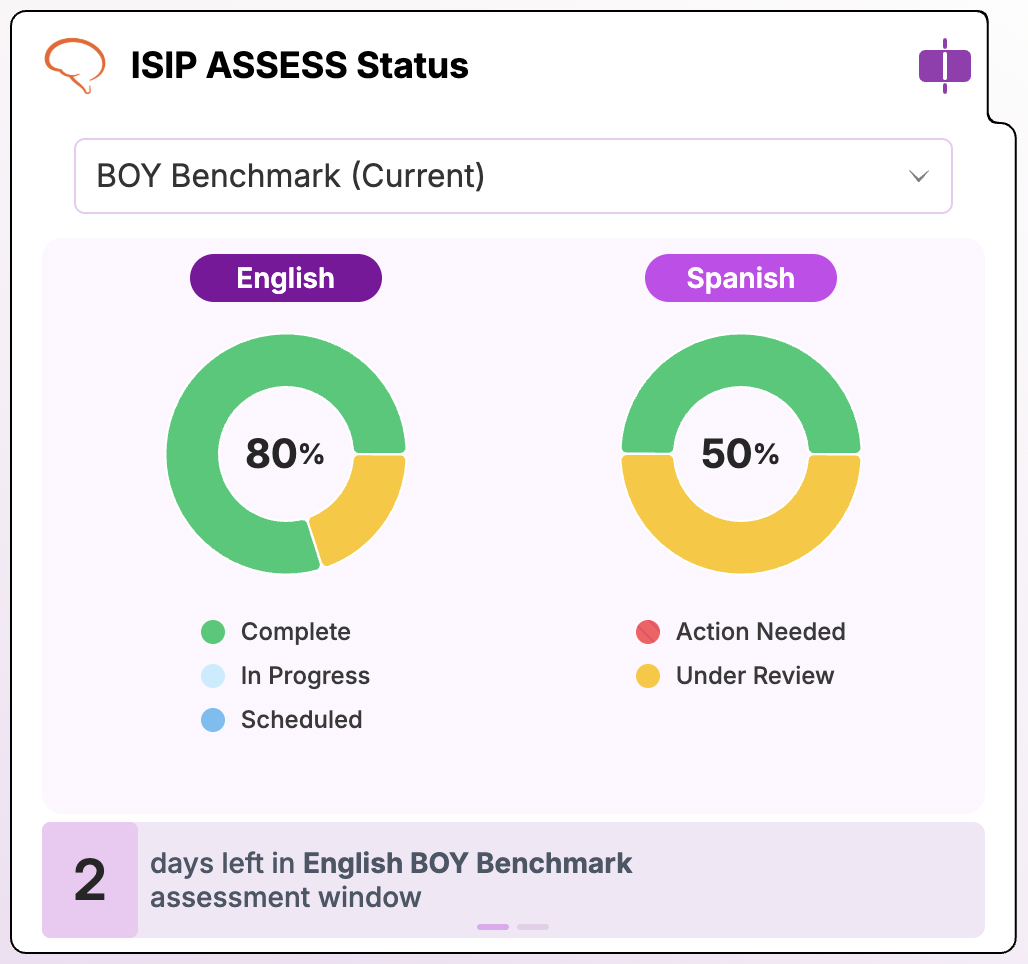
The ISIP Assess Status widget on the Growth Dashboard give teachers an at-a-glance view of student assessment completion, statuses, and results, and let them assign or unassign assessments directly from the dashboard.
View a walkthrough of the Growth Dashboard here.
Manually Assigning and Unassigning Assessments
Walkthrough: How to Assign an Assessment
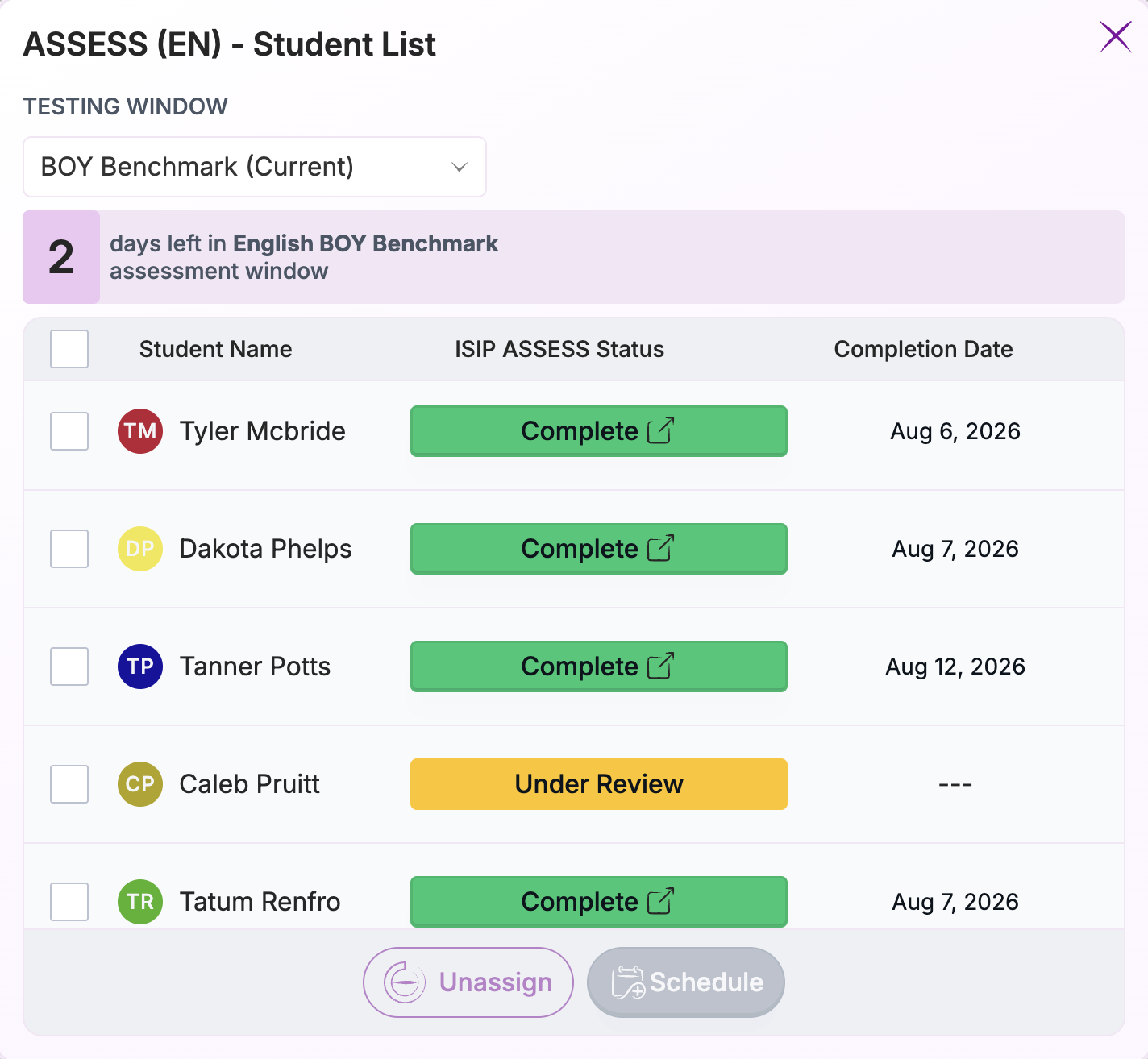
Getting started: Whether assigning or unassigning an assessment, start by clicking the ISIP Assess Status widget. To assign an assessment in English, click the English graph. To assign an assessment in Spanish, click the Spanish graph.
Assigning an Assessment
- Select one or more students, or the whole class.
- Click Schedule.
- Choose Full Assessment or Subtest Assessment. Note: Students must have completed at least one full assessment in the current school year for a Subtest Assessment to be available.
- Configure the assessment details:
- Full Assessment: Select the Assessment Type and the Instructions Language for English assessment tasks (Spanish assessment tasks always have Spanish instructions).
- Subtest Assessment: Select the subtest(s) you'd like to assign.
- Click Submit to schedule the assessment.
Unassigning an Assessment
- Select one or more students, or the whole class.
- Click Unassign.
Assessment Completion and Statuses
Teachers use the ISIP Assess Status widget on their Growth Dashboard to view overall Assessment Completion and expand the tile to see each student's individual Assessment Status.
- View the Assessment Completion percentage within the ISIP Assess Status widget.
- Click on the English graph to view English assessment status. Click on the Spanish graph to view Spanish assessment status.
Assessment Status Definitions
| Status | Description |
|---|---|
| Unassessed | No assessment assigned. The student will be in practice mode if they log in. |
| District/School Scheduled | A screening window is active. An assessment will automatically be assigned to the student the next time they log in during the active window. |
| Scheduled | An assessment was assigned to the student's account and will be given the next time they log in. |
| In Progress | The student started the assessment but has not yet completed it. |
| Scoring | The student completed the assessment and scores are processing. Scoring can take up to 24 hours. |
| Under Review | The assessment has been flagged for review by Amira staff. Status will update within three business days, not including the day of the assessment. |
| Manual Review | The assessment should be reviewed by the teacher, listen to the recording in the Progress Report and reassess if needed. |
| Completed MM/DD | Assessment completed on this date, and the student successfully read an ORF passage. |
| Early Reader | Assessment completed, but the student was unable to read the Kindergarten ORF passage, or read it with a score of 7 WCPM or lower, and has been marked as a pre-reader. |
| Reassess | A valid score could not be generated from the student's data. If the assessment was district-assigned, the student will automatically retake it the next time they log in. If not, the teacher must manually reassign it. |
| Score entered | Scores have been manually submitted for a student's paper-and-pencil assessment. |
District or Campus-Assigned Assessment Windows
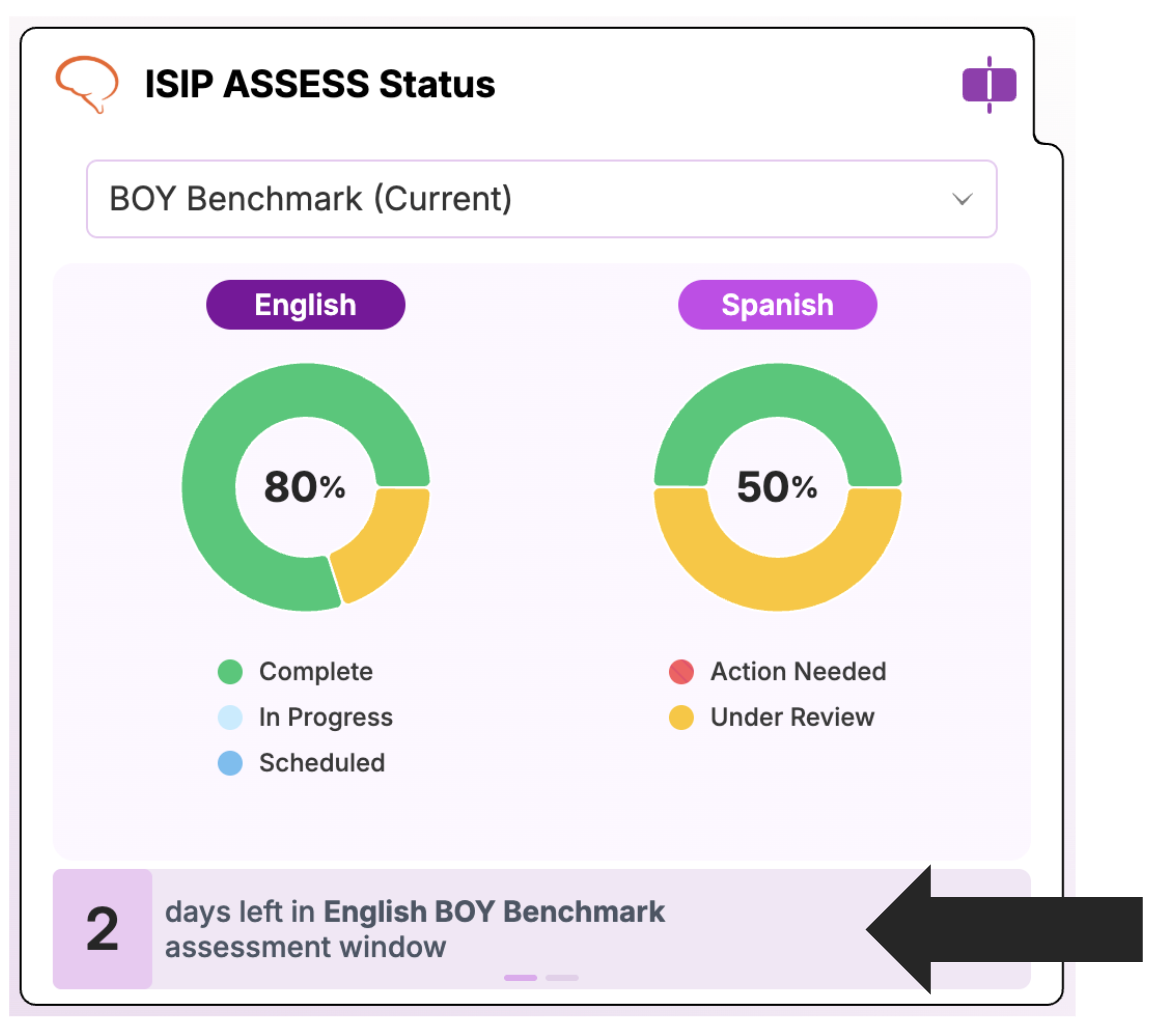
When a district or campus sets up a screening window, teachers don't need to take any action to assign the assessment, students will automatically receive it the first time they log in during the active window. This is reflected in the District/School Scheduled status on the ISIP Assess Status widget.
Teachers only need to manually assign an assessment as described above when:
- The district hasn't set up a screening window for that period, or
- A teacher needs to assign an assessment outside of the district's window (e.g., for reassessment or a new student).
If a student is marked Reassess during a district-assigned window, they'll automatically be given the assessment again the next time they log in, no manual reassignment needed.
Assessment Results
Teachers use the ISIP Assess Outcomes widget on their Growth Dashboard to view assessment results and can click the tile to open the related report.
- View a quick overview of student results in the ISIP Assess Outcomes widget. Use the dropdown menu to switch between ISIP Assess Classification and Reading Risk views.
- Click the widget to generate the related report:
- ISIP Assess Classification opens the Benchmark Report.
- Reading Risk opens the Reading Risk Report.