School and District Admins can export each student's most recent Dyslexia Screener and/or Benchmark assessment data as a CSV from the Data Extracts tool. The export includes the latest assessment results (not full history) and assessment data only (not practice data), and may include duplicate rows that need to be cleaned up.
Things to consider
- You must be a School Admin or District Admin to export data.
- Only assessment data is included in the export, practice data is not available.
- The exported file may contain duplicate student data rows that you'll need to clean up.
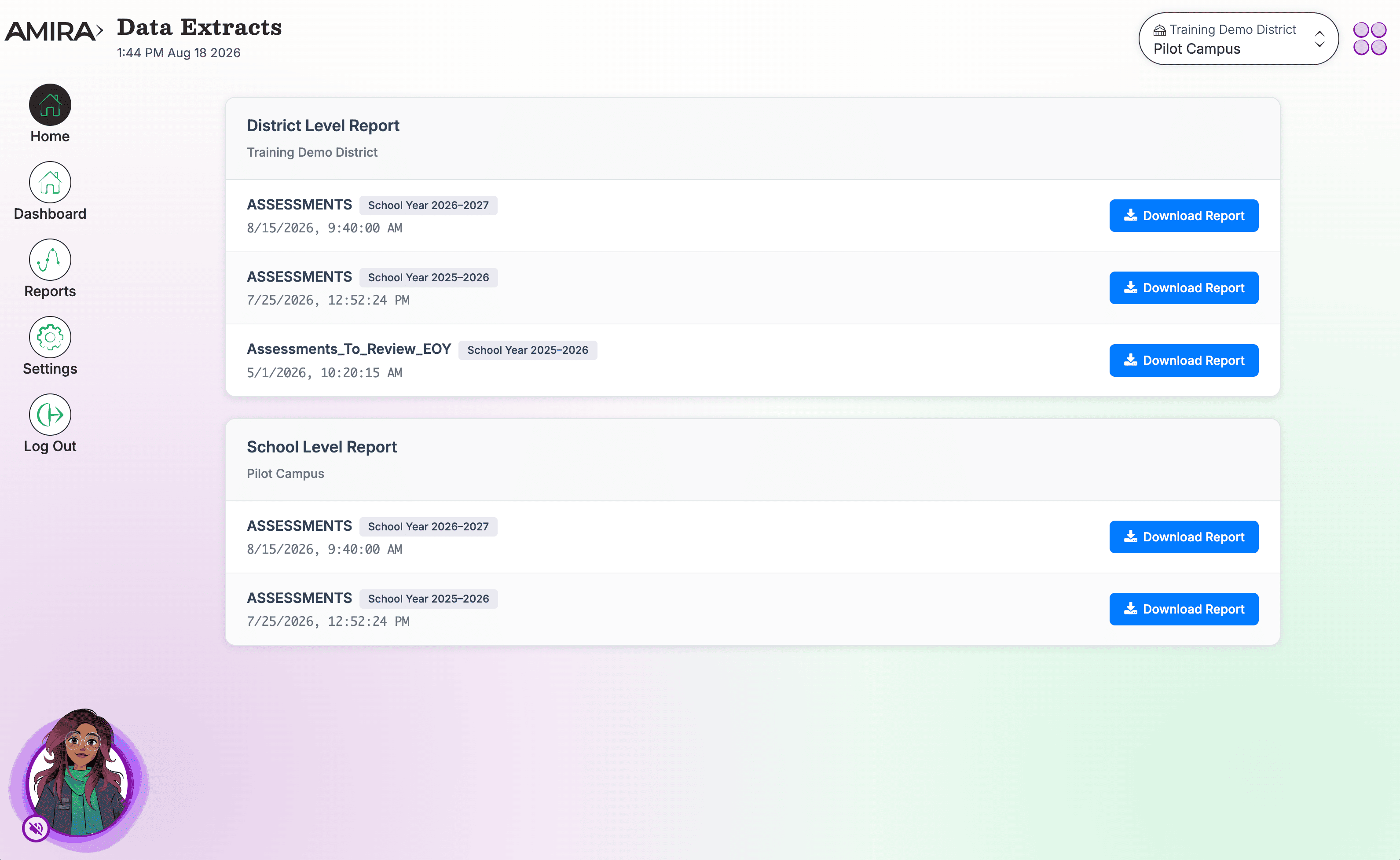
How to Export District or School-Level Assessment Data
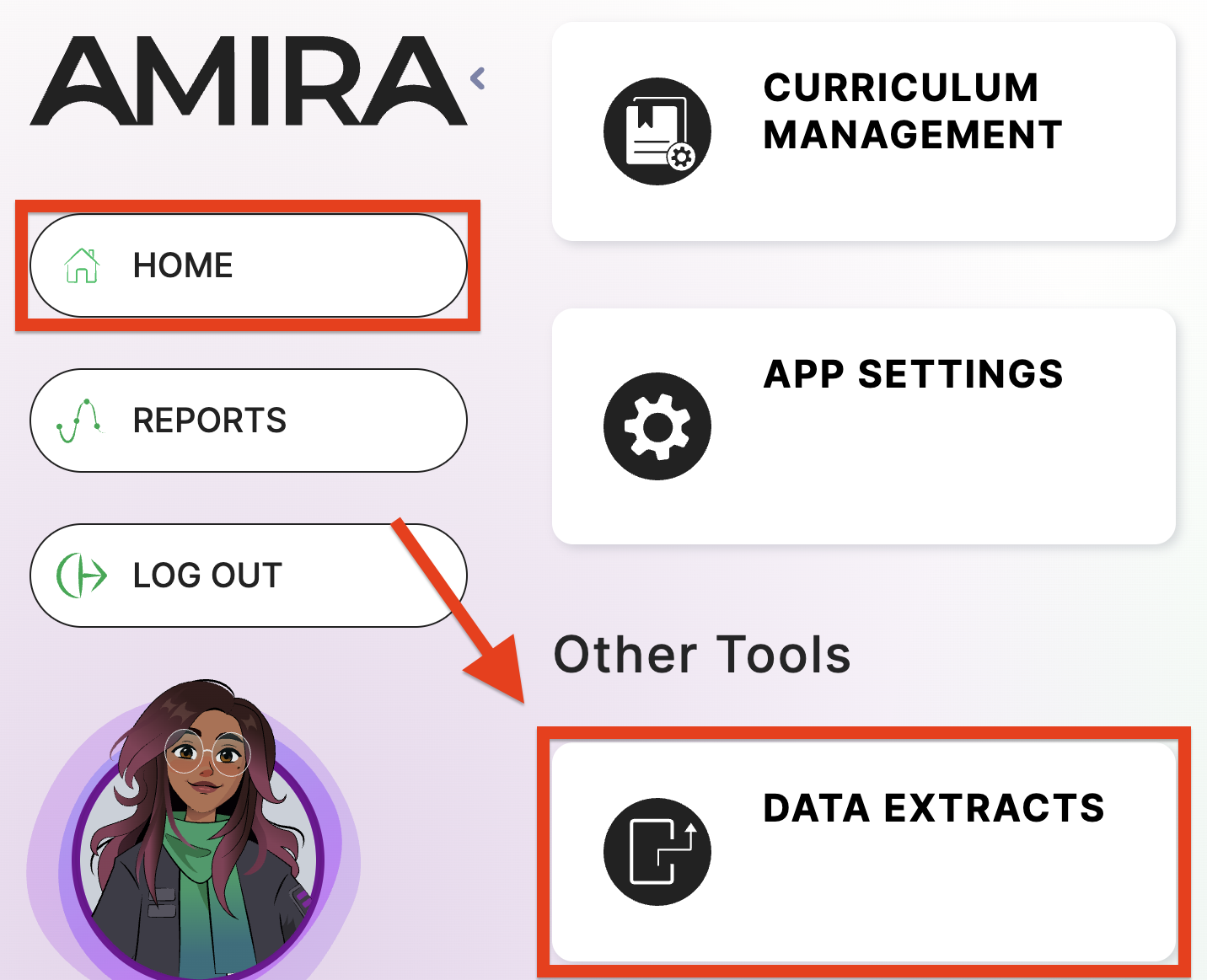
Step 1: Select Home.
Step 2: Under Other Tools, select Data Extracts.
What data is included in the export?
The export includes each student's latest Dyslexia Screener and/or Benchmark Assessment data. Note that this is not a full history, only the most recent assessment results are included.
The CSV will include (among others) the following columns:
- School
- Class
- Grade
- Assessment Date
- Student ID
- Sourced ID
- First Name
- Last Name
- Language
- Activity ID
- WCPM Score
- Adjusted WCPM Score
- ARM Score
- ESRI Score
- Vocab Size
- Phonetic Awareness Score
- Dyslexia Risk Category
- Dyslexia Risk Indicator
- Estimated Mastery

When an extract has more than one ID field populated, the team can provide an ID crosswalk. Please email support@amiralearning.com to request one, and include someone at the district who can authorize the change.