This tile is where administrators customize the Amira ISIP Assessment and Amira Evaluar to match district goals, state requirements, and student needs, choosing an assessment profile, selecting which subtests students take, setting language and accommodation rules, and controlling who can edit these settings. Because it shapes nearly every part of the student assessment experience, it's usually the first tile configured during setup and the one most worth reviewing carefully before each testing window.
Walkthrough: Assessment Configuration
What it does
- Sets the overall assessment profile (state-specific or Amira Standard)
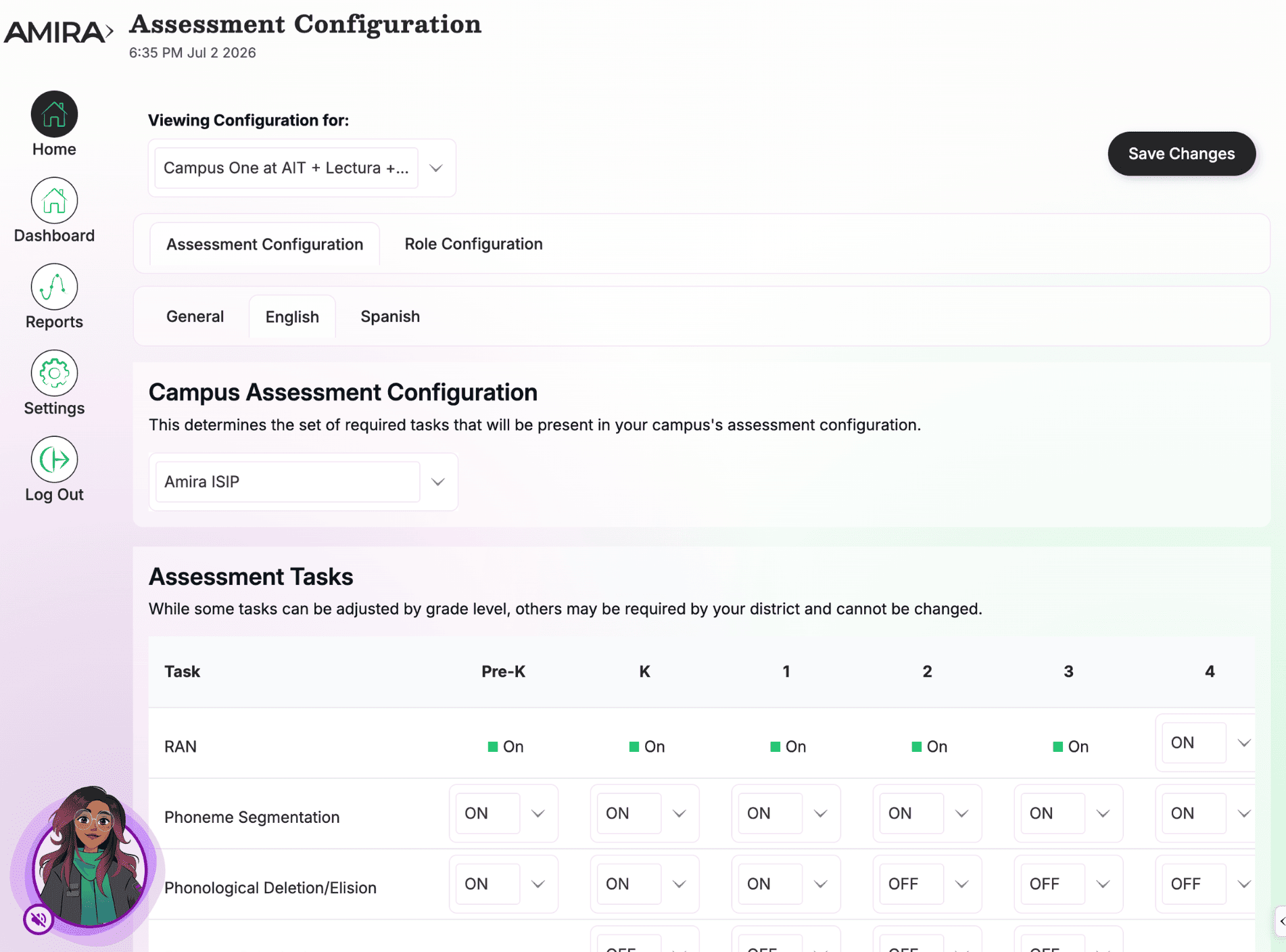
- Controls which subtests/tasks students complete, by grade
- Configures the RAN task type for K, 1 students for English assessments
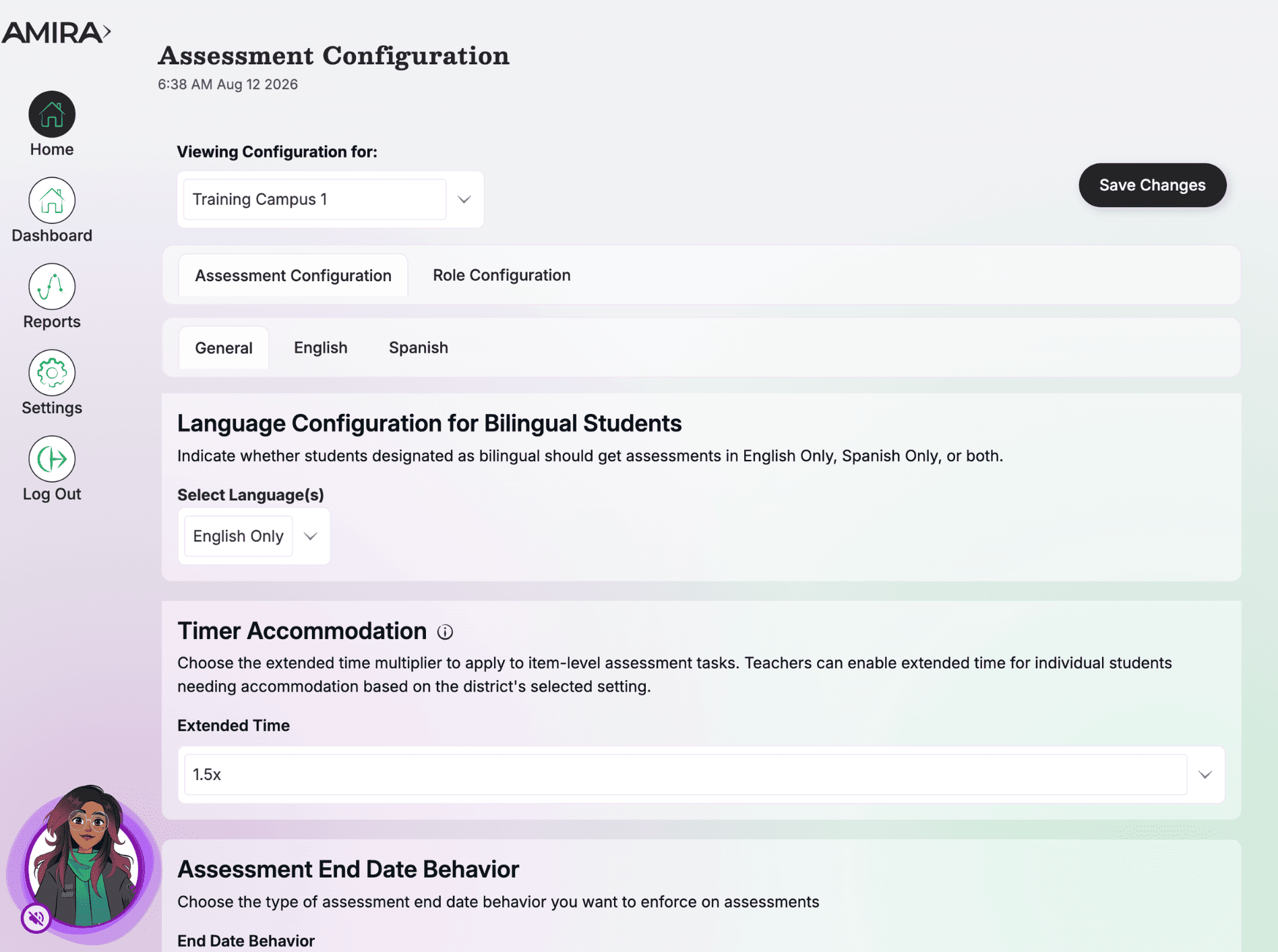
- Sets language rules for bilingual students
- Applies extended-time multiplier
- Controls assessment expiration behavior
- Sets role-based permissions for who can edit these settings
When to use it
- Before your first testing window opens
- Anytime state screening requirements change
- When your district adopts or updates a dual-language/bilingual model
- ⚠ Avoid changing mid-window, it creates mixed, inconsistent data
What's inside
- General Tab: Sets district-wide defaults, the extended-time multiplier (1.25x/1.5x/1.75x), and whether standard and on-demand assessments stay open through the school year or close at the end of their window.
- English Tab: Sets the required task blueprint for the English assessment and the RAN Primary/Secondary task type for K, 1. Turning tasks off can create compliance/reporting gaps; turning tasks on adds test time.
- Spanish Tab: Same setup as the English tab, applied to the Amira Evaluar assessment.
- Role Configuration Tab: Sets which roles (District Admin, Campus Admin, Teacher) can edit vs. only view settings like screening windows, end-date behavior, accommodations, student language, and rescoring.
Note: Be sure to click Save Changes in the upper right-hand corner of the report before navigating to another tab or report.