Create a Template
To process regular roster updates, you may use SFTP or FTPS to send us your CSV files for automated processing. Before doing so, we need you to create an FTP template on our site, so we know how to interpret your CSV files.
To set up the FTP template, please follow the steps below:
Step 1: Log In
Log into our website: secure.app.amiralearning.com
Step 2: Upload Files
Upload Files:
Select the Admin tab in the navigation bar.
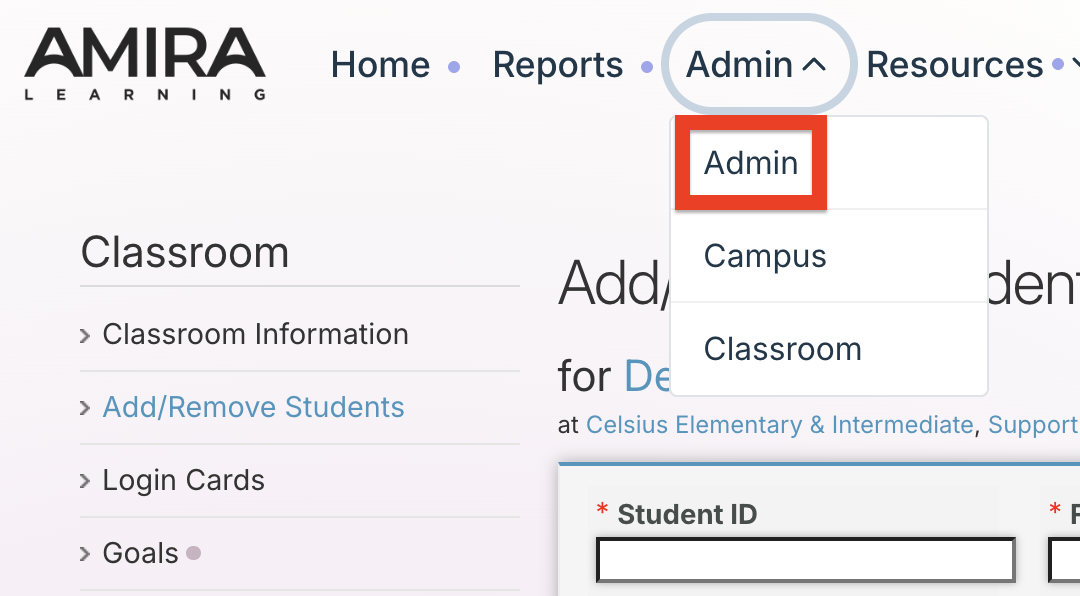
Select Import and Roster Management on the left-hand side, then Create New Import Job and choose the type of import you will be utilizing.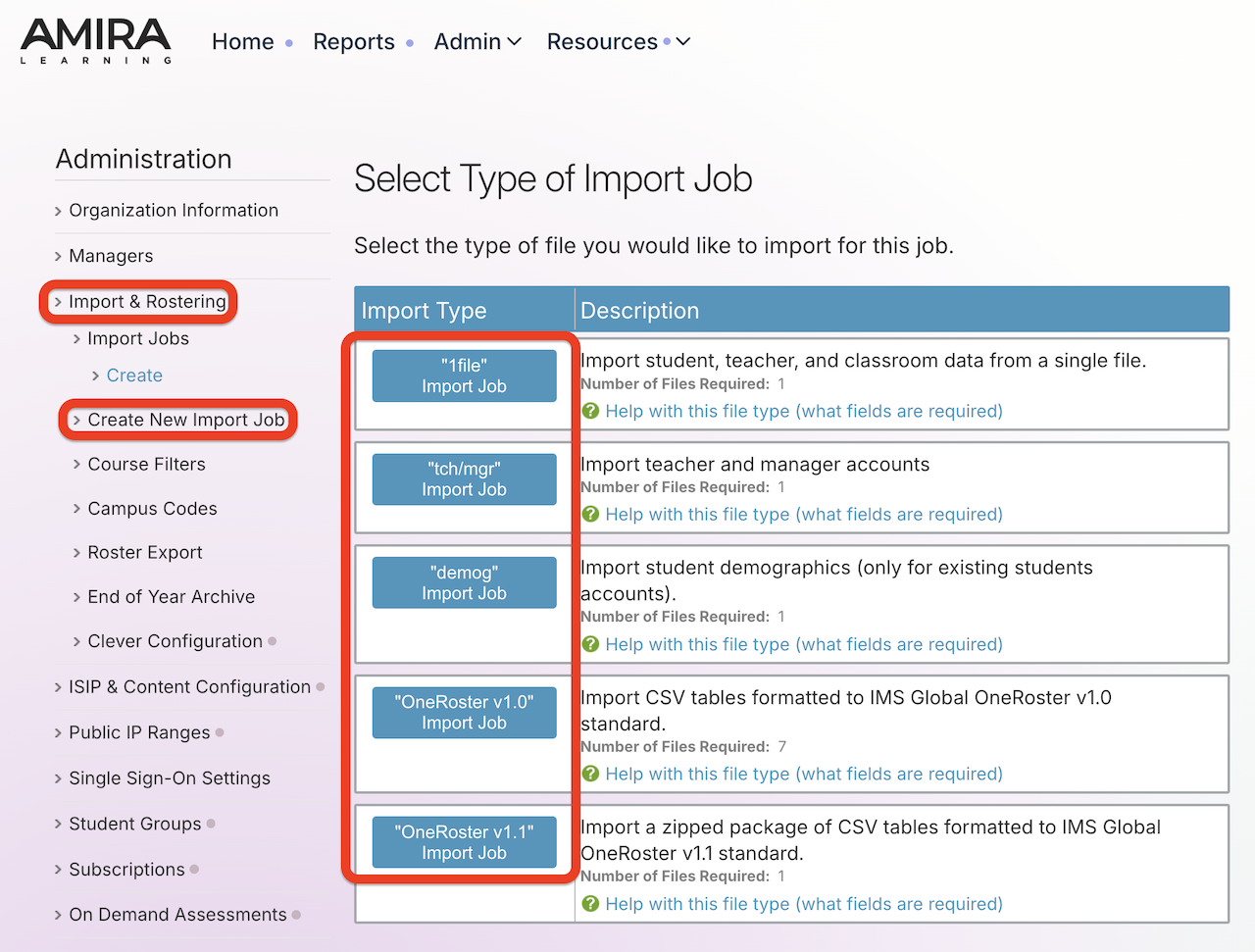
For additional details on import types, view the Import Job Types and Data Dictionary article.
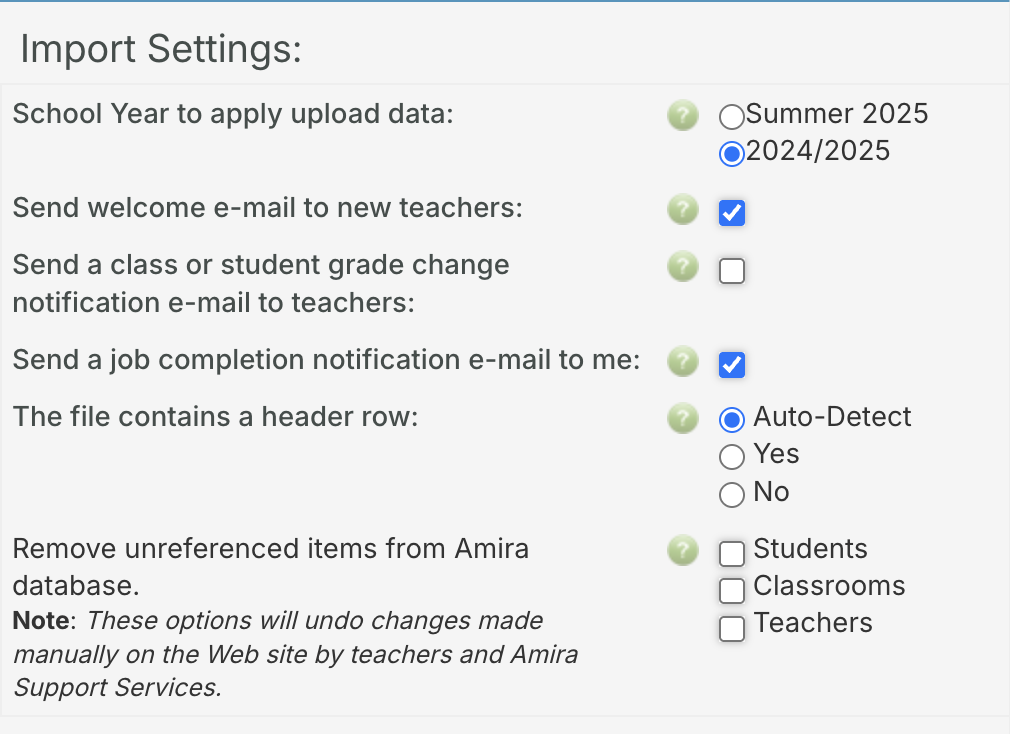
Select the desired Import Settings, then Upload File.
Map the columns and click Validate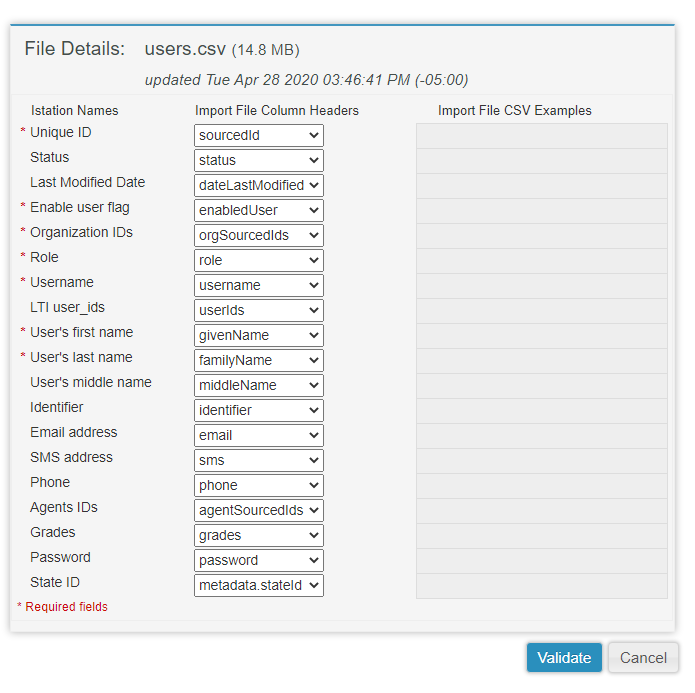
Once the files have been validated, click "Edit" and you will be taken back to the import job page. On the far right, there will be a button called "Save as Import Template". Click that and now you will be able to send us your files via FTP.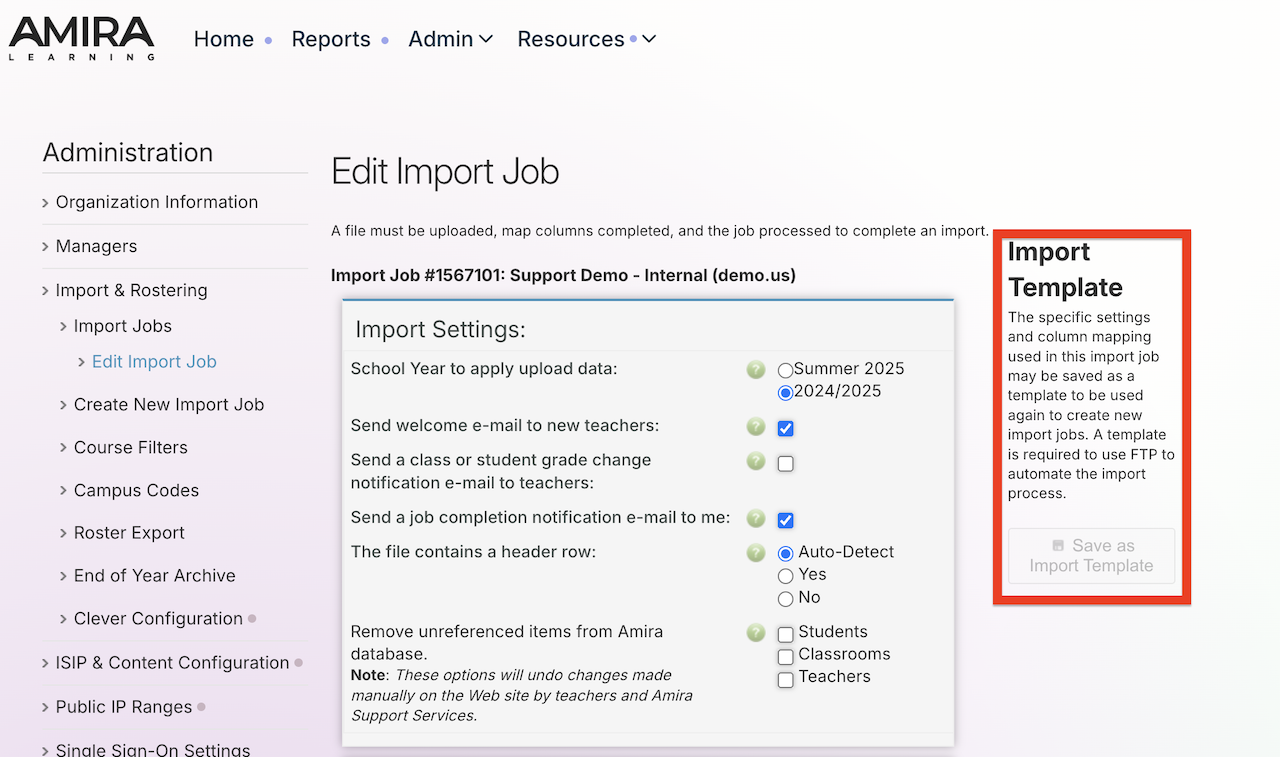
File Name:
The filename is strict; you must use the exact filename as the file you used to create the ftp template. If you upload a file called "Users2018.csv" to create the ftp template - the filename will need to match that on every upload (it is case sensitive, including file extension). Templates are also account-specific: you will need to send the file with the same username that you used to setup the import template.
SFTP Settings
- The syntax for your username in your FTP client should be as follows: username_admin_district_st (district = the name of your district, st = state abbreviation)
- Note: If your existing username to log into AmiraLearning.com contains a “_” it will need to be removed or changed for you to connect successfully to the SFTP server. Please log into the website and change your username by editing your account information.
- Host: sftp.rosters.app.amiralearning.com
- Port: 22
- Server Key (optional): SHA256:qBstJgknr4uw2RUTnjZF4GgOfXDAU1HZpztAAh9E20c
FTPS Settings
- The syntax for your username in your FTP client should be as follows: username.admin.district.st (district = the name of your district, st = state abbreviation)
- Host: sftp.rosters.amiralearning.com
- Encryption:
- explicit FTPS over TLS - Port 21
- implicit FTPS over TLS - Port 990
- Transfer Mode: Passive
When a file is received at the FTP site, the system will search existing templates that contain a file with a matching filename. If a matching template is found, it is used to import the file. You will receive an e-mail upon successful completion if the “Send a job completion notification e-mail to me” checkbox is check. If no matching template is found, you will receive an e-mail notification regardless of the setting of the checkbox.
To prevent accidental import into the wrong school year, the system will stop automatic processing on files uploaded within 60 days of the beginning of the next school year. You can bypass the safety feature by updating the saved template to the next school year.
Please make note that no such safety feature exists between the regular school year and summer school. As a rule, district imports will always supersede any manual updates from a campus level.