Demographic importing is used to import student demographic information to existing student accounts.
- When you view assessment data from Amira Learning, it allows you to make a plan for each student & classroom. This plan can include intervention to improve academic achievement for the overall success of the child.
- When you add the variable of demographic data, you can make predictions about data. These predictions can further narrow the scope of the plan since there can be causal implications for higher gains.
- Some examples of viewing student data by demographic group include:
- The ability to compare Special Education versus General Education population data.
- The ability to compare your native English speakers versus your non-native English speakers.
- Compile a list of students to be imported into the Amira Learning system. This information can be pulled from a school data management system. The template provided is simply a place to start, but others may be used with their own column headers as long as the following REQUIRED columns are included
- District-assigned student ID
- Campus code(s) that uniquely identifies the school where the student is enrolled
- Any row that does not contain the above-REQUIRED information will cause a validation error and ultimately will not be imported into Amira Learning.
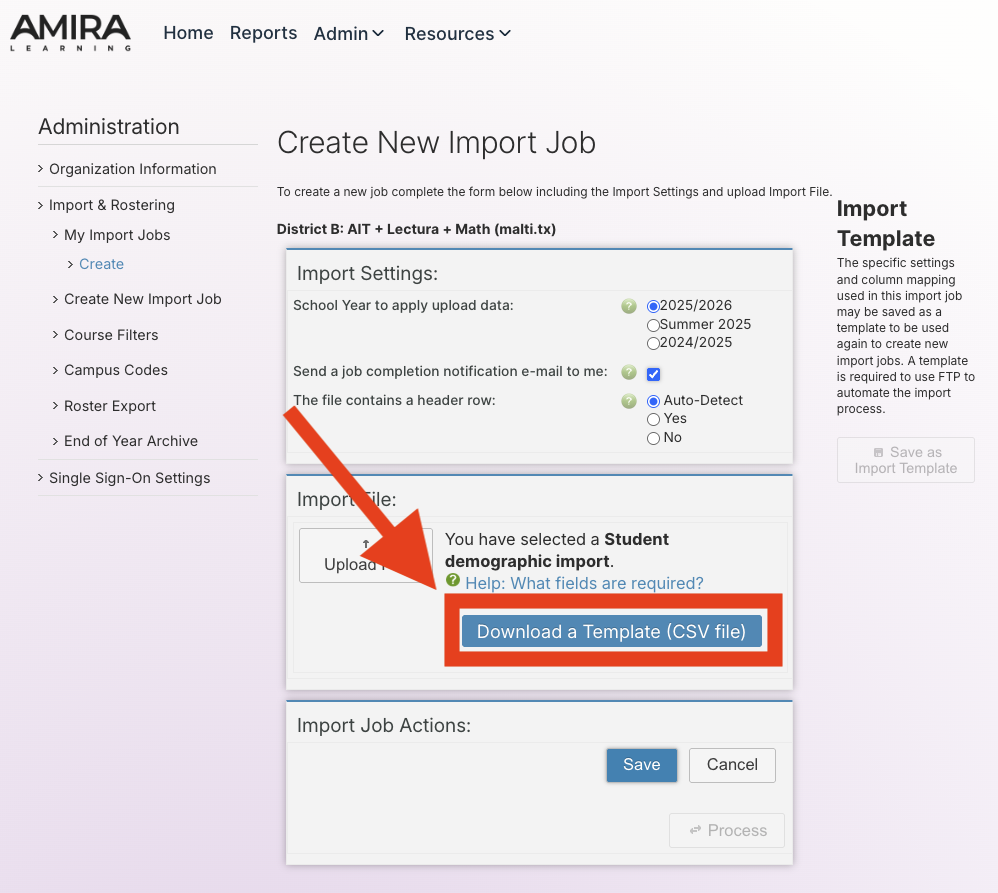
- Download Amira Learning’s template for demographic importing: Demographic Importing Template
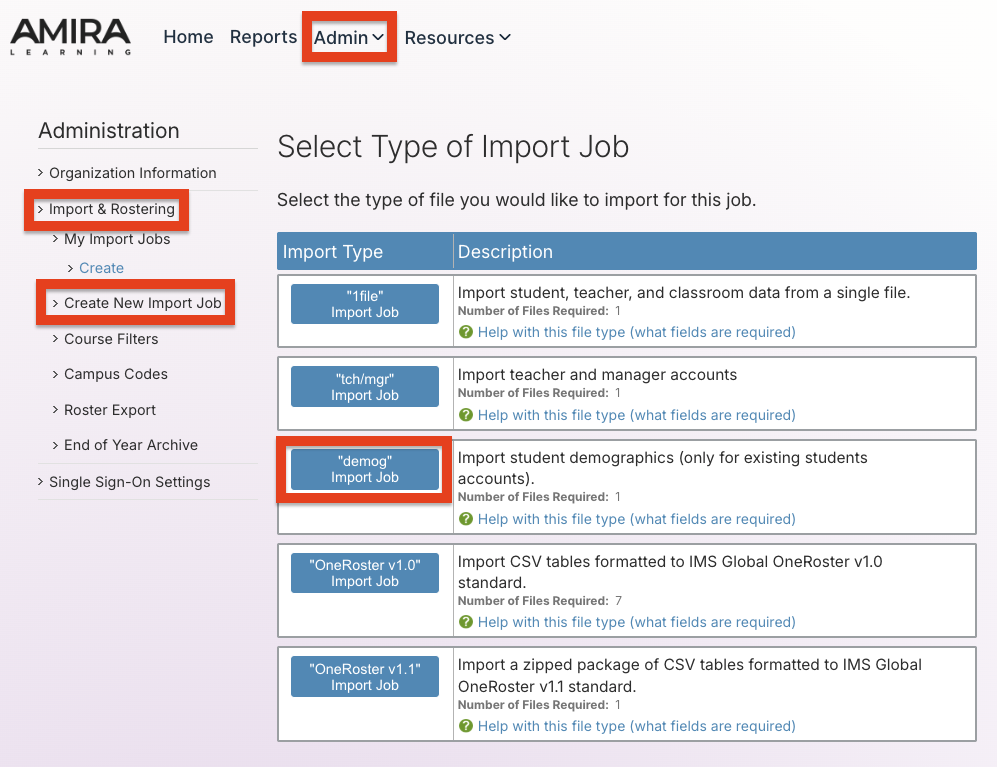
- Select: Admin > Import & Rostering > Create New Import Job > 'demog' Import Job > Download Template
Students Enrolled in Multiple Classrooms
Amira Learning understands the need for students to be enrolled in multiple classrooms as this reflects the various teachers a student may interact with during their day-to-day interactions.
Based on district/campus preference, campus managers and/or teachers have the capability to create additional classrooms needed for reporting purposes. For example, a Special Education or Intervention teacher may have the need to create a classroom and enroll those students they work with for the purposes of running targeted reports for these individual students. The steps for creating classrooms and adding students are listed below.
Creating Classrooms:
| Campus Managers | Teachers |
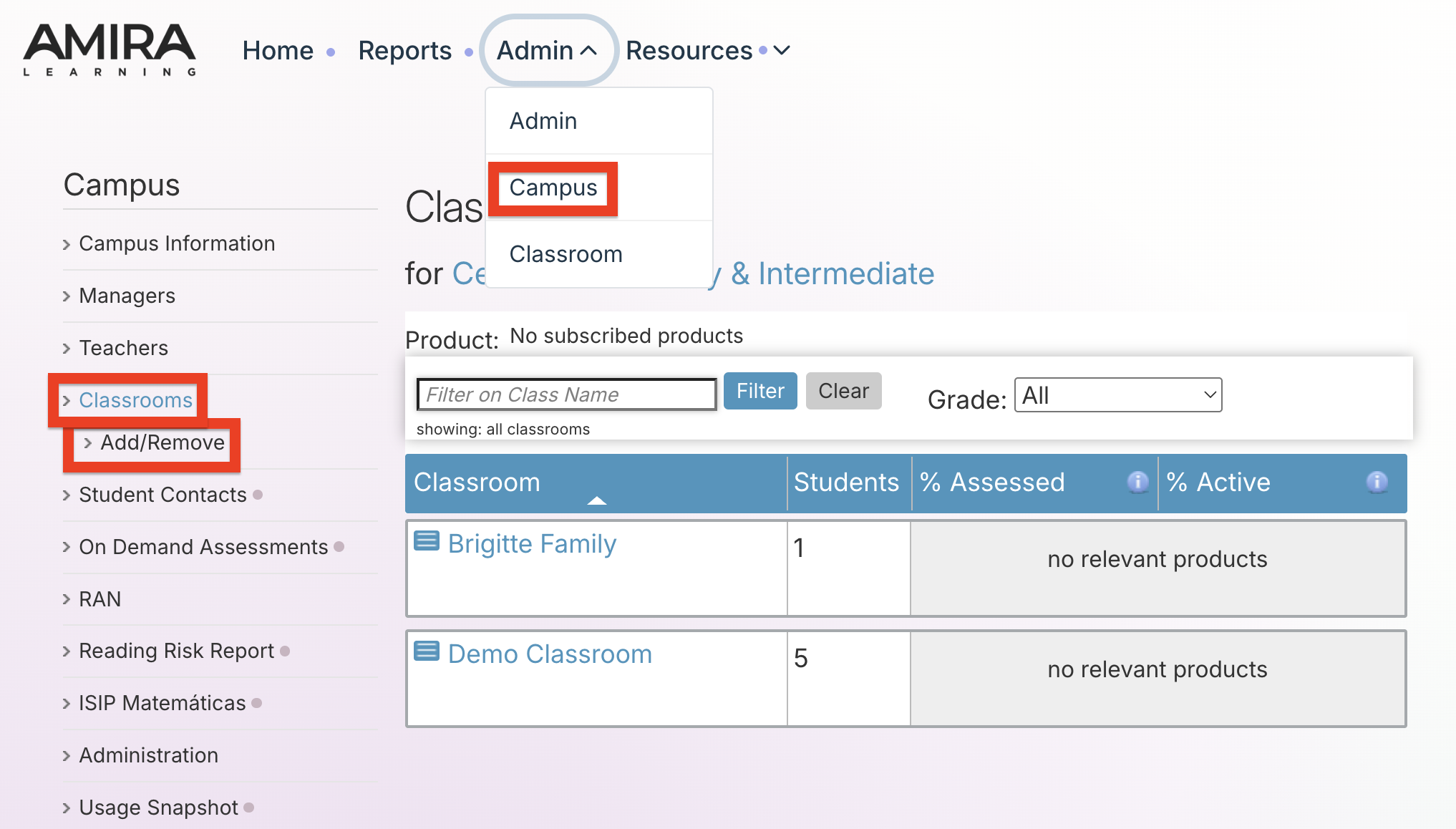
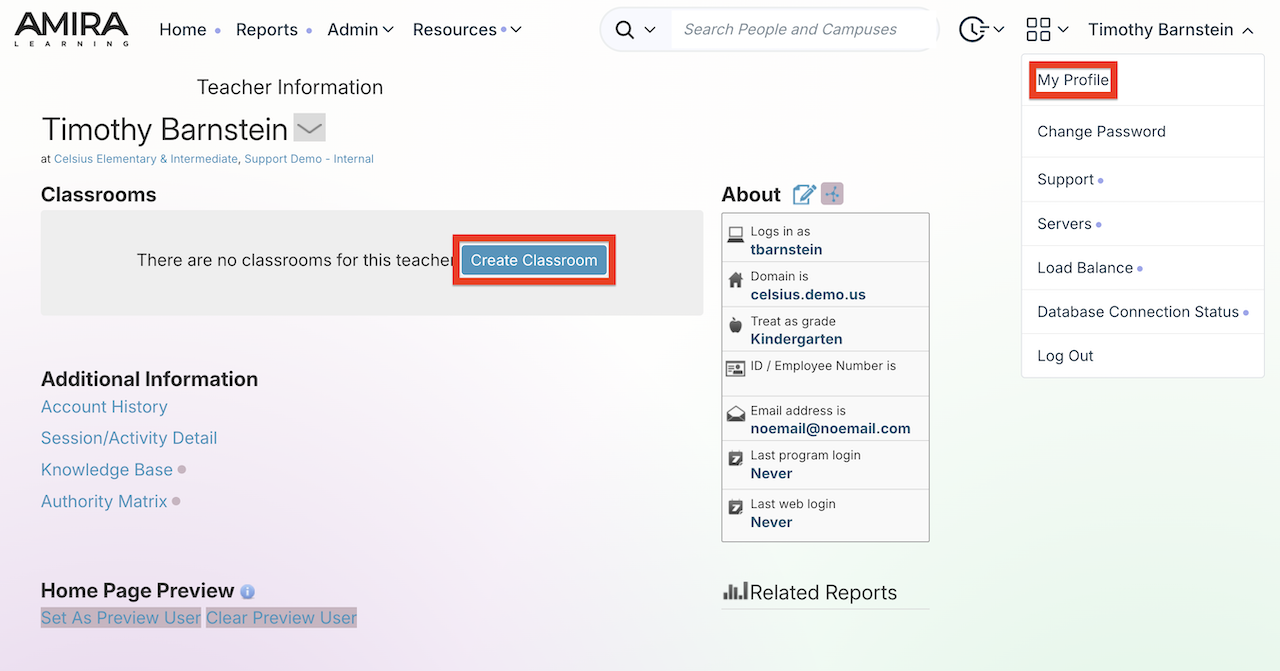
| Select the Campus tab, then select Classrooms from the left-hand menu. Select Add/Remove to create a new classroom. | Based on district/campus preference, teachers can create classrooms by selecting your name at the top right corner of any page, then select My Profile. Click Create Classroom and follow the desired prompts. If the Create Classrooms option is not visible for teachers, please contact your Campus Manager to have this classroom created. |
 |  |
Adding Students:
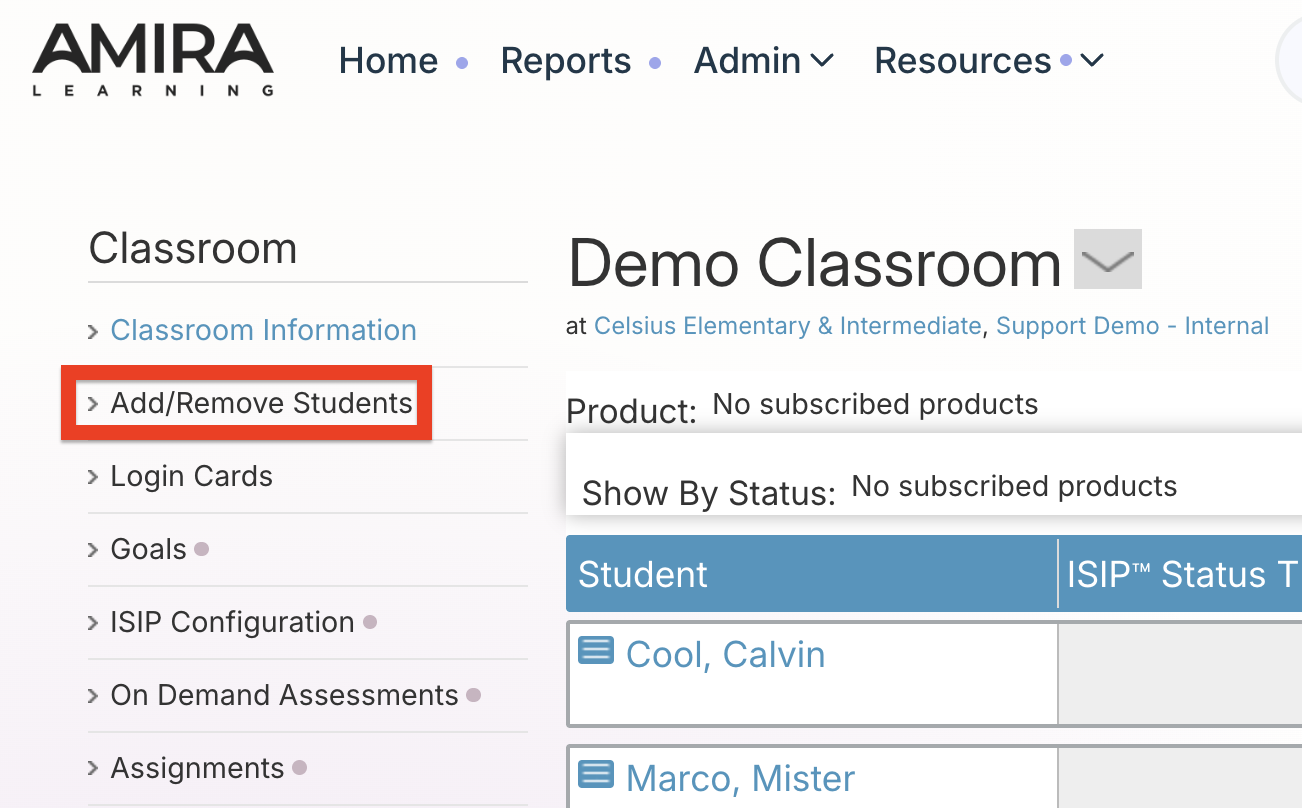
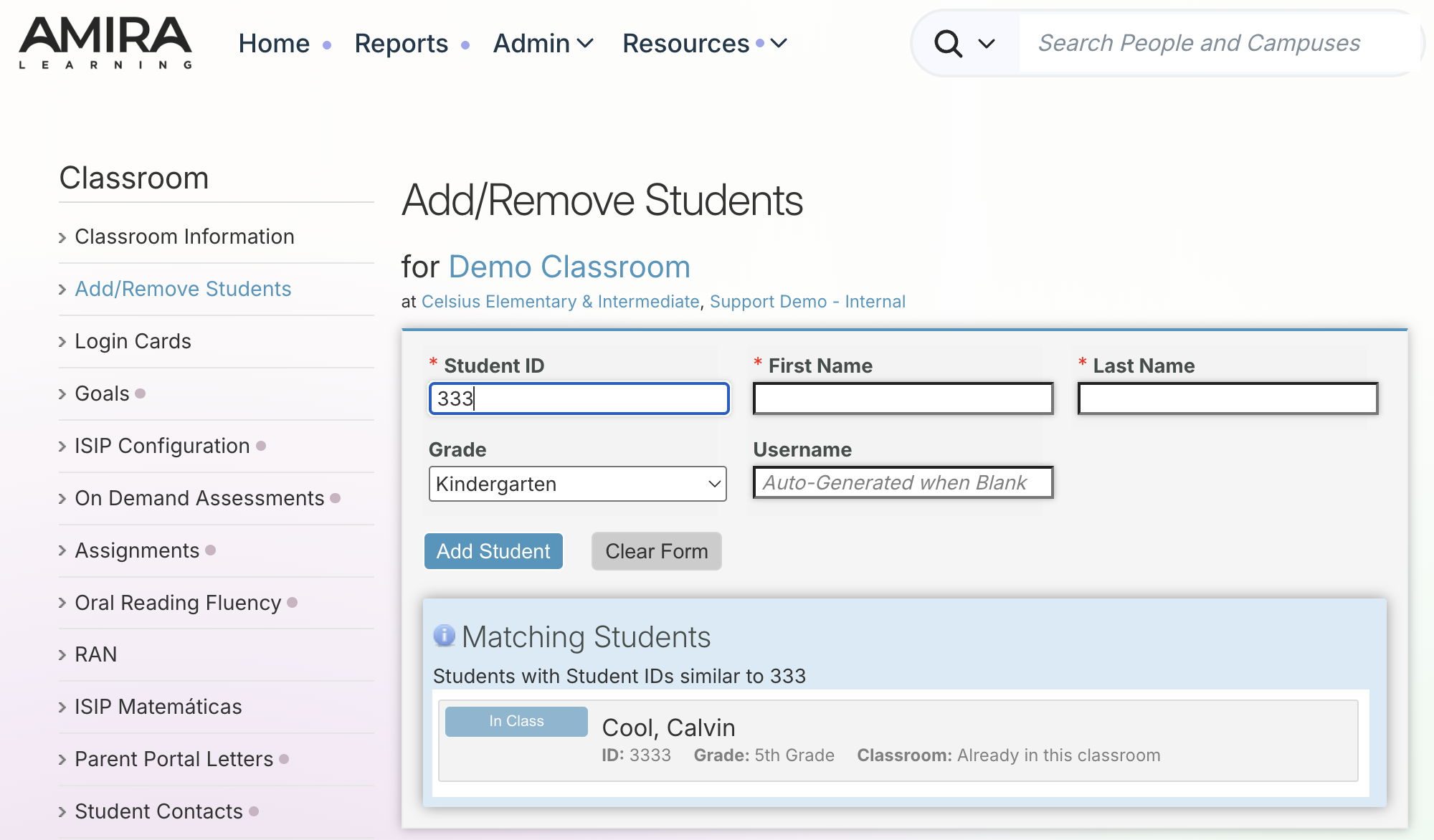
| Students can be enrolled in multiple classrooms as needed for reporting purposes. To add a student to a specific classroom, open the desired classroom and select Add/Remove Students from the left-hand menu. | Type in the student's ID number, first or last name. Matching students with this same criteria will be listed below. Select the corresponding student to add this student to the new classroom. This student will still remain enrolled within the original classroom. |
 |  |
Filtering Reports for Demographic Data (Math/Lectura)
- When viewing most of Amira Learning's reports, you will have the option to edit and filter demographic information.
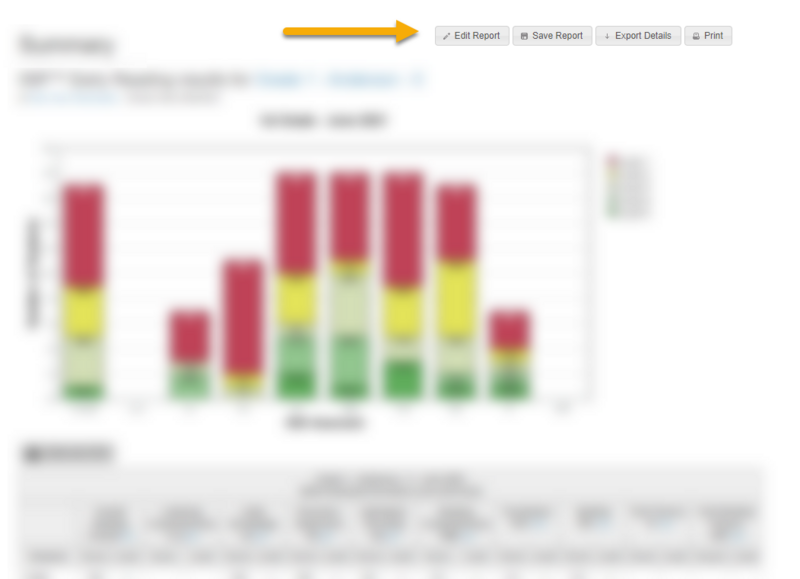
- At the top of reports, click on the Edit button.