Managers can update class data by school or district through an import process or the manual process outlined below.
AMIRA READING SUITE
To add a classroom to a campus:
Step 1: Log in to secure.app.amiralearning.com and select Amira Reading.
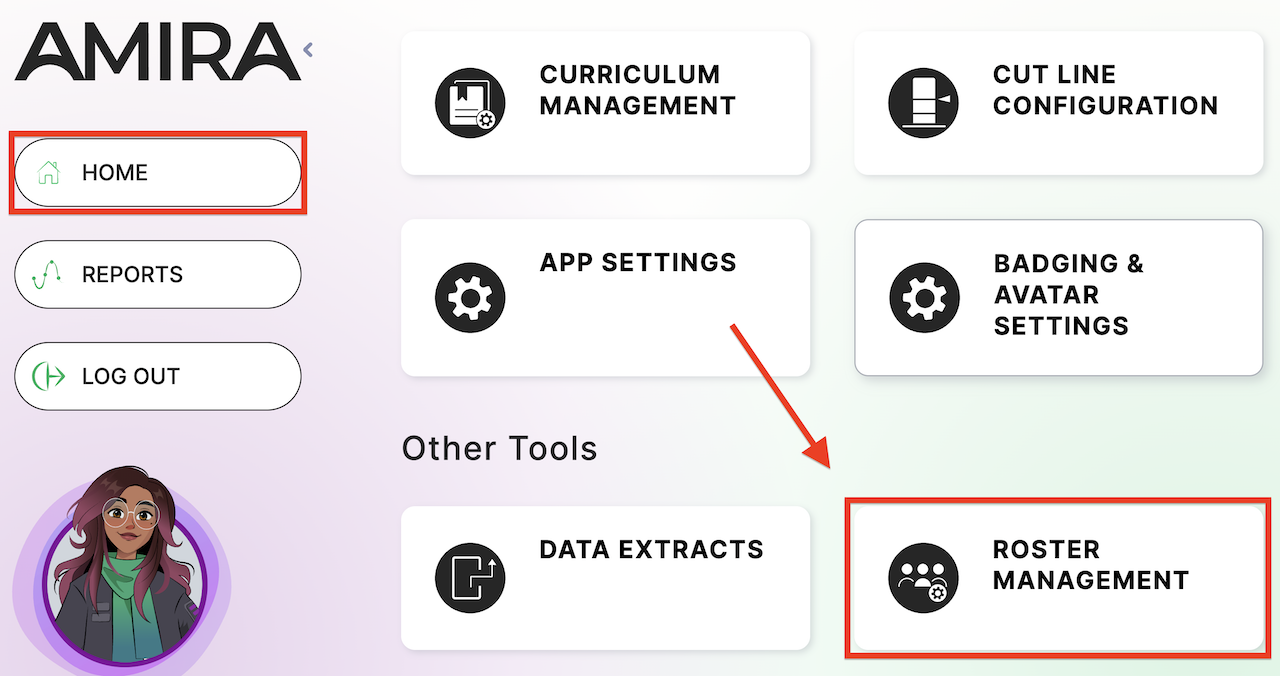
Step 2: From your Home page, select Roster Management.
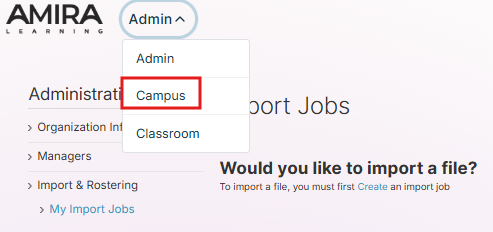
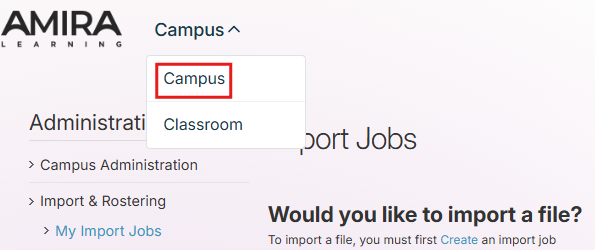
Step 3: If you are a district admin, expand the Admin drop-down menu in the top left and select Campus. If you are a campus admin, expand the Campus tab in the top left and select Campus.
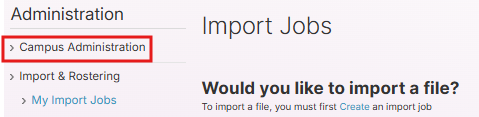
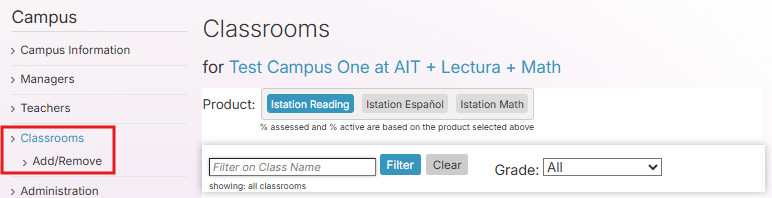
Step 4: Select Classroom and then Add/Remove from the left-side menu.
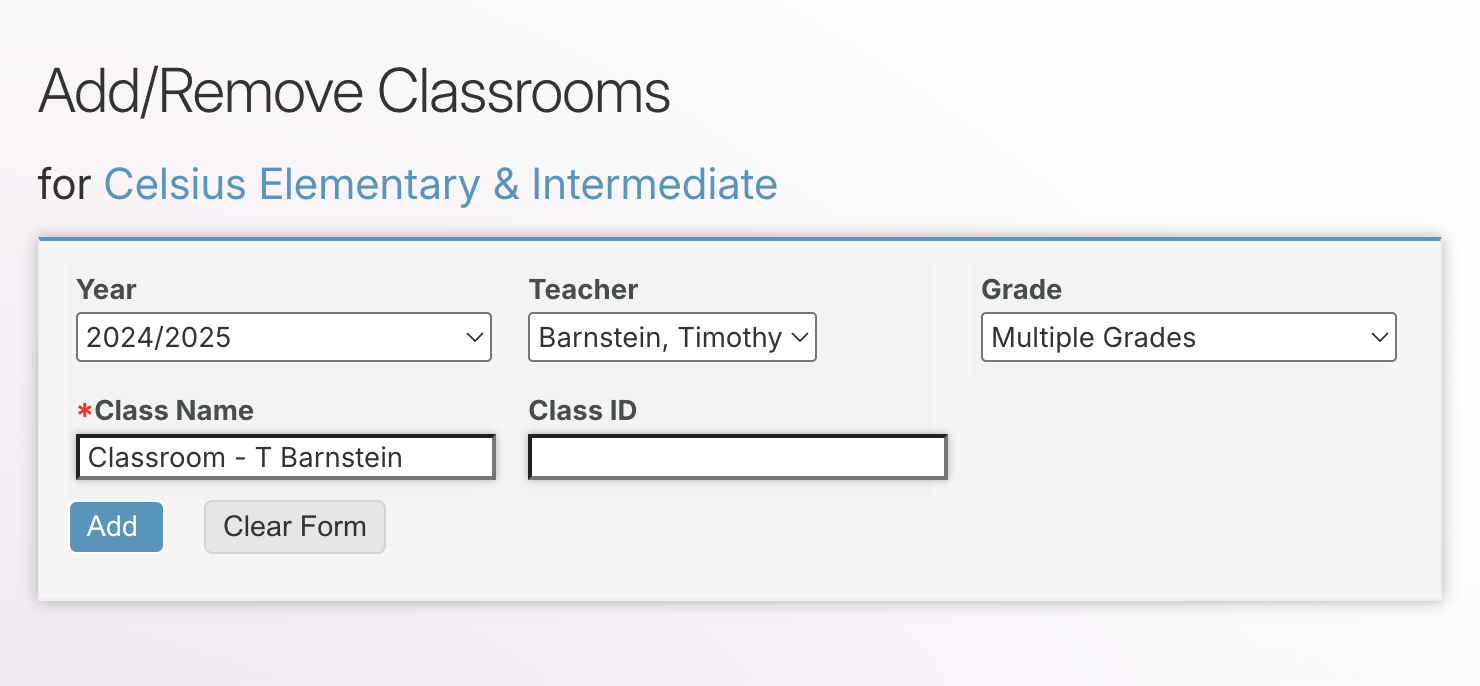
Step 5: Confirm the correct school year. NOTE: If setting up classrooms for Summer School, select the Summer option in the Year drop-down menu to avoid moving students from their home campus for historical purposes.
Step 6: Select the appropriate teacher from the drop-down menu. If the teacher is not listed, they will need to be added.
Step 7: Select district-assigned grade level for the students in the classroom. If setting up a multi-level view for a teacher, select Multiple Grades.
Step 8: Verify the Class Name. NOTE: It is recommended to refrain from changing this from the auto-populated default unless the campus has a particular naming convention in order to allow campus and district personnel easier viewing.
Step 9: Designate a Class ID if one is available from the district in order to enable easier importing of student data.
Step 10: Click Add. Students can now be added to the classroom.
To remove a classroom from a campus:
Step 1: Log in to secure.app.amiralearning.com and select Amira Reading.
Step 2: From your Home page, select Roster Management.
Step 3: If you are a district admin, expand the Admin drop-down menu in the top left and select Campus. If you are a campus admin, expand the Campus tab in the top left and select Campus.
Step 4: Select Classroom and then Add/Remove from the left-side menu.
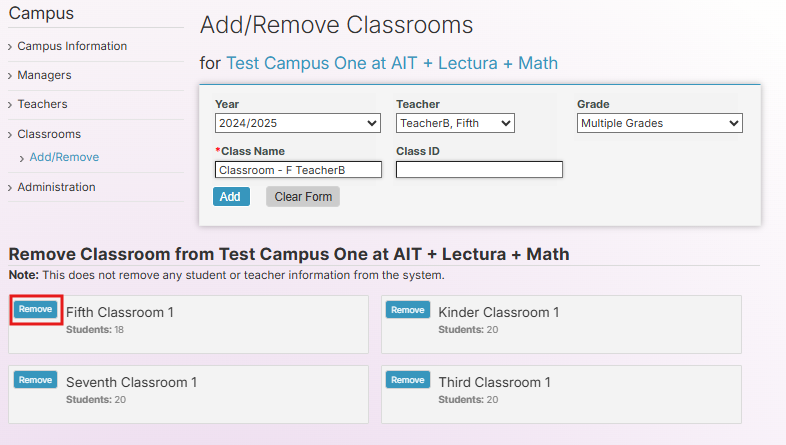
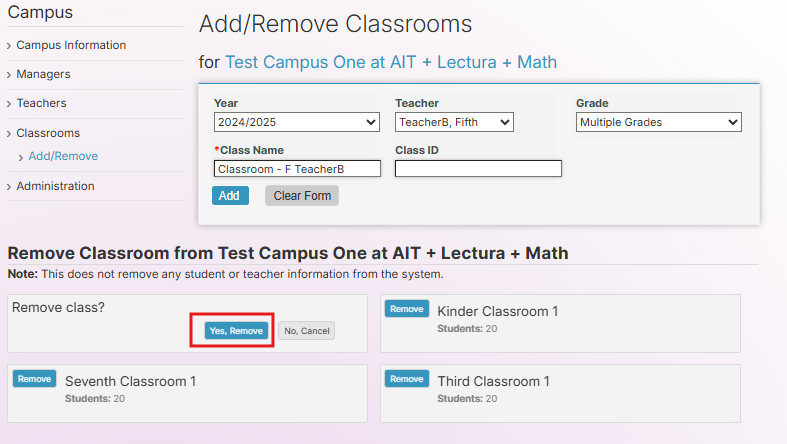
Step 5: Select Remove next to the class to be removed from the school and confirm by clicking Yes, Remove. NOTE: Make certain that students who are in the classroom have been reassigned if they will still continue to use Amira Learning after the removal of this classroom.
Classrooms do NOT need to be removed at the end of the school year. Please see Account Management During Transitions for more about this part of account management.
LECTURA/MATH
To add a classroom to a campus:
Step 1: Log in to secure.app.amiralearning.com and select Lectura & Math.
Step 2: Select the Campus tab.
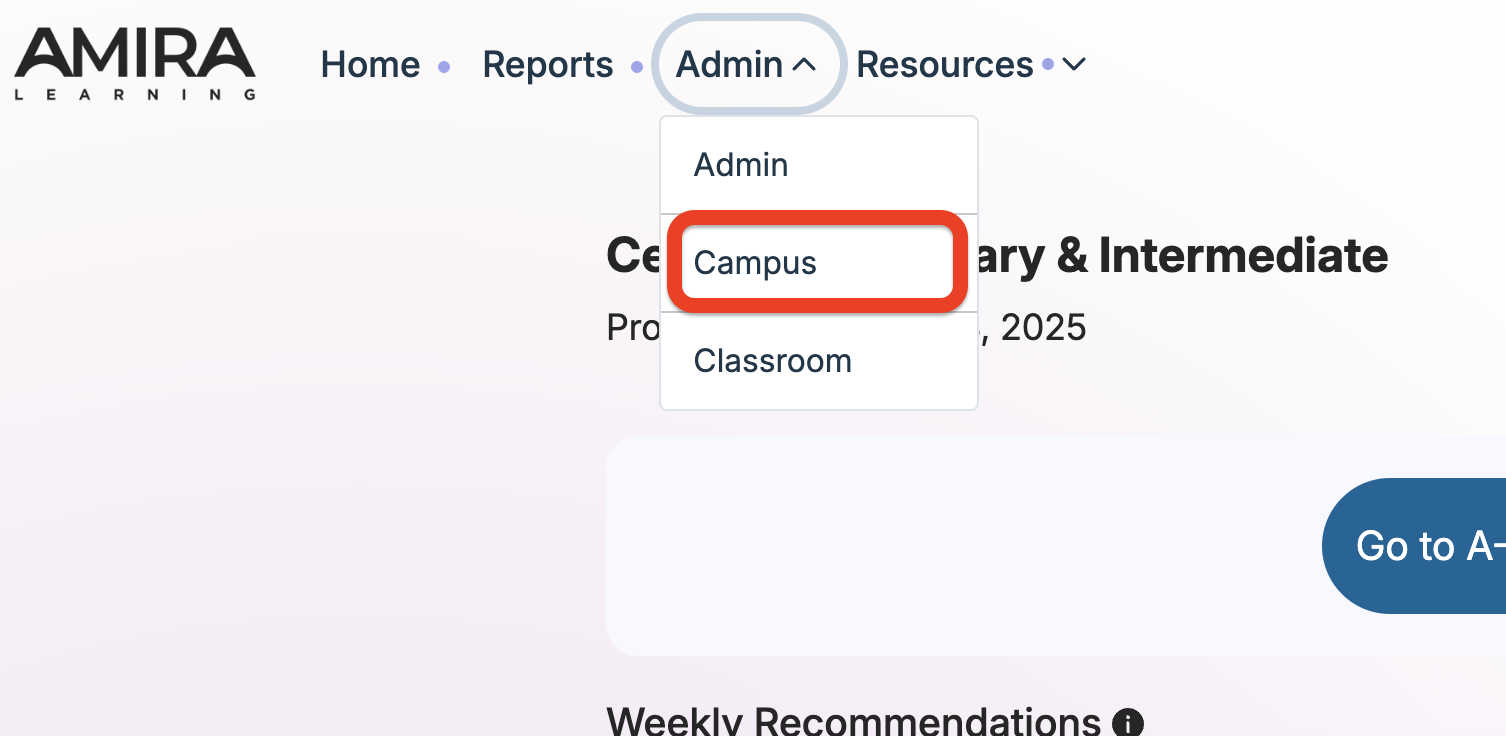
Step 3: Select Classrooms and then Add/Remove from the left-side menu.
Step 4: Confirm the correct school year. NOTE: If setting up classrooms for Summer School, select the Summer option in the Year drop-down menu to avoid moving students from their home campus for historical purposes.
Step 5: Select the appropriate teacher from the drop-down menu. If the teacher is not listed, they will need to be added.
Step 6: Select district-assigned grade level for the students in the classroom. If setting up a multi-level view for a teacher, select Multiple Grades.
Step 7: Verify the Class Name. NOTE: It is recommended to refrain from changing this from the auto-populated default unless the campus has a particular naming convention in order to allow campus and district personnel easier viewing.
Step 8: Designate a Class ID if one is available from the district in order to enable easier importing of student data.
Step 9: Click Add. Students can now be added to the classroom.
To remove a classroom from a campus:
Step 1: Log in to secure.app.amiralearning.com and select Lectura & Math.
Step 2: Select the Campus tab.
Step 3: Select Classrooms and then Add/Remove from the left-side menu.
Step 4: Select Remove next to the class to be removed from the school and confirm by clicking Yes, Remove. NOTE: Make certain that students who are in the classroom have been reassigned if they will still continue to use Amira Learning after the removal of this classroom.
Classrooms do NOT need to be removed at the end of the school year. Please see Account Management During Transitions for more about this part of account management.