The Growth Dashboard is a teacher's central hub for tracking student progress and engagement in Amira. From here, you can check assessment completion, review results, monitor tutoring usage, and manage weekly instruction plans, all without leaving the page. Every widget title can be clicked to expand or collapse that widget's view.
Getting around the dashboard
View a walkthrough of the Growth Dashboard.
The left-hand navigation bar gives you four global controls:
- Home, returns you to the Growth Dashboard homepage from anywhere.
- Reports, opens Amira's detailed reports on student performance and progress.
- Settings, lets you customize and manage how your students interact with Amira (for example, assessment language settings).
- Log Out
In the top right corner, you can select the campus and grade/class you're viewing, and use the English/Spanish toggle to switch which language's results are displayed across the dashboard. Each widget also has its own smaller toggle icon, so you can view English and Spanish results side-by-side within a single widget if needed.
Click the Amira avatar in the bottom-left corner any time to ask a question or chat with a live agent.
ISIP Assess Status widget
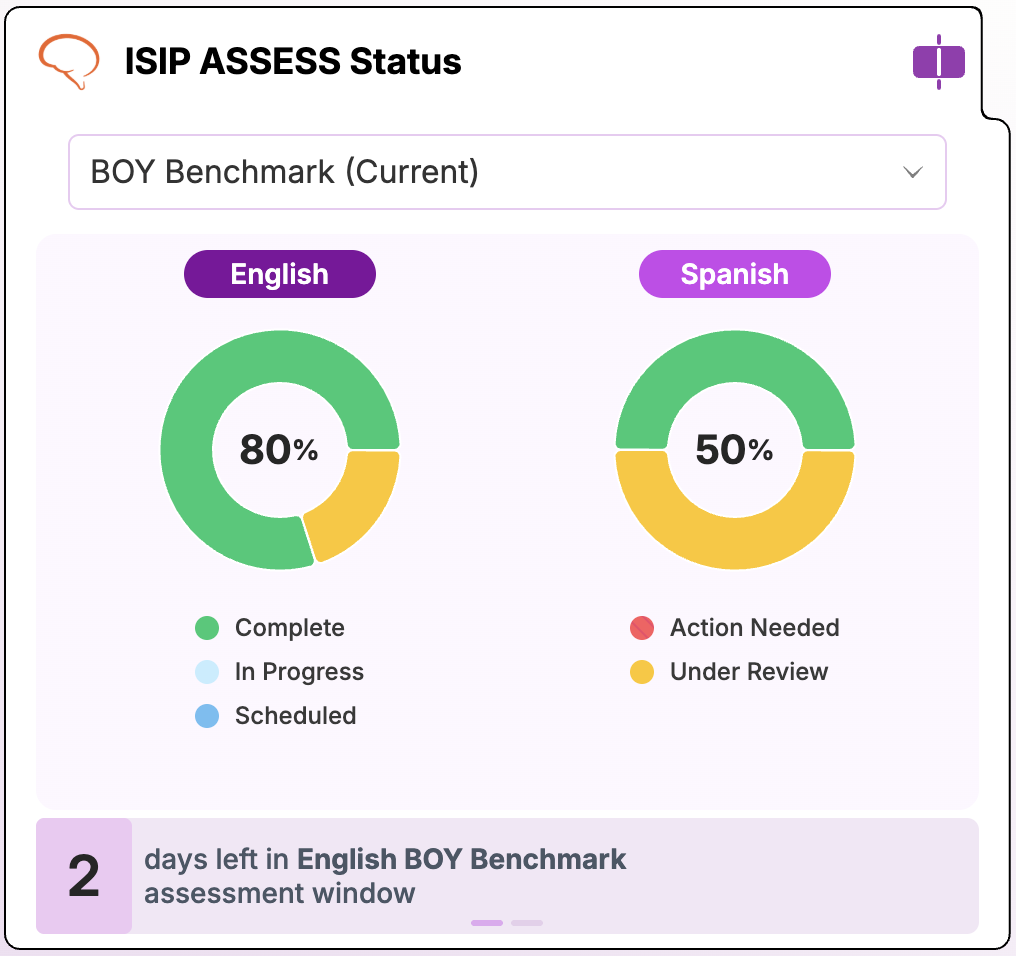
Use this widget to view your class's assessment completion and to schedule assessments.
- Use the dropdown (e.g., "Latest Assessment Status," or a specific window like "BOY Benchmark") to select which assessment to view.
- The donut chart shows the breakdown of statuses and assessment completion for your class.
- If your district has an active assessment window, the widget displays when the window will begin how many days are left in that window. Students will automatically receive the assessment when they log in during the window, no teacher action is needed. This notification shifts between English and Spanish windows if both have been scheduled.
- If your district hasn't set up a window, or if you need to reassess a student or schedule outside the window, click the graph to open the scheduler.
- Click the graph to also view a detailed breakdown of each student's individual Assessment Status.
ISIP Assess Outcomes widget
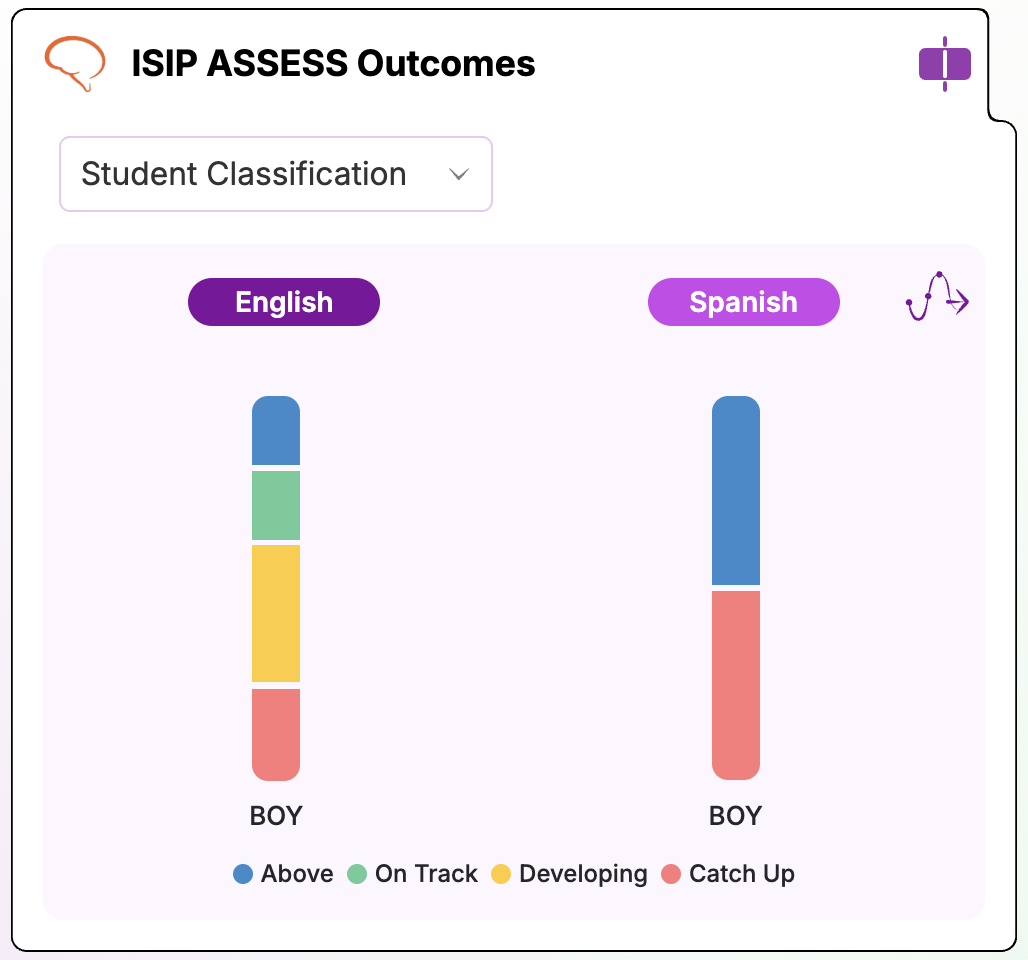
Use this widget to view assessment results at a glance.
- Use the dropdown to toggle between Student Classification (tiers based on percentile ranking) and Reading Risk.
- Note: If you don't see the option to toggle to Reading Risk, your district may have that feature disabled.
- Results are shown as bar charts, split by language (English/Spanish) and by testing window (e.g., BOY).
- Click the graph to open a full breakdown of each student's assessment results in the Class Progress Report or Reading Risk Report.
Tutor Weekly Goal widget
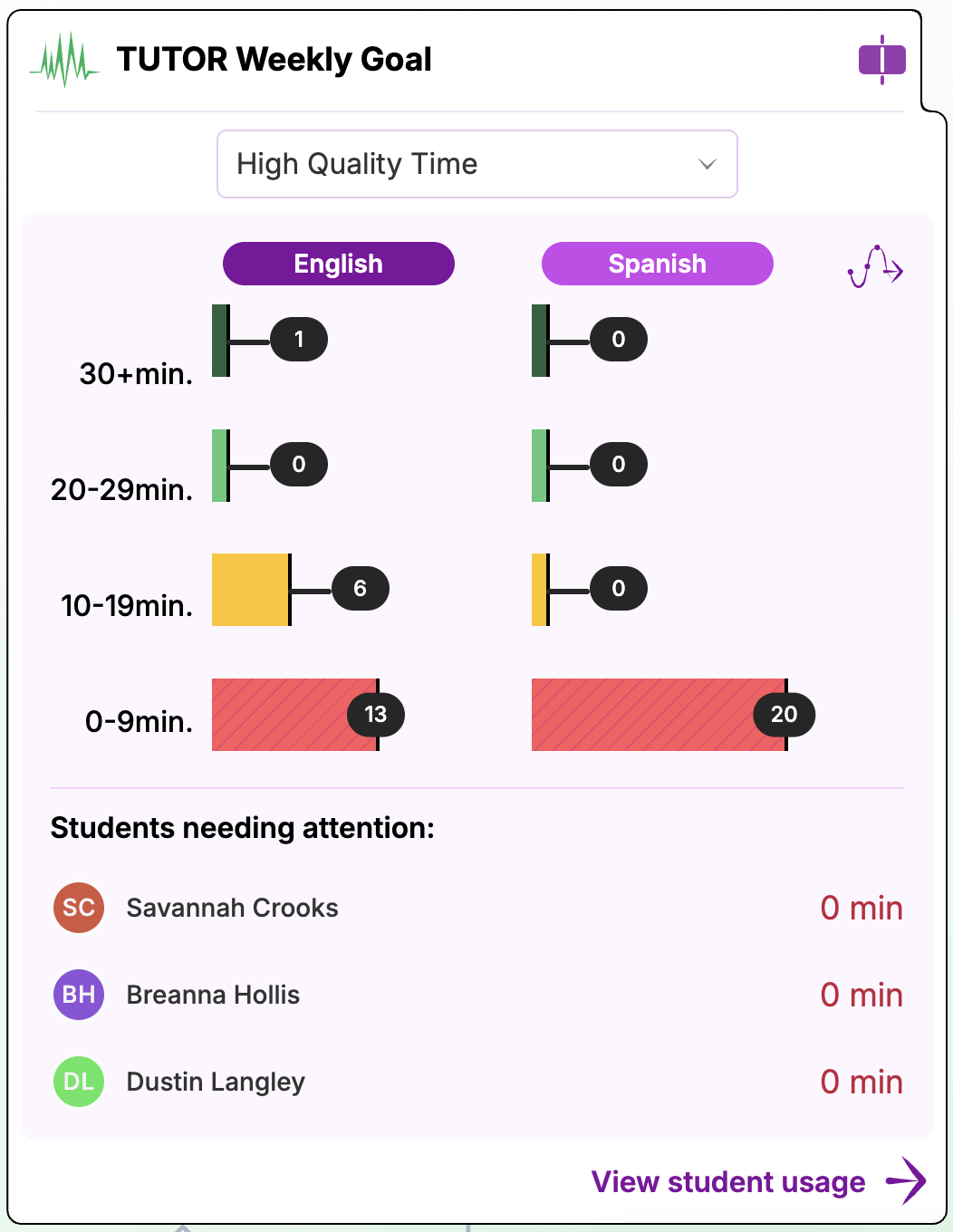
Use this widget for an overview of your class's time with Tutor and/or Tutora.
- Use the dropdown to choose the measure:
- Total Time, includes all minutes spent reading with Amira.
- High Quality Time, only includes minutes from finished stories.
- The usage graph shows your class's tutoring minutes for the current week, broken into bands (30+ min, 20 to 29 min, 10 to 19 min, 0 to 9 min), split by English and Spanish.
- The Students needing attention list flags students who may need additional support to reach their weekly goal.
- Click View Student Usage to navigate to the Usage Report for more detail on each student's weekly usage.
Instruct Weekly Plan widget
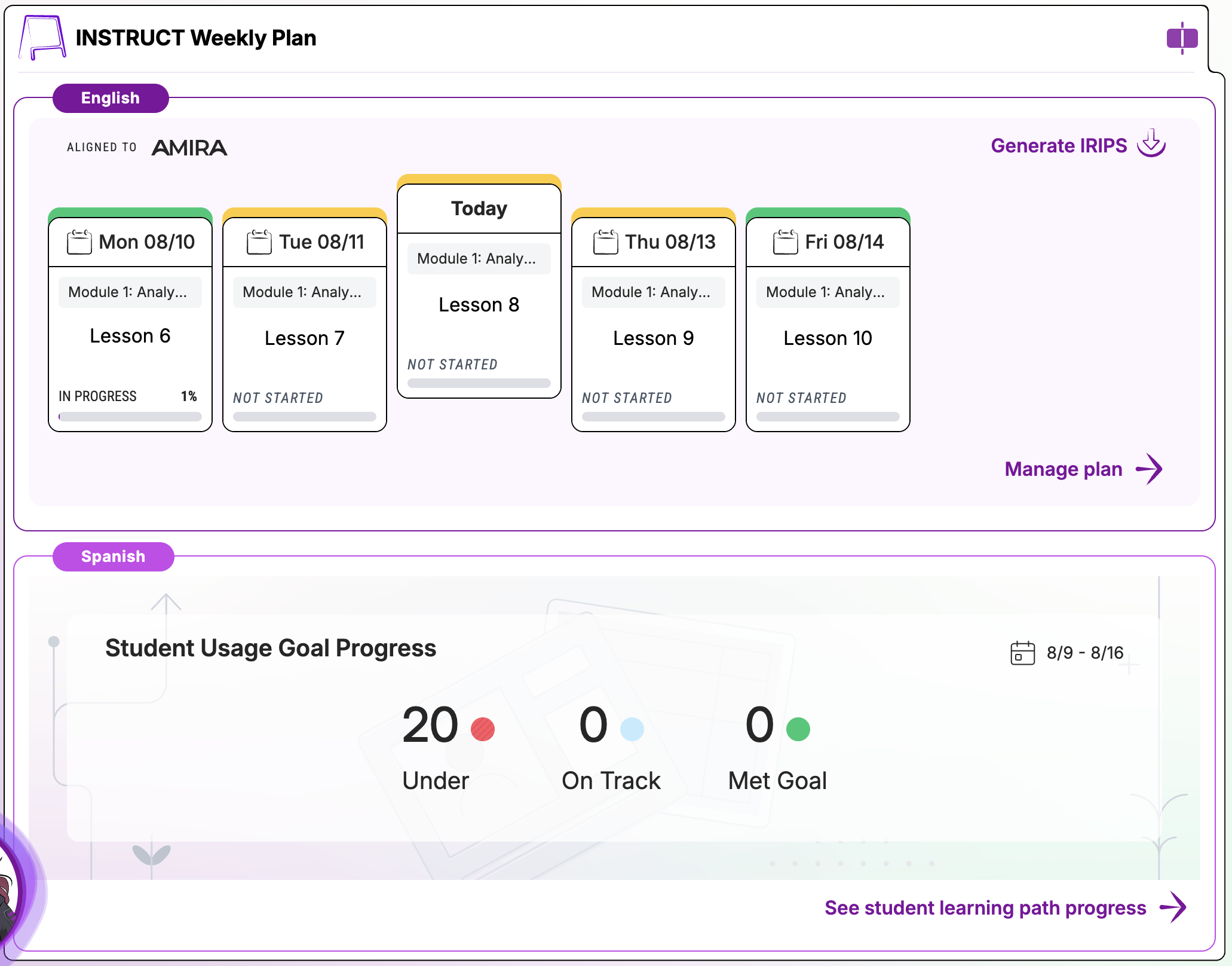
Use this widget to view an overview of the current week's plan from the AI Lesson Planner with Amira Instruct or usage time with Amira Enseñar.
Amira Instruct Widget (English) with Core-Curriculum Alignment:
- The weekly view shows Today plus upcoming days, each with the assigned lesson and progress status (e.g., In Progress, Not Started).
- Generate IRIPs, generates an Individualized Reading Instruction Plan for every student.
- Manage Plan, lets you differentiate lesson assignments and instruction using AI-powered guidance.
Instruct Learning Pathway (English) and Enseñar Learning Pathway (Spanish) widget:
- The Student Usage Goal Progress card shows how many students are Under, On Track, or have Met their goal for the selected date range
- Click See Student Learning Path Progress for a more detailed breakdown, which opens the Progress Report.