The ISIP Assess Status widget on the Growth Dashboard gives teachers an at-a-glance view of student assessment completion, so you can quickly see how your class is progressing without opening a full report.
View a walkthrough: how to view assessment completion
Viewing Assessment Completion
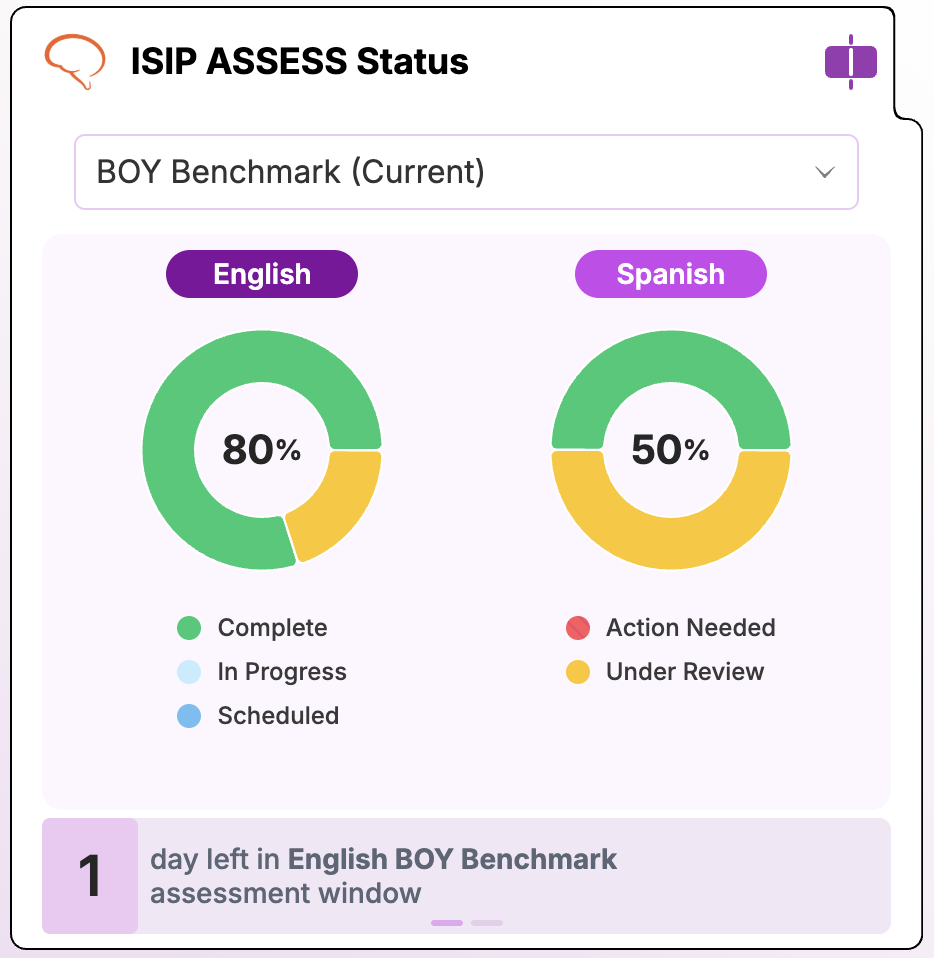
- From your Growth Dashboard, locate the ISIP Assess Status widget.
- Select the assessment you wish to view from the dropdown menu.
- The widget displays the Assessment Completion percentage for your class.
- Click the English graph to view English assessment status, or the Spanish graph to view Spanish assessment status.
- Expand the tile to see each student's individual Assessment Status (e.g., Scheduled, In Progress, Completed, Reassess, Early Reader).
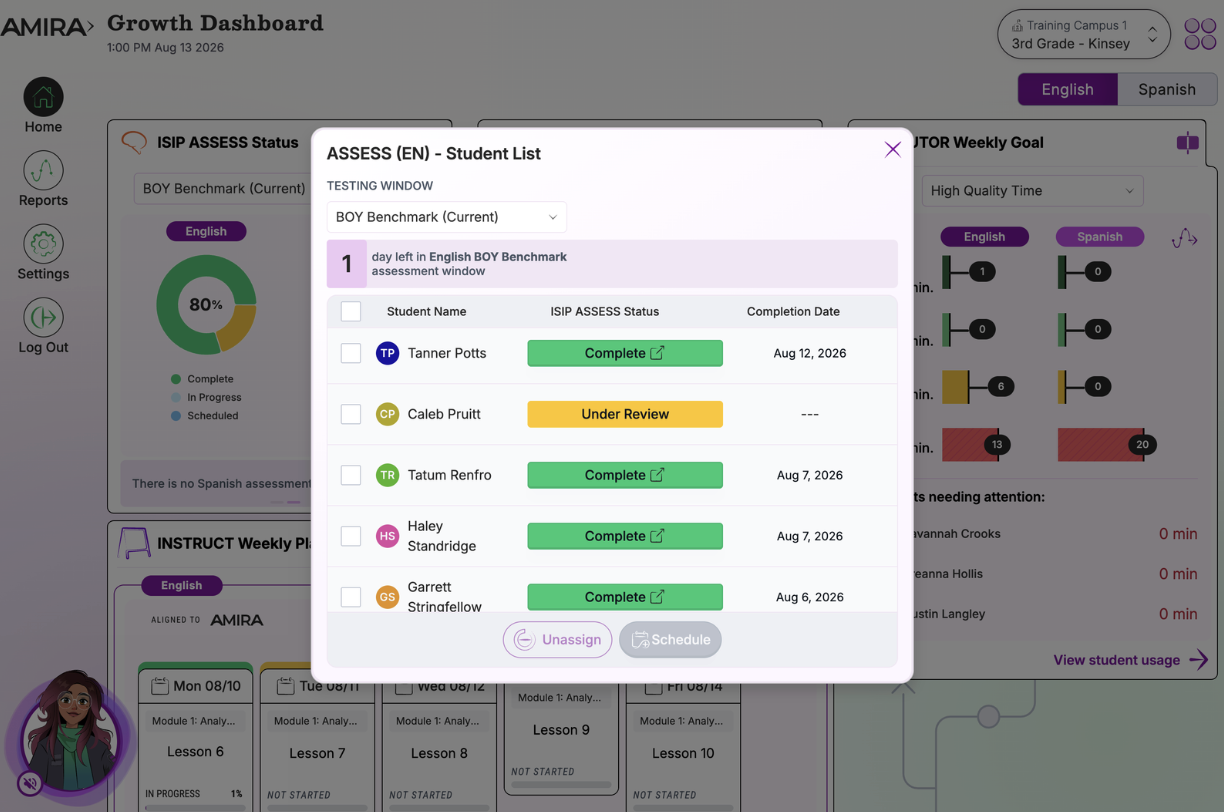
Understanding the Statuses You'll See
| Status | Description |
|---|---|
| Unassessed | No assessment assigned. The student will be in practice mode if they log in. |
| District/School Scheduled | A screening window is active. An assessment will automatically be assigned the next time the student logs in during the window. |
| Scheduled | An assessment was assigned and will be given the next time the student logs in. |
| In Progress | The student started the assessment but hasn't completed it. |
| Scoring | The student completed the assessment; scores are processing (up to 24 hours). |
| Under Review | Flagged for review by Amira staff; updates within three business days (not including the day of the assessment). |
| Manual Review | The teacher should review the recording in the Progress Report and reassess if needed. |
| Completed MM/DD | Assessment completed on this date, with a successful ORF passage read. |
| Early Reader | Assessment completed, but the student couldn't read the Kindergarten ORF passage (or scored 7 WCPM or lower); marked as a pre-reader. |
| Reassess | A valid score couldn't be generated. District-assigned assessments retake automatically at next login; otherwise, the teacher must manually reassign. |
| Score entered | Scores manually submitted for a paper-and-pencil assessment. |