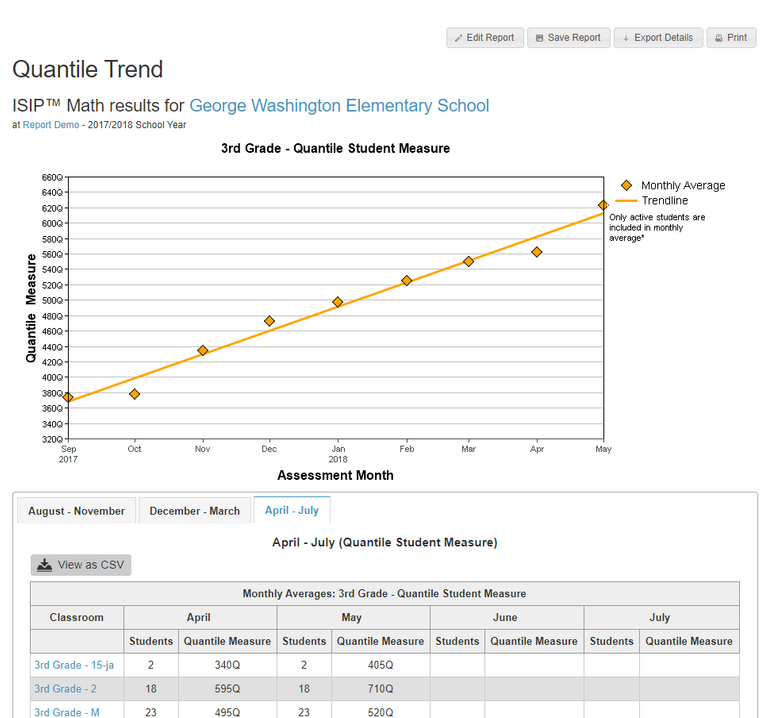
The Quantile® Trend report shows students' Quantile scores across time.
The Quantile® Measure is derived from the overall Math score.
Quantile measures are linked to specific math skills, enabling teachers to match students with skills that give them their optimal challenge.
A Quantile measure gives teachers the following information:
- which math skills each student is ready to learn
- expected levels of success with a math skill or concept
- student growth on a single scale across grade levels
Report Details
Who is listed on this report?
At the classroom level, students are listed on the report in alphabetical order according to their last name. Clicking on a student generates their Domain Growth Details report.
At the campus level, classrooms are listed in alphabetical order. Clicking on a classroom will provide student information.
At the district level, campuses are listed in alphabetical order. Clicking on a campus will allow you to drill down to classroom and student information.
How can I navigate this report?
The graph will show district administrators the school-year growth trendline for the specified grade level, with data points representing monthly averages. Clicking a specific campus from the table takes district administrators to the campus-level report, and clicking a specific classroom takes administrators to the classroom-level report.
At the classroom level, teachers can view individual student results in the table.
At any level, hovering over a data point shows the average quantile and the number of students who assessed during the data point's month. The table below the line graph also shows this data.
Only active students are included in the monthly average. Active students are students who took the most recent ISIP Early Math or Math assessment.
How can I run this report?
Step 1: Log in to secure.app.amiralearning.com.
Step 2: Select the Reports tab.
Step 3: Select ISIP Math from the assessment Products.
Step 4: Select Quantile Trend.
Step 5: Single-grade teachers can click Run Report. Administrators and multi-grade teachers must click Customize Report, go to the Options tab of the Quick Report Builder, and select the grade level whose data they want to view before clicking Run Report.
Suggested Instructional Uses
-
Review monthly or after the most recent assessment.
-
Monitor the class’s progress in skill acquisition
-
Evaluate the effectiveness of instructional support
-
Determine the need for whole-group instruction