| Math/Lectura |
The Priority Report helps identify students who will benefit from further intervention.
It provides links to teacher-directed lessons and supplemental materials and offers a space to write intervention notes.
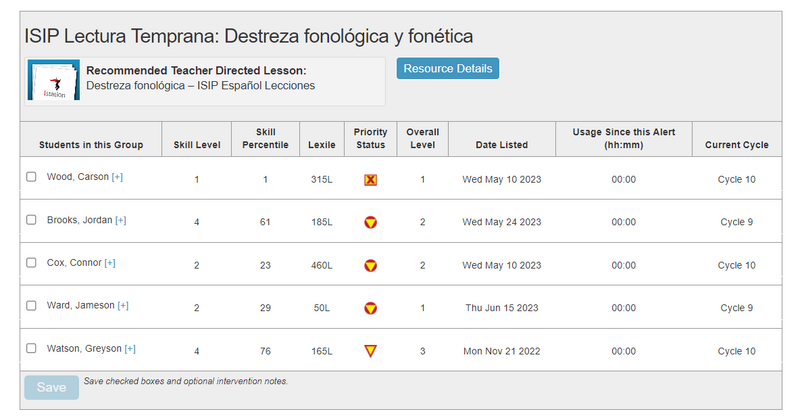
Lectura
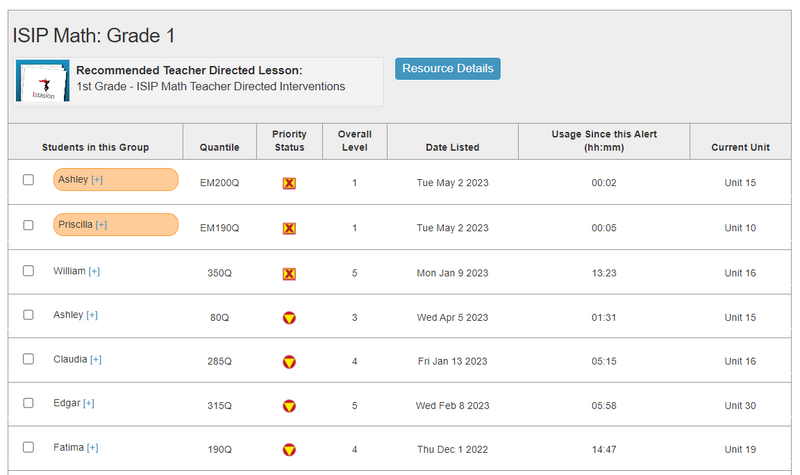
Math
Report Details
Who is listed on this report?
Students are only listed if they have demonstrated weaknesses in an assessment or lack of progress in skill acquisition in the Interactive Instruction.
How can I navigate this report?
Students are grouped by skill to facilitate whole-group or small-group instruction.
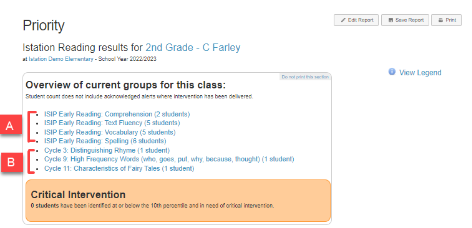
A, Groups with “ISIP” in the label indicate students who showed difficulty on the assessment.
B, Groups with “Cycle” or “Unit” in the label indicate students who experienced difficulty in a particular part of the Interactive Instruction.
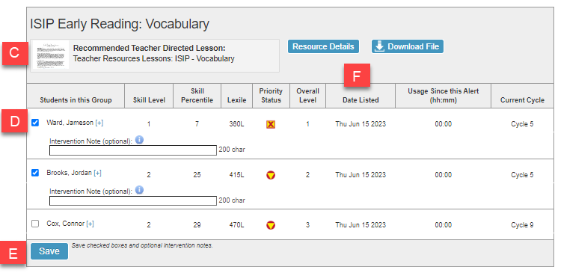
C, Recommended Teacher Directed Lessons indicates and links to the suggested lesson(s) in PDF format for remediation of that skill.
D, After administering intervention, check the box in front of the student’s name. Optional notes regarding intervention may be entered in the text box (e.g., still needs improvement, needs to be retaught, made progress, etc.).
E, The Save button attaches documentation of teacher delivered interventions outside of the program and any intervention notes made.
F, The first listed date indicates the most recent date that the student first had difficulty and was listed on the report.
When documenting interventions, a red line will appear in the month of the intervention on the student's Skill Growth Details or Domain Growth Detail report.
Intervention notes cannot be removed once entered.
A Student Intervention History of identified skill weaknesses and interventions is retained and can be accessed by pressing the blue plus sign by a student’s name.
How can I run this report?
Classroom Page
Step 1: Log in to secure.app.amiralearning.com.
Step 2: Select the Classroom tab.
Step 3: Select Priority Report under the appropriate product in the Related Reports section.
Report Tab
Step 1: Log in to secure.app.amiralearning.com.
Step 2: Select the Report tab.
Step 3: Select an Assessment product.
Step 4: Select Priority from the choices.
Step 5: Teachers may click Run Selected Report. Managers must click Customize Report to select a classroom under Targeted Users.
The Priority Report shows alerts for the last 45 days by default. To see all alerts, simply click Edit Report and select Entire School Year.
Suggested Instructional Uses
- Review weekly or as needed to plan and document interventions
- Select students for small group instruction and obtain teacher-directed lessons and materials.
- Document interventions provided.
- Discuss student performance with administrators or the intervention team.