Creating Classes Manually: Administrators
Step 1: Accessing Classrooms
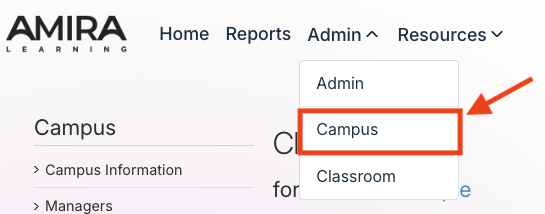
- Once logged into Amira Learning, select "Campus" from the Admin dropdown in the top ribbon.
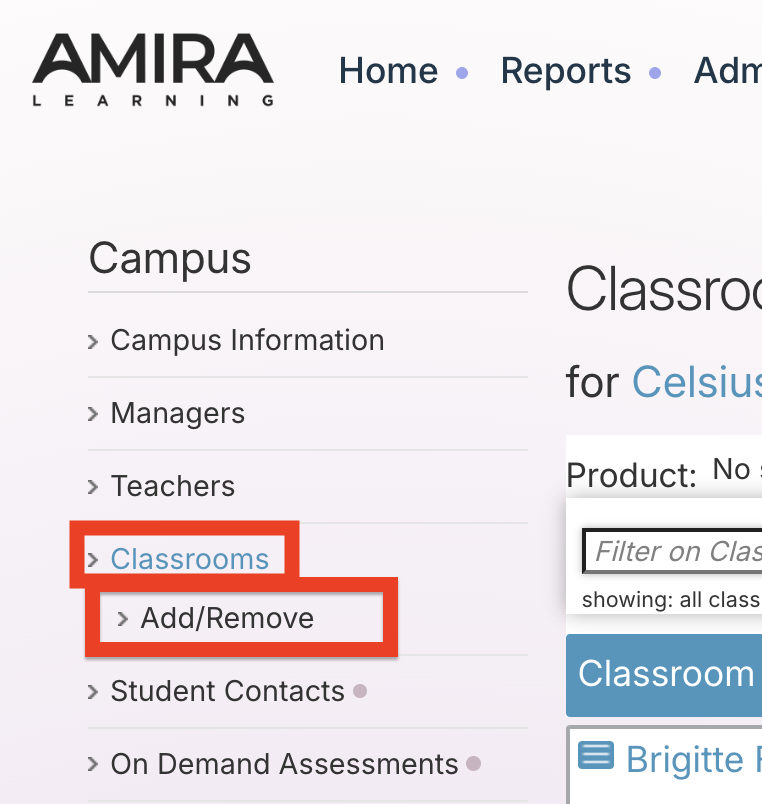
- Select "Classrooms" in the lefthand sidebar.
- Select "Add/Remove".
Step 2: Create Classroom
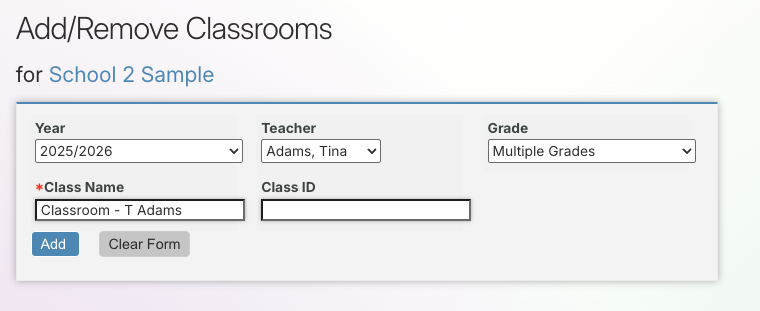
- Select the Grade level for the class and edit the Class Name if desired.
- Select "Add".
Summer School Classes
For Summer School classrooms, select "Summer 20xx" in the dropdown menu. Select Grade Level for the class and edit the class name if desired
Step 3: Add Students to the Class
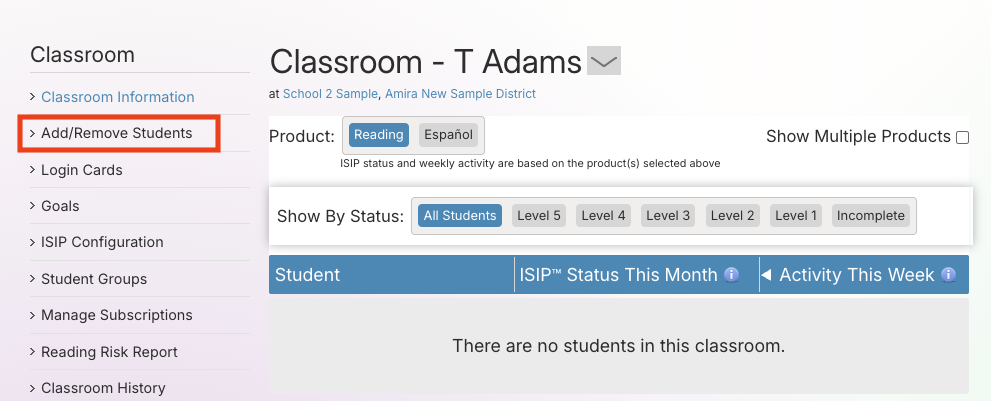
- Select "Classrooms" from the lefthand sidebar. Select the name of the class to which you want to add students.
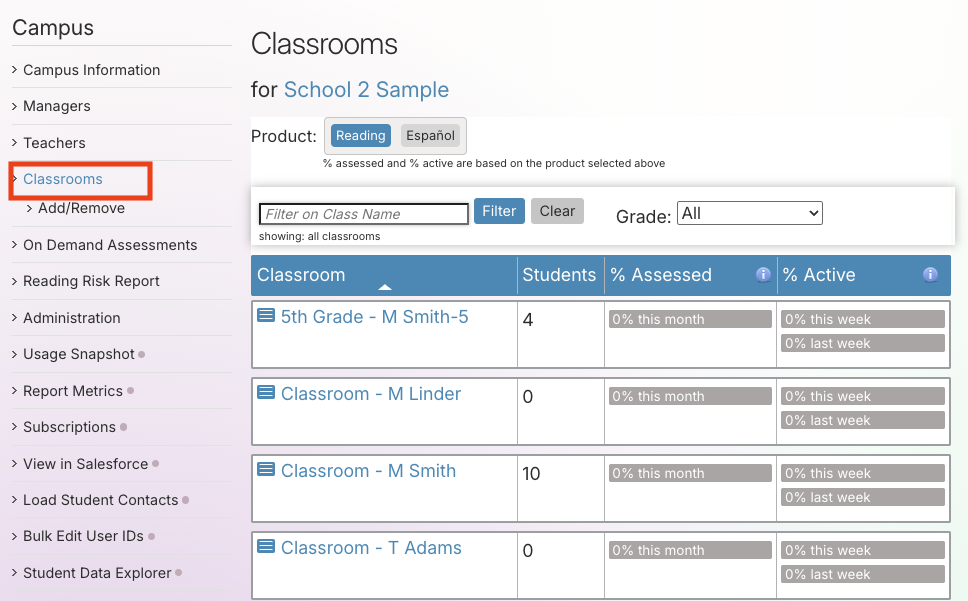
- Select "Add/Remove Students" from the lefthand sidebar.
Step 4: Enter Student Information
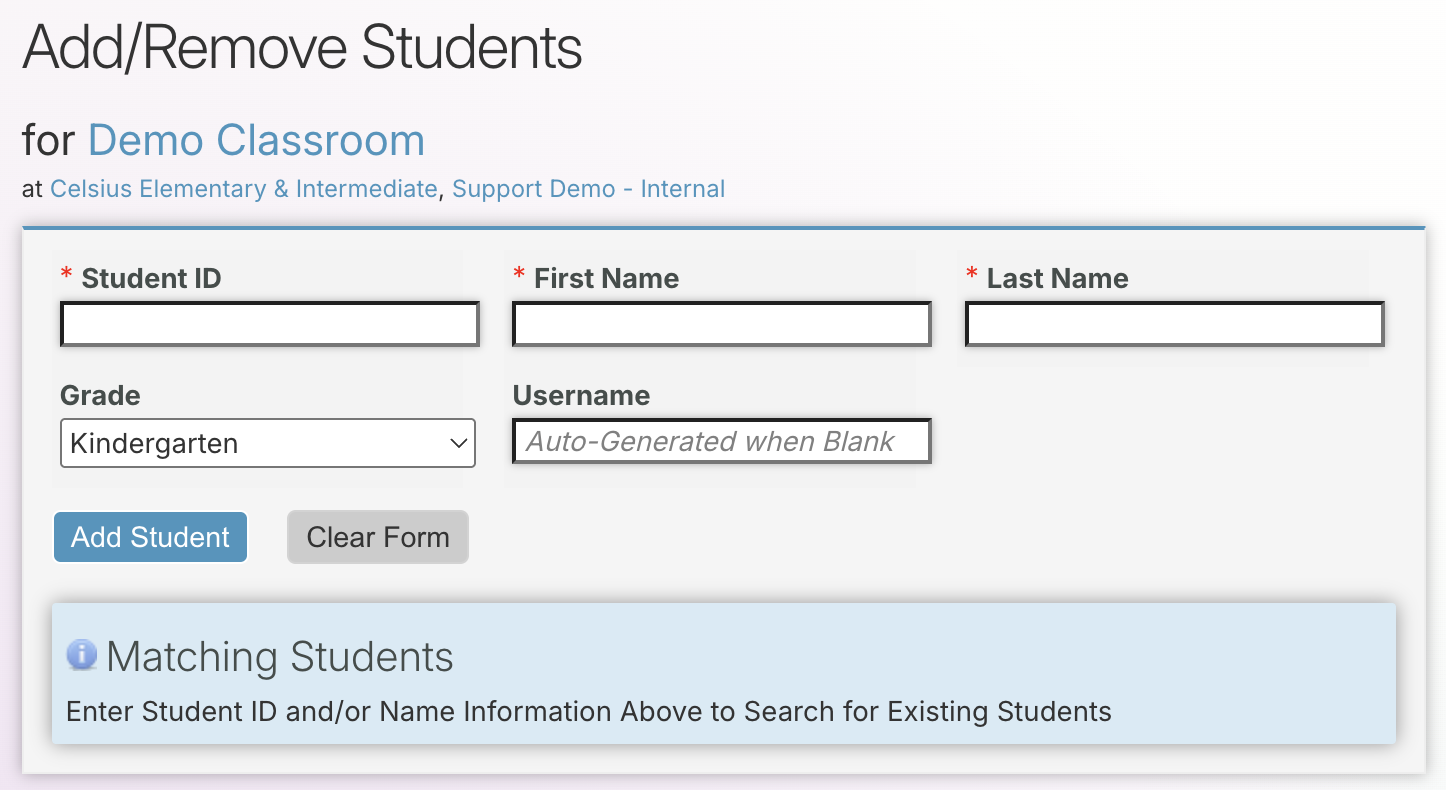
- Enter the student’s information in the required fields.
- If the student does not have an existing account, select "Add Student."
- If the student has an existing account, find the student under “Matching Students.” and select "Add to Class" next to the correct student account.