Amira Tutora is the Spanish-language 1:1 reading tutor. It gives students the same real-time, adaptive reading support as Amira Tutor, built specifically for how literacy develops in Spanish rather than translated from English. This article covers how teachers set students up to read in Spanish, what students click to access Tutora, and other useful details about how the Spanish practice experience works.
Amira Tutor and Amira Tutora are separately licensed products
Amira Tutor (English) and Amira Tutora (Spanish) are two independently licensed products. A district can license Tutor only, Tutora only, or both:
- Districts that license both can give a student access to English reading practice, Spanish reading practice, or both, depending on how the student is configured.
- Districts that license only Tutor can still have English Learners read in English while receiving directions and tutoring support in Spanish, but this is different from full Spanish reading practice, where the student reads Spanish text, which requires an Amira Tutora license.
How teachers set students up for Spanish practice
Spanish access is controlled through the Tutor Language Settings in the teacher dashboard.
- From the Growth Dashboard, navigate to Settings > Tutor Settings.
- Find the "Practice Reading In" setting for each student. This is the primary control for which tutor experience(s) a student sees, and it can be set to English, Spanish, or English and Spanish, depending on whether the student is licensed for Tutor, Tutora, or both.
- If an option isn't supported by the student's license, it will appear grayed out.
- Save your changes.
A few things to know about this setting:
- "Practice Reading In" controls what else is editable. Tutor Practice Mode and Tutor "Amira Speaks In" (English-product settings) are only interactive if "Practice Reading In" includes English. Tutora Practice Mode is only interactive if "Practice Reading In" includes Spanish. Seeing "N/A" in these fields when the other language isn't selected is expected, not an error.
- No license means no access. If a student has no Tutor or Tutora license, every field will show "No license enabled" with disabled dropdowns. If an entire class has no license, the Tutor Settings tab won't appear for that class at all.
- A mismatch doesn't block access. If a teacher's "Practice Reading In" setting doesn't match what the student is actually licensed for (for example, a teacher selects "English and Spanish" but the student only holds a Tutora license), the student will see a banner noting the mismatch, but they can still use whichever tutor language their license supports. This clears once the teacher updates the setting, and a mismatch never affects the student's access to Assess or Instruct.
Common Questions
- "My Spanish student is seeing an English button." Check the student's "Practice Reading In" setting; if it's already set correctly, contact support@amiralearning.com.
- "The Spanish option is grayed out." The student isn't licensed for Amira Tutora, check with your account team about licensing.
- "There used to be a 'Student Language' field here." That field was replaced by "Practice Reading In."
- "Why can't I find a combined bilingual license?" English and Spanish are now licensed separately as Amira Tutor and Amira Tutora. A district that wants both languages licenses both products, contact your account team to add one or the other.
What students click to access Tutora
Once a student is set up for Spanish, they access Tutora through the Lectura tile in their Student Inbox.
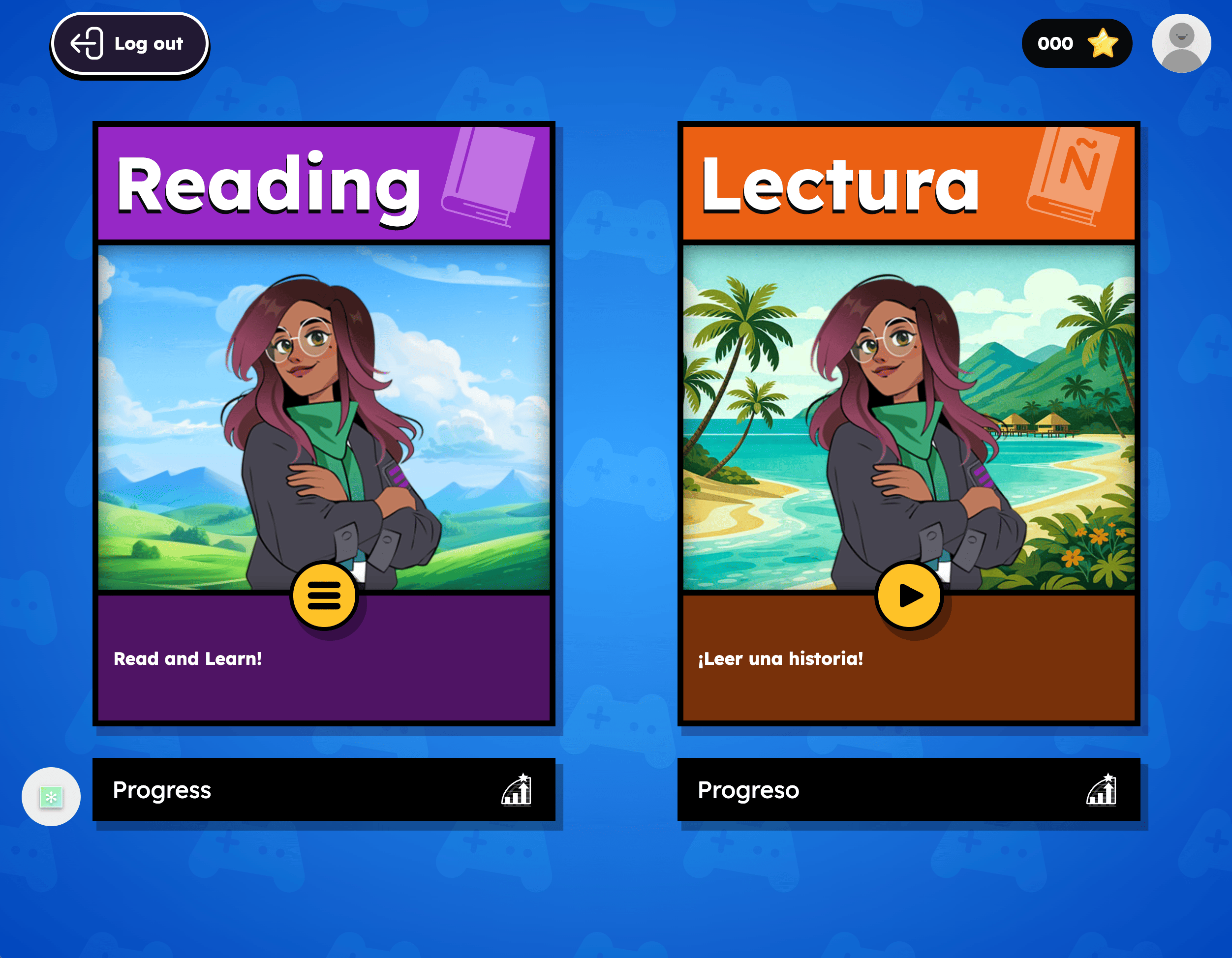
- Students land on their Student Inbox (or, for HMH Ed users, go directly to a "Ready to Start?" screen). Depending on their license and teacher language settings, they'll see a "Reading" panel, a "Lectura" panel, or both.
- If the district also uses Amira Instruct, students may see options to "Read a story" / "Leer una historia" or "Start Learning" / "Empieza a aprender." To practice with Amira Tutora, students click "Leer una historia."
- Students click "Vamos" to begin.
- Amira prompts the student to enable their microphone if it isn't already on.
- Amira presents a selection of five stories at the student's instructional level, and the student picks one. Students in the Early Reader Skills Scaffold (ERSS) start a phonics activity instead of choosing a story, ERSS is available in both Tutor and Tutora.
- Amira says "¡En sus marcas, listos, fuera!" to cue the student to start reading aloud, once the microphone turns green.
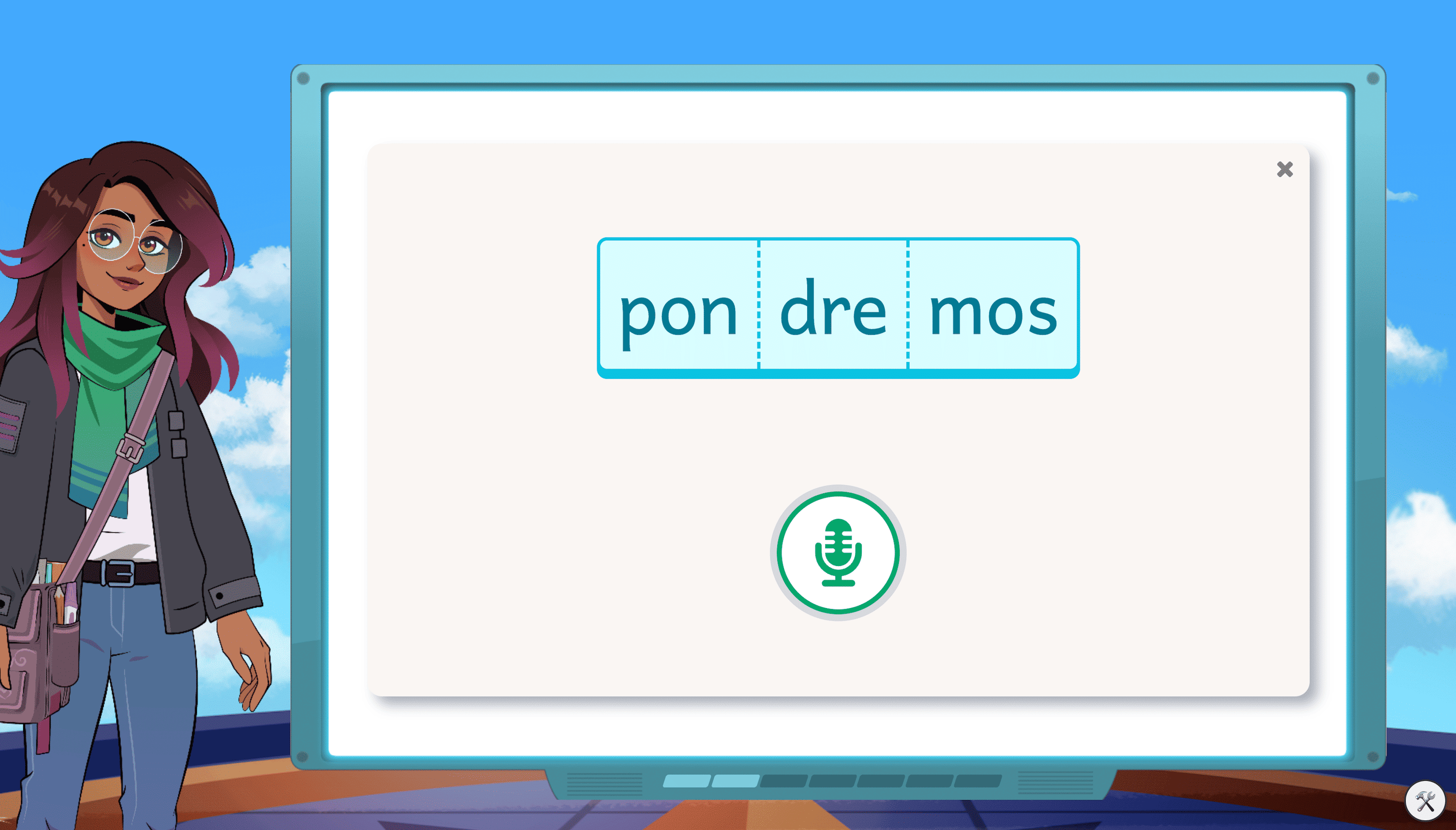
- Throughout the story, Amira delivers real-time micro-interventions if the student makes an error or gets stuck, including brand-new, Spanish-only syllable-based interventions built specifically for Spanish literacy development.
- When finished, Amira shares the student's speed and accuracy. Reaching this screen is what allows the session to count as high-quality reading time in teacher reports.