The AI Lesson Planner combines student mastery data, your district's curriculum alignment, and available instructional time to help you build a well-balanced weekly plan, while you remain the final decision-maker on every recommendation. Amira also automatically generates Individual Reading Improvement Plans (IRIPs) in state-compliant formats based on student assessment data.
AI Lesson Planner
The AI Lesson Planner is a teacher-facing planning tool that combines student mastery data, your district's curriculum alignment, and available instructional time to support weekly planning. It doesn't replace teacher judgment, it helps you review, refine, and confirm a plan, while you remain the final decision-maker.
You'll access the Lesson Planner from your Growth Dashboard, where you can view your current and future weekly plans at a glance.
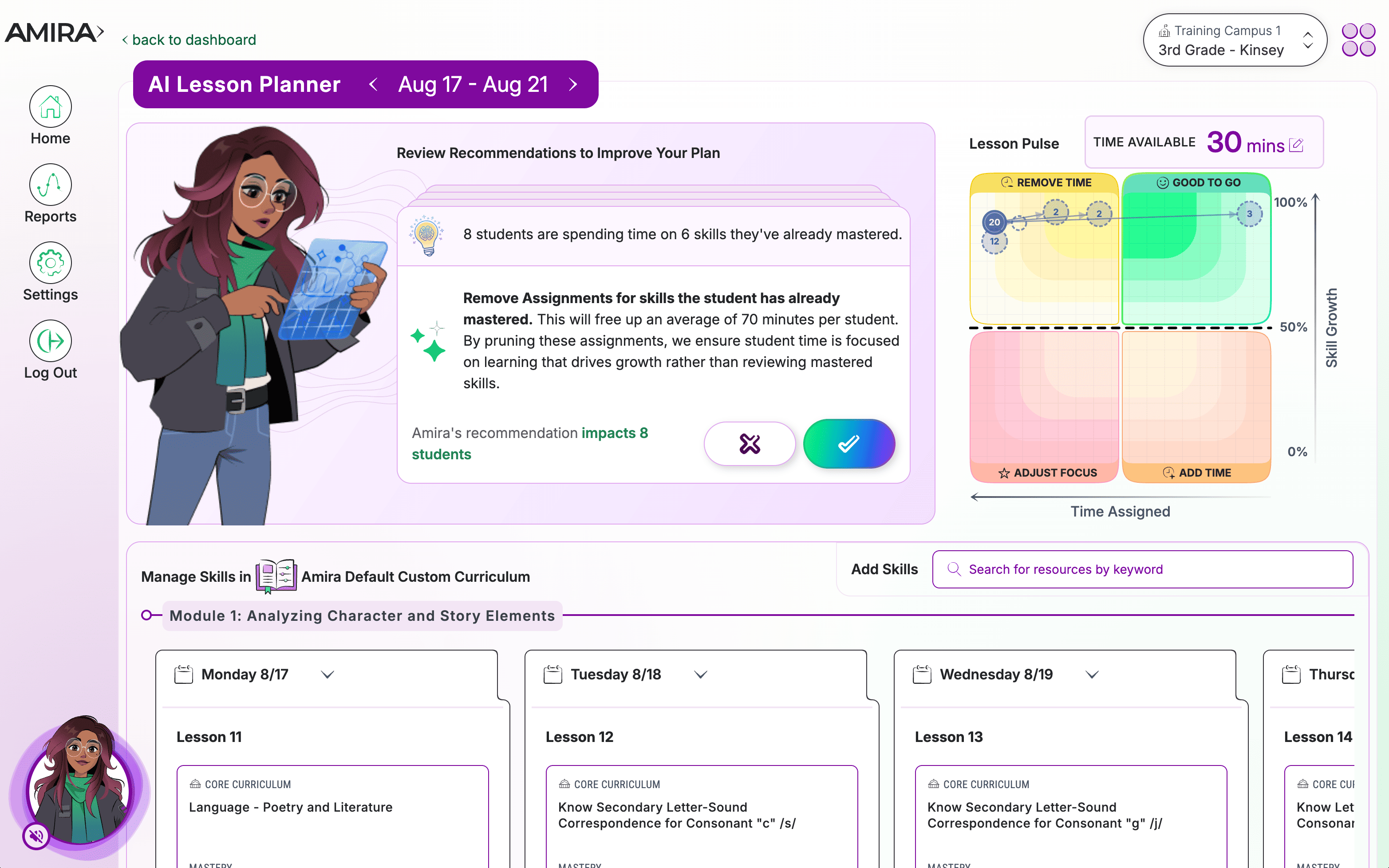
The Weekly Lesson Planner View
- Lesson Pulse Quadrant, An at-a-glance snapshot of your weekly plan's "health," based on assigned time and skill mastery.
- Enhance Plan Recommendations, Suggested adjustments to bring your plan into better balance, factoring in skill focus and the instructional time students may need.
- Lesson Cards, Your assigned lessons and skills for the class, with quick access to edit, change, or delete assignments during the week.
- Open Search, Additional skills and resources you can add to your pre-planned lesson cards.
Teacher Workflow: Review → Enhance → Confirm
Step 1: Review Amira's Recommendations Start by checking the Lesson Pulse Quadrant and adjusting the time setting to reflect your available instructional time for the week. Then review Amira's recommendations and accept or decline each one based on your professional judgment. Your decisions will update the Lesson Pulse Quadrant in real time.
💡 Best Practice: Review and act on recommendations the Friday before the week begins or Monday before students start, fewer meaningful adjustments are available once the week is underway.
Step 2: Review the Weekly Lesson Cards Explore lesson cards to see aligned skills and domains, curriculum-coherent lesson titles, and adjust delivery dates for future lessons.
Step 3: Make Optional Adjustments You can manually fine-tune the plan using:
- Add Skills, Search for and add specific skills, Microlessons, Activities, Tutor Stories, or Teacher Resources using keywords, standards, or titles. Adding a skill alone doesn't auto-assign activities, you can add those from the Weekly Skills Overview page. Adding an activity or resource automatically brings its aligned skill along with it.
- Skill Clipping, Remove a skill and all its aligned assignments from the whole class's plan for the current week by selecting the scissors icon on a lesson card. This only affects the current week and doesn't change a student's long-term learning plan.
Keep in mind: manual adjustments can shift the balance reflected in the Lesson Pulse Quadrant, since you're changing the time and skills assigned.
Confirm & Deliver Once your adjustments are complete, students will receive assignments matching your confirmed plan. They can access these by clicking the Amira Reading card, then New Assignment.
Weekly Skills Overview
This page organizes your plan by skill rather than by day, helping you spot patterns and gaps before or during instruction. You can view it two ways:
- By Student, See which skills a student is working on and their readiness across each.
- By Skill, See how a specific skill is playing out across the class, and which students are ready, developing, or need more support.
Weekly Planning & Rollover
At noon on Fridays (local time), you'll be prompted to choose:
- Plan for Next Week / Manage Plan, Move forward and dismiss incomplete assignments, or
- Rollover from Last Week, Review incomplete work and decide what carries forward.
During rollover, you can review completion trends, identify students ready to move on or needing more time, and review Amira's prerequisite lesson recommendations for upcoming skills before confirming them.
Individual Reading Improvement Plans (IRIPs)
Amira automatically generates Individual Reading Improvement Plans (IRIPs) in state-compliant formats based on student assessment data. These plans support state and district reading intervention requirements by documenting a student's identified reading needs and the support they'll receive.
Because IRIP requirements vary by state and district, check with your district administrator for specifics on how IRIPs are generated, reviewed, and shared with families in your area.
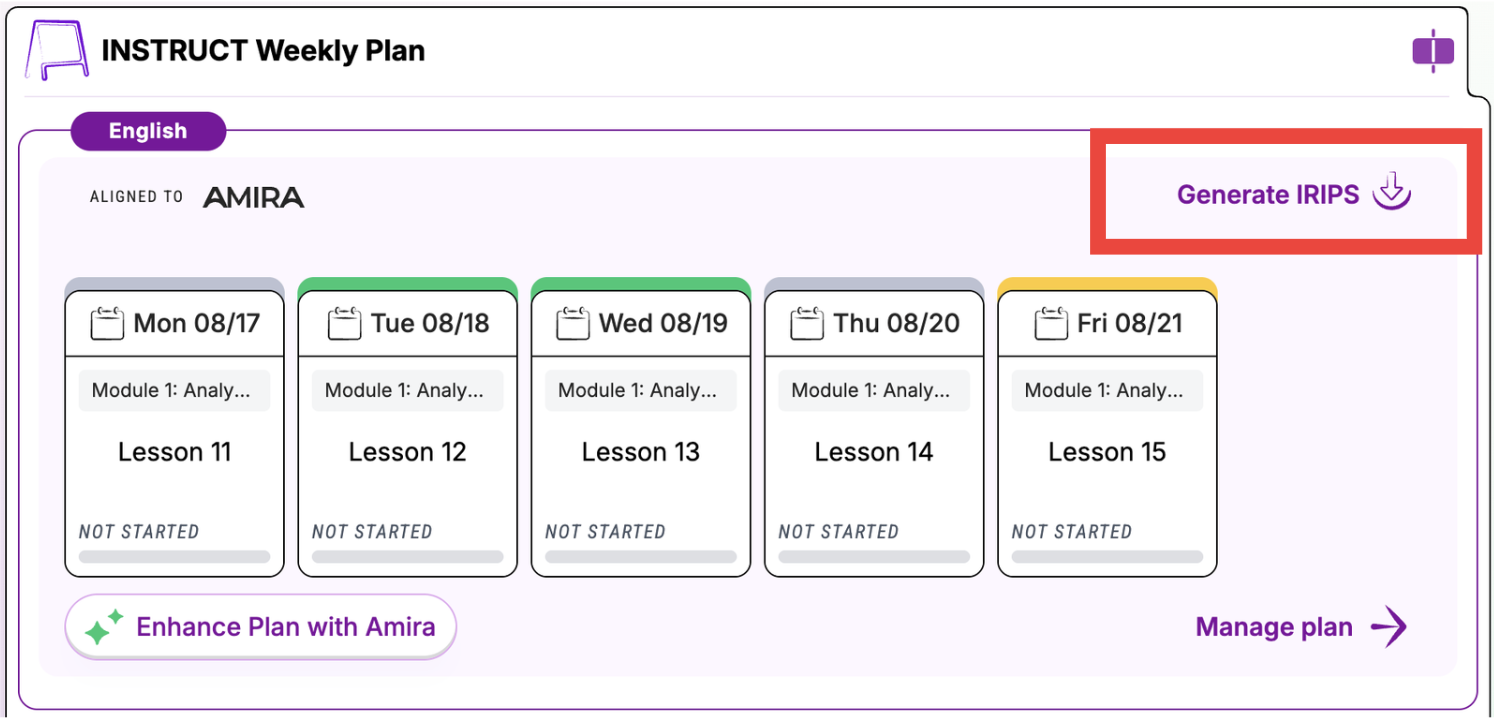
To access IRIPs, click the "Generate IRIPs" button on the Instruct Weekly Plan widget.
FAQs
- Do I have to accept Amira's Lesson Planner recommendations? No, all recommendations are optional. You always remain in control of the final plan.
- What happens if I don't interact with Enhance Plan at all? Nothing changes. Your existing lesson plan is still delivered as scheduled.
- Do all students need to be in the green in my Lesson Pulse Quadrant? No. It's an informational indicator, not a scorecard, mixed or yellow indicators are common and can still reflect strong instructional decisions.
- Will manually adding or removing lessons "break" my plan? No. Manual adjustments are fully supported; they just shift the balance shown in the Lesson Pulse Quadrant so you can see the impact of your choices.
- What happens when I clip a skill? All aligned assignments for that skill are removed from students' inboxes for that week only. It doesn't prevent the skill from appearing in future weeks.
- Can I use the Lesson Planner mid-week? Yes, though the most impactful time to use Enhance Plan is before the week begins.
- Will administrators see whether I accept or decline recommendations? No. This is a planning support tool, not an evaluation or compliance system.
- Do I need to use every feature every week? No, the Lesson Planner is flexible. Use what's useful for a given week's goals and constraints.