Amira users may experience error messages when using the product on occasion. This article explains some common error messages users may encounter, along with some basic troubleshooting tips.
Lemon (Unexpected Network Error 409)
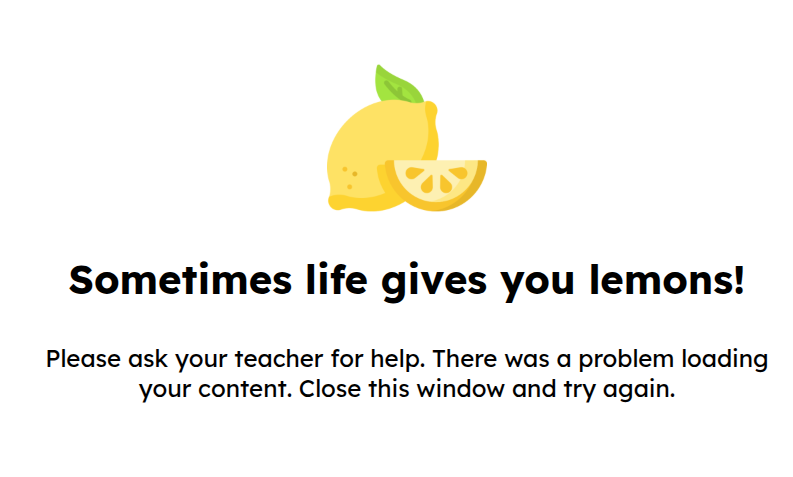 | Cause: Network problems, frequently related to whitelisting settings. See technical requirements article. |
Diamond (Not Authorized 403)
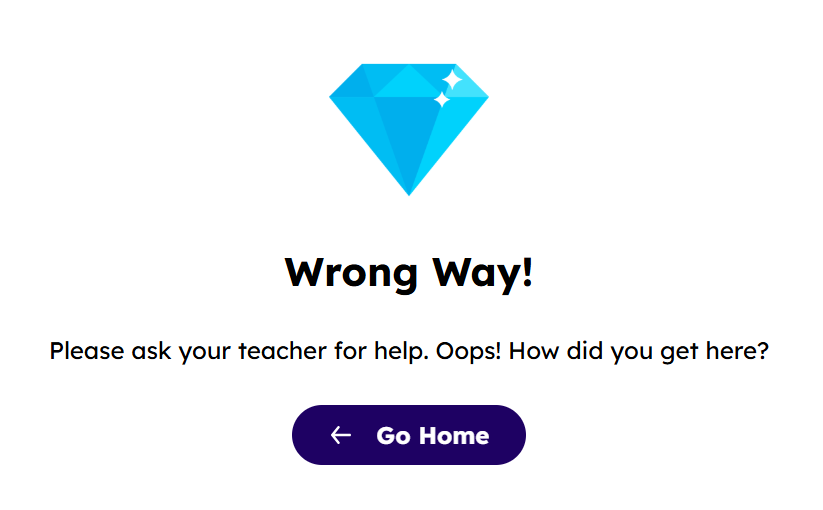 | Typical Cause: Incorrect date and time settings on the device. Users should confirm that the device’s date and time are set correctly, match the local time zone, and are configured to update automatically. |
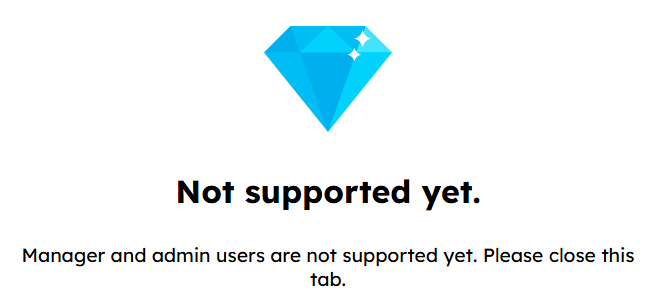 | Alternative Cause: Currently, campus and district admins will see the same error picture (but with a different message) if they try logging into the student website with their own login credentials. |
Dinosaur (Compatibility Message 907)
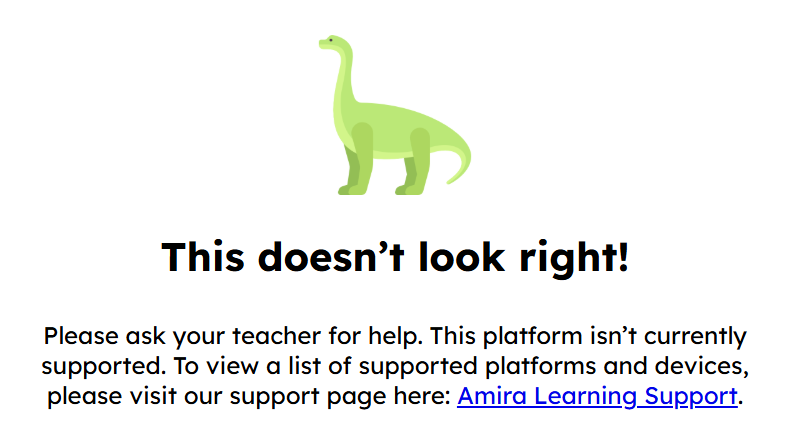 | Cause: The student has logged in from an unsupported browser, device, or operating system. Educators should check whether the device or browser needs an update and review our technical requirements article. |
Pizza (Multiple Instances Running Warning 906)
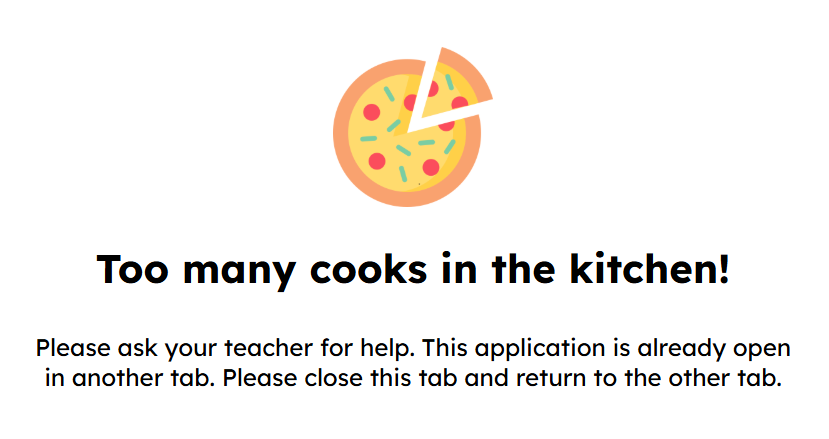 | Cause: Students have the Amira student website open in multiple places on the same device (this error does not generate when an account is logged in on multiple devices). This could mean multiple tabs, window, or even multiple desktops. If students are certain they’ve closed out of all other instances and the error persist, they can try to use an incognito window to log in. District IT team might want to look at the device. |
Potato (Unexpected Network Error 499)
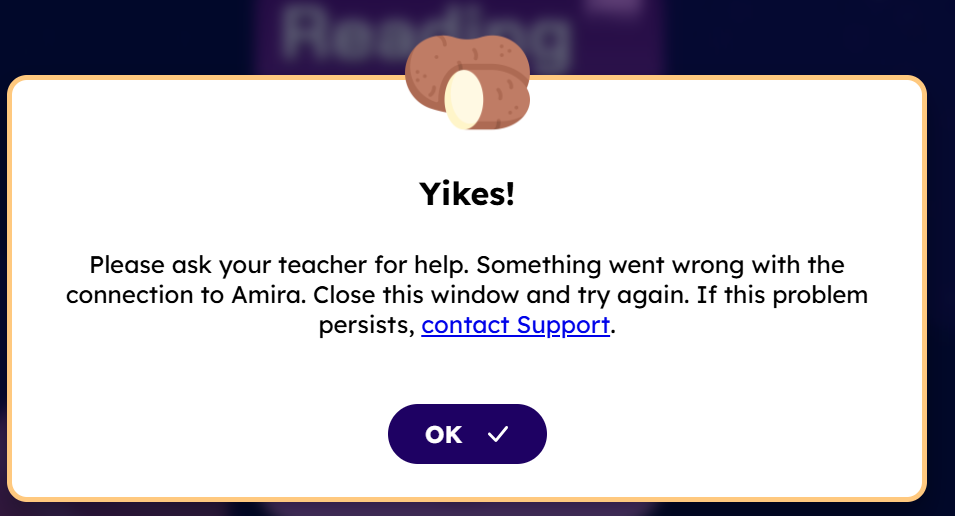 | Cause: Brief network dips or outages. Check the internet connection. |
Balloon (Internal Server Error 500)
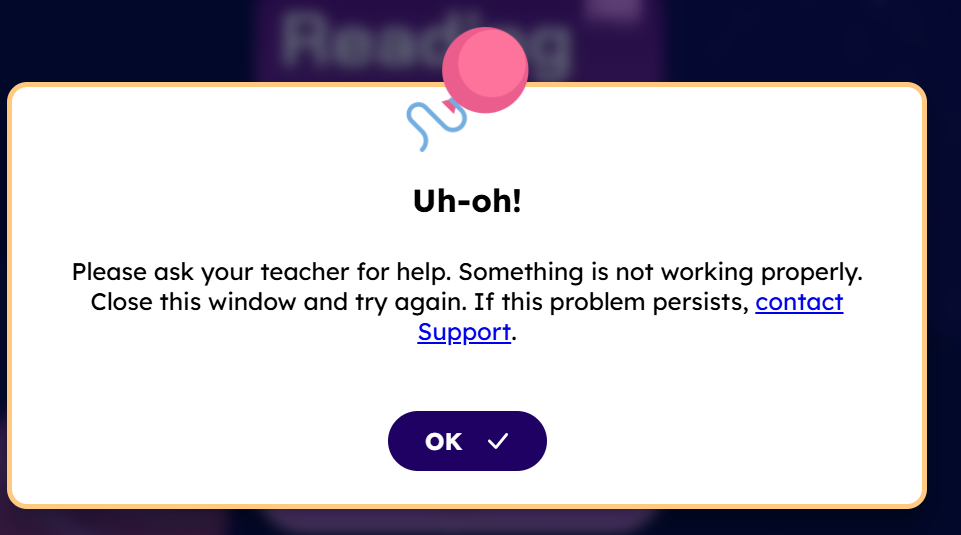 | Cause: In general, 500 errors mean something is preventing the server code from running correctly. May only affect districts accessing products through Clever or ClassLink. |
Truck (App Storage Warning 901)
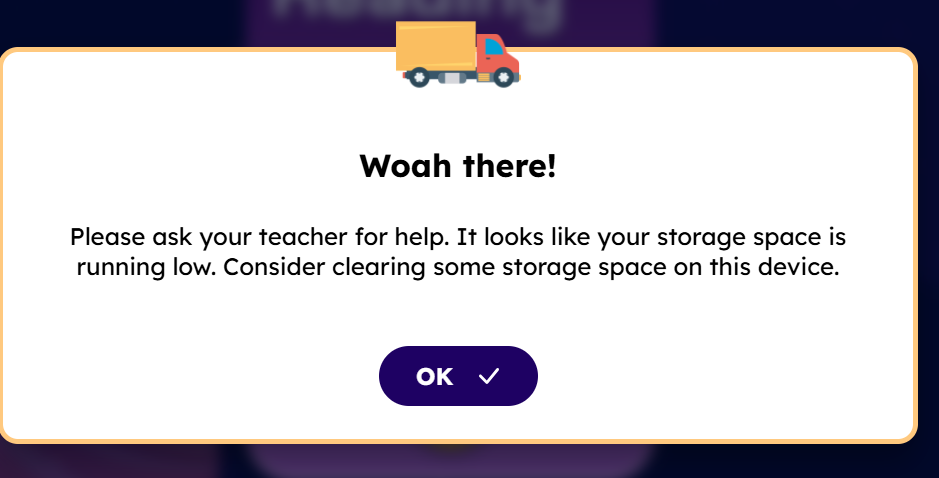 |
Cause: The device is running low on storage space. The error will first pop up when there are 100 megabytes of remaining storage.
|
Beaver (Network Error 903)
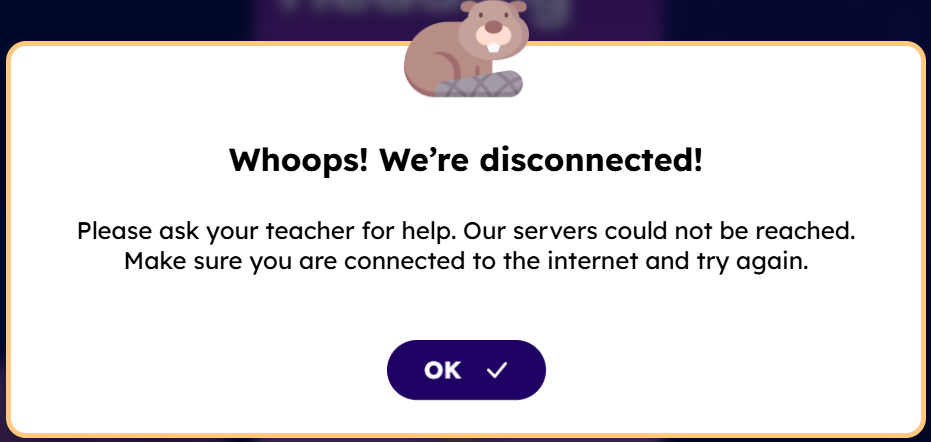 | Cause: The student started the session with an internet connection but connection was lost during the session. |
Donut (Resolution Warning 904)
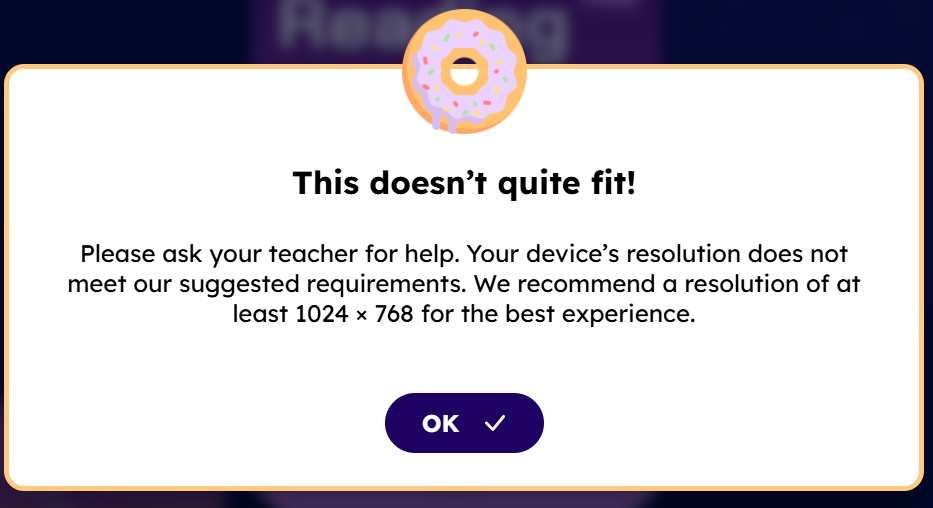 | Cause: The device has a different resolution than 1024 x 768. It is possible that some activities might not look correct on their screen. It’s also possible for this message to pop up again during a session if the screen orientation is not locked and the device rotates from portrait to landscape or vice versa. |
Parrot (Runtime Login Error 1105)
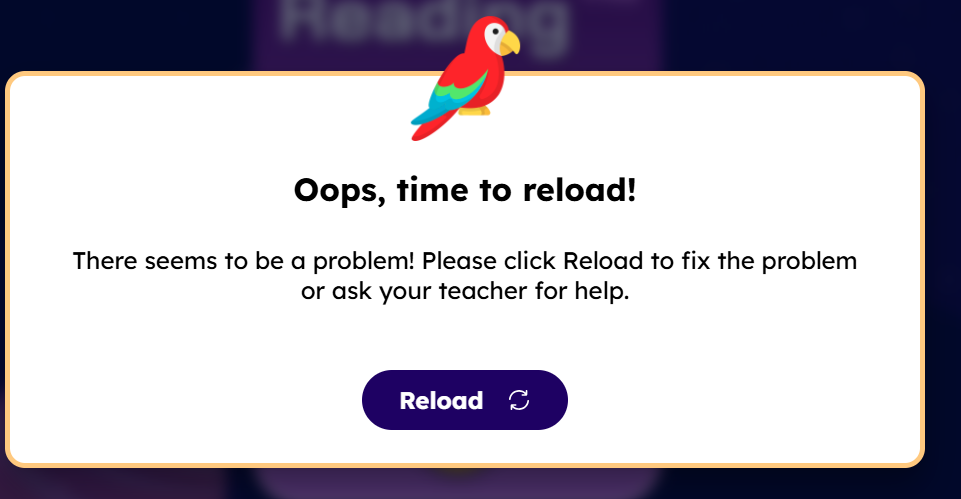 | Cause: There was a problem with Runtime. Reloading should solve the problem, but users may want to verify that Java is allowed in the site permissions for Amira. |
Rocketship Hallpass (No Class Assigned 1110)
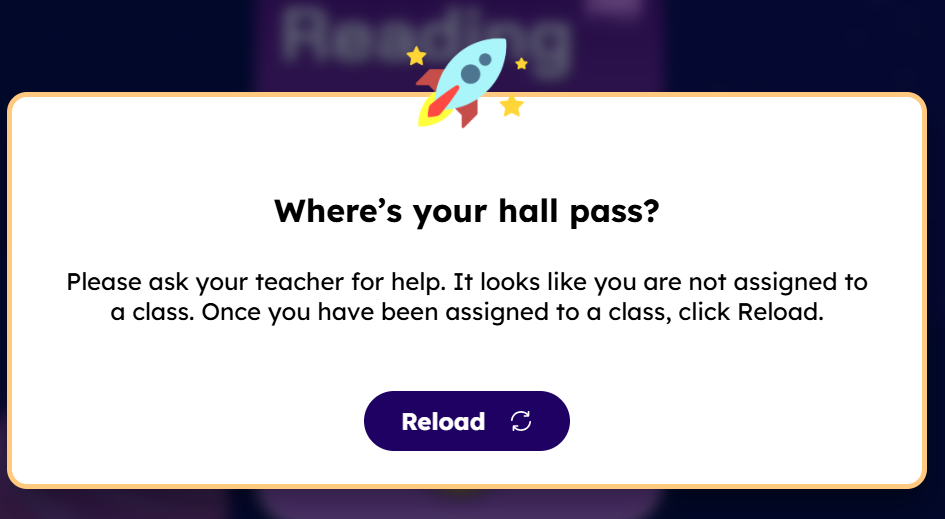 | Cause: The student is rostered to a program but the class they’re rostered in is not from a current academic session (such as a student only rostered to the Summer 2026 school year trying to log in during the 2026-2027 school year). The student needs to be rostered to a current, active class section. |