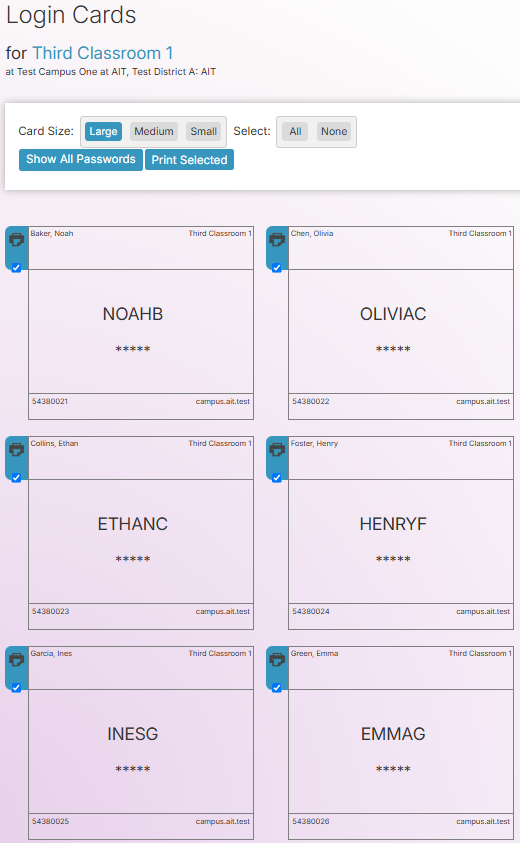
After navigating to Settings and selecting Classroom Management, click Student Login Cards to print cards for students who manually log in at home.app.amiralearning.com.
Note: Please remember that this feature should primarily be used by manually-rostered districts. The feature is unnecessary for districts that use Clever or ClassLink to launch Amira.
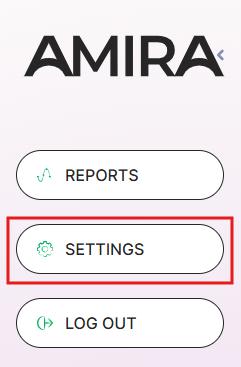
Step 1: From your Dashboard, click Settings.
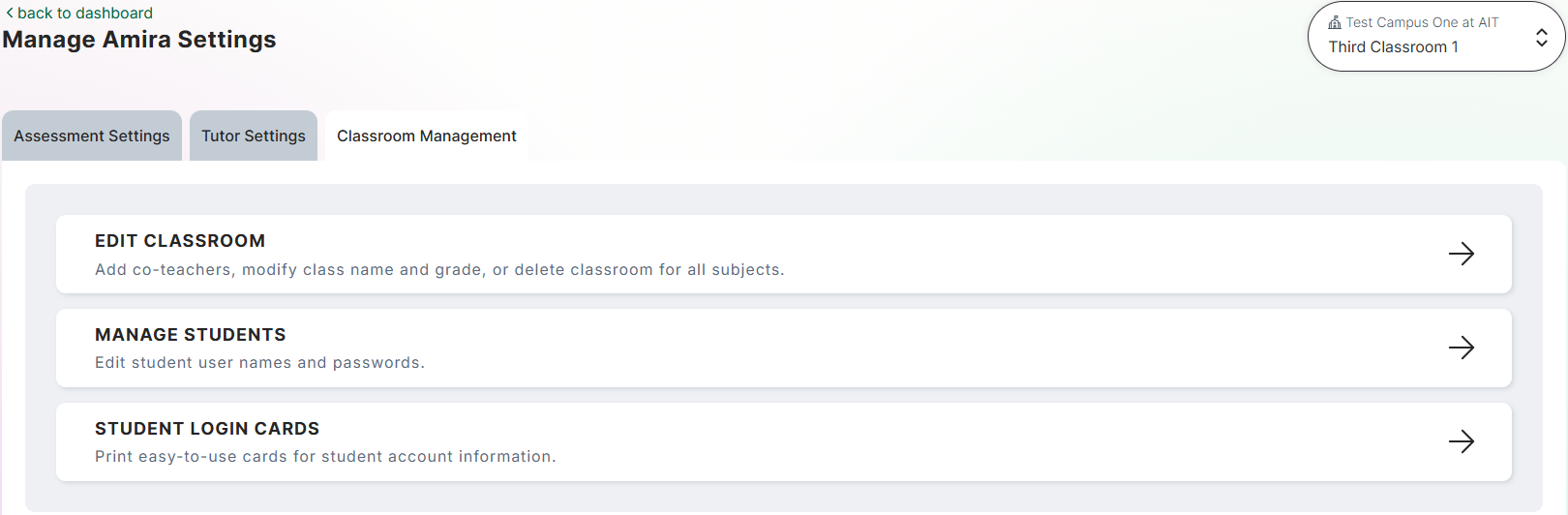
Step 2: Click the Classroom Management tab.
Step 3: Select Student Login Cards.
Step 4: Select the Card Size.
Step 5: Click Show All Passwords.
Step 6: Select All to print a class set or select None and then click the printer icon for each student who needs a login card.
Step 7: Click Print Selected.