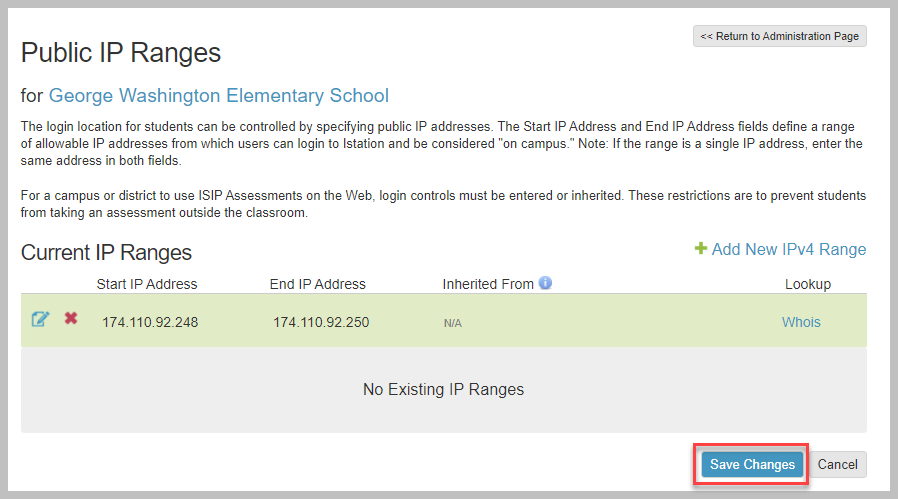
Why are Public IP Addresses important?
By setting a specific Public IP Address or IP Range, only students accessing Amira Learning from devices within that designated range will be allowed to take the Amira ISIP upon login.
Important: Amira Learning must receive the Public IP Address Range, not a Private IP Address Range.
If a Private IP Range is submitted, students will not be able to access the ISIP assessment. Private IP Addresses are only used within local networks and do not allow devices to connect to the internet directly. For the IP restriction to work correctly, we need the Public IP Range that the school's internet connection uses to access external websites.
Public IP Addresses FAQs
What are Public IP Addresses?
-
A Public IP Address is an IP Address that your home or business router receives from your ISP (Internet Service Provider) and is used when you access the internet. When we say ISP (Internet Service Provider) we are referring to companies such as Verizon, AT&T, and Bright house, for example.
-
Each device on your network has a Private IP Address only seen by other devices on the local network. But your ISP (Internet Service Provider) assigns you a Public IP address that other devices on the Internet can see.
-
Like a postal address, an IP Address is used to deliver a letter to your home or business, a Public IP Address is a virtual way of knowing who you are. Through this public IP address, the user/consumer is able to access the internet through their devices.
What is an IP Range?
-
An IP Range is a set of IP Addresses that have been assigned to a customer from their ISP (Internet Service Provider), or from within their organization. This Range is not always a set of consecutive addresses even across a district/campus and may vary from organization to organization.
-
In order to ensure you have provided the correct Public IP Range, you would need to work with your District IT/Tech Department to provide this information.
Where can I find my public IP range?
The easiest way for a user to determine their public IP range is by searching "What is my IP address?" in your preferred search engine.
What type of IP Addresses/Ranges do we accept?
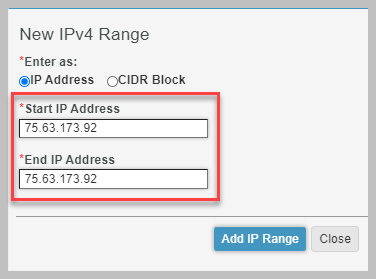
Single IP Address: To add a single IP address, enter the same address into both the “Start IP Address” and “End IP Address” fields. Example: 75.63.173.92
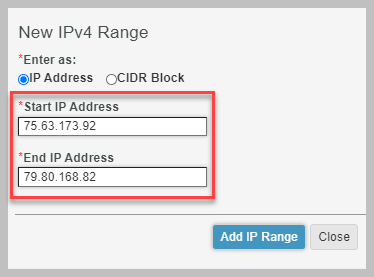
IP Address Range: To add an IP address range, add the start and end IP address into the “Start IP Address” and “End IP Address” fields. Example: 75.63.173.92 - 75.63.173.98
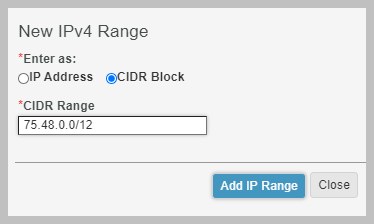
CIDR Block Range of IP Addresses: If you have a range listed with a slash, click the option for CIDR Block and enter the full address here. Example: 75.48.0.0/12
Locating Page by Product Starting Point
Amira Reading Suite
Step 1: Log in to secure.app.amiralearning.com and select Amira Reading.
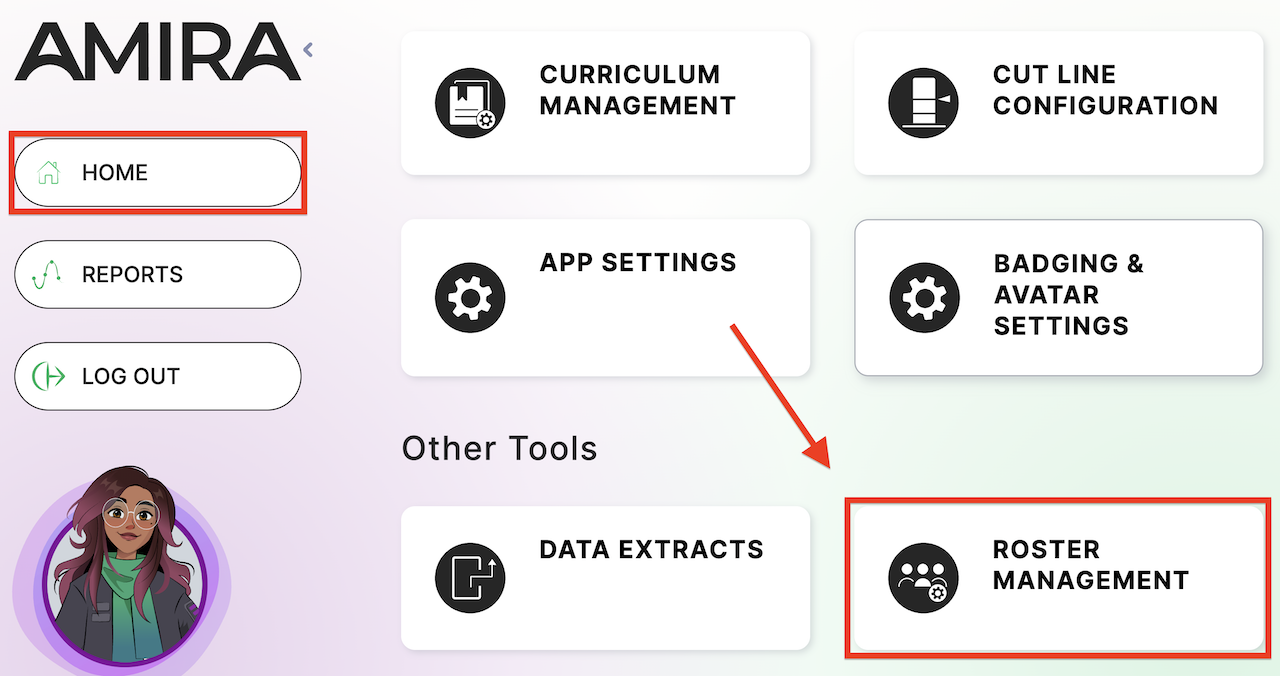
Step 2: From your Home page, select Roster Management.
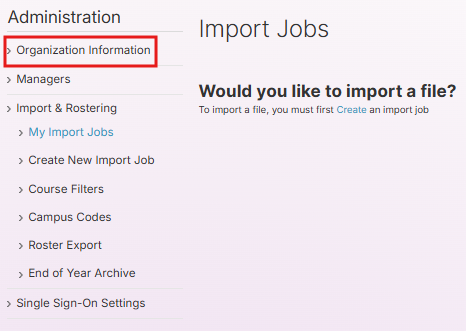
Step 3a (District Admin): Select Organization Information from the left-side menu
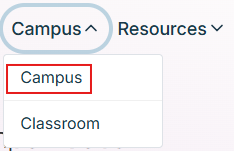
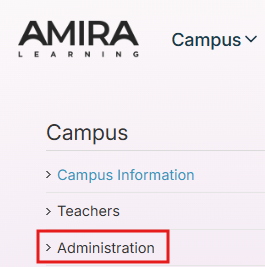
Step 3b (Campus Admin): Expand the Campus drop-down menu in the top left and select Campus; then click Administration from the left-side menu.
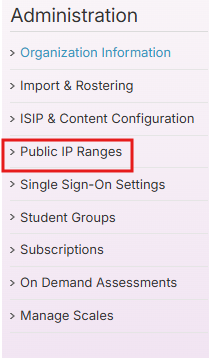
Step 4: Select Public IP Ranges from the left-side menu.
Lectura/Math
Step 1: Log in to secure.app.amiralearning.com and select Lectura & Math.
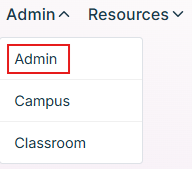
Step 2a: For a district, expand the Admin tab and select Admin.
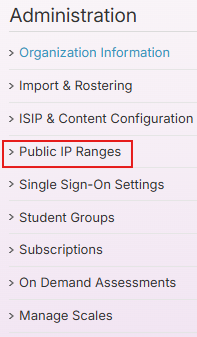
Step 2b: For a single campus, expand the Campus drop-down menu in the top left and select Campus; then click Administration from the left-side menu.
Step 3: Select Public IP Ranges from the left-side menu.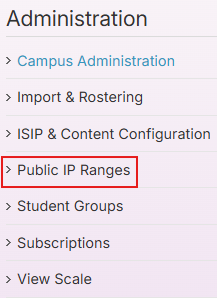
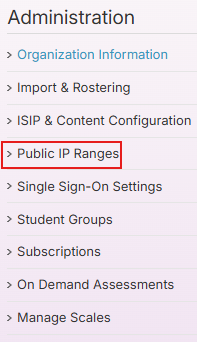
Adding or Updating External IP Addresses
The External IP Address or Address Range will need to be set for your district or campus. This is how Amira Learning determines where students are logging in from, in order to prevent students from accessing the assessment outside of school. If you are not sure what the IP addresses are for your district, your network admin should be able to provide them for you.
For students who are working remotely, this will not affect their access to the assessment, and the IP addresses will still need to be added for your district or campus.
To enter the IP addresses in Amira Learning follow the steps below.
Step 1: Click Add New IPv4 Range.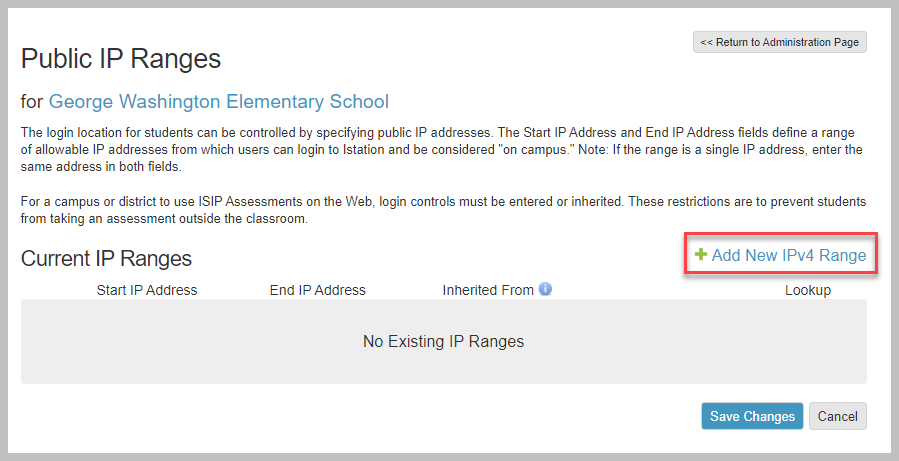
Step 2: Enter the Start IP Address and End IP Address or the CIDR Range and click Add IP Range.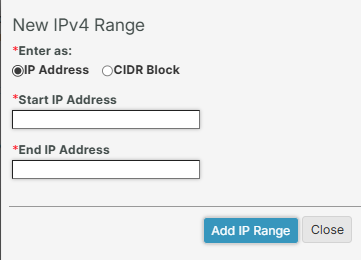
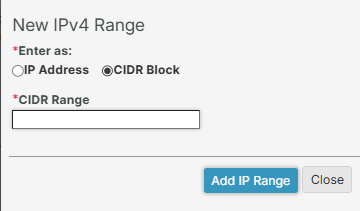
Step 3: Click Save Changes on the Public IP Ranges screen.